Archives, opened and made
Open a ZIP, RAR, 7z, TAR or GZ file without installing WinRAR or 7-Zip: see what's inside, then save one file, a few, or everything straight into a folder. Password-protected archives open too. Or go the other way and zip up files and whole folders. It all happens in your browser - nothing is uploaded.
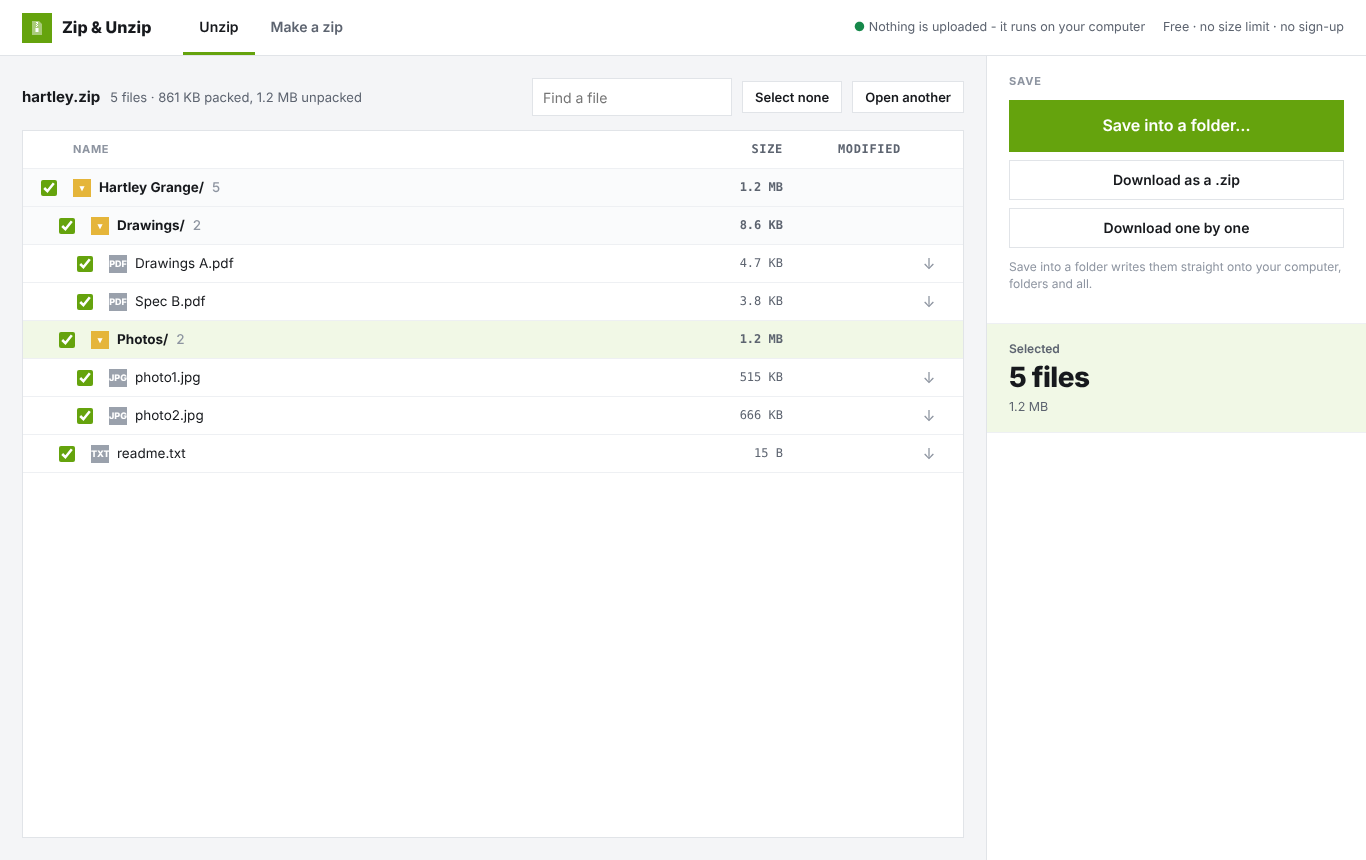
The formats people actually get sent, including RAR 4 and 5 and 7z - no WinRAR or 7-Zip to install.
Type the password and the files open. It stays on your computer.
In Chrome and Edge, save everything straight into a folder on your computer, folders and all - no zip within a zip.
Turn a RAR or 7z into an ordinary ZIP that opens anywhere, Windows included.
Drop files or whole folders and get one .zip, with the folders kept as they are.
Archives are opened inside your browser. No size limit and no queue.
Free · In your browser · Nothing uploaded · ZIP, RAR, 7z, TAR, GZ, BZ2, XZ
Zipping up a project folder, and the start screen.
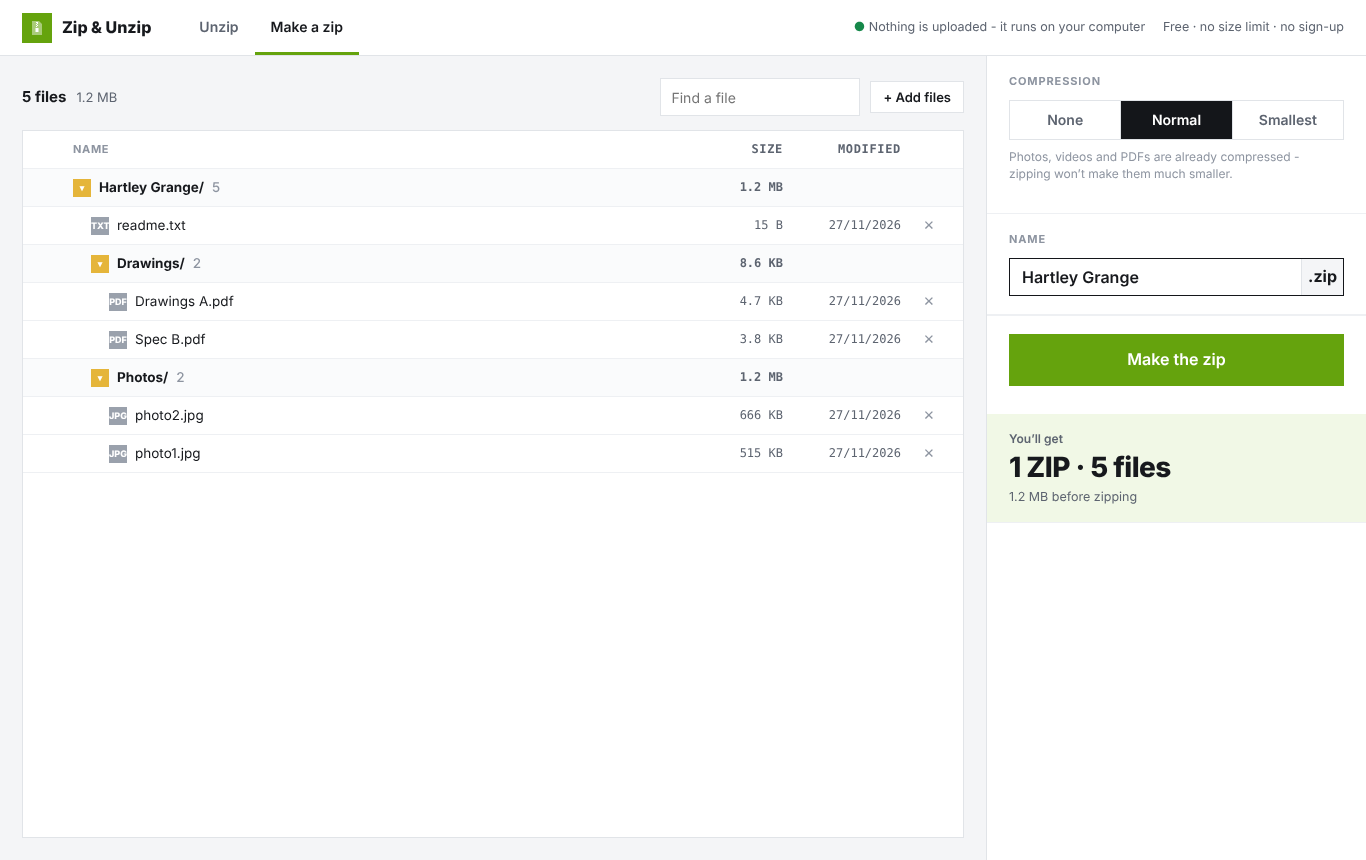
Drop a whole folder - its structure is kept in the zip.
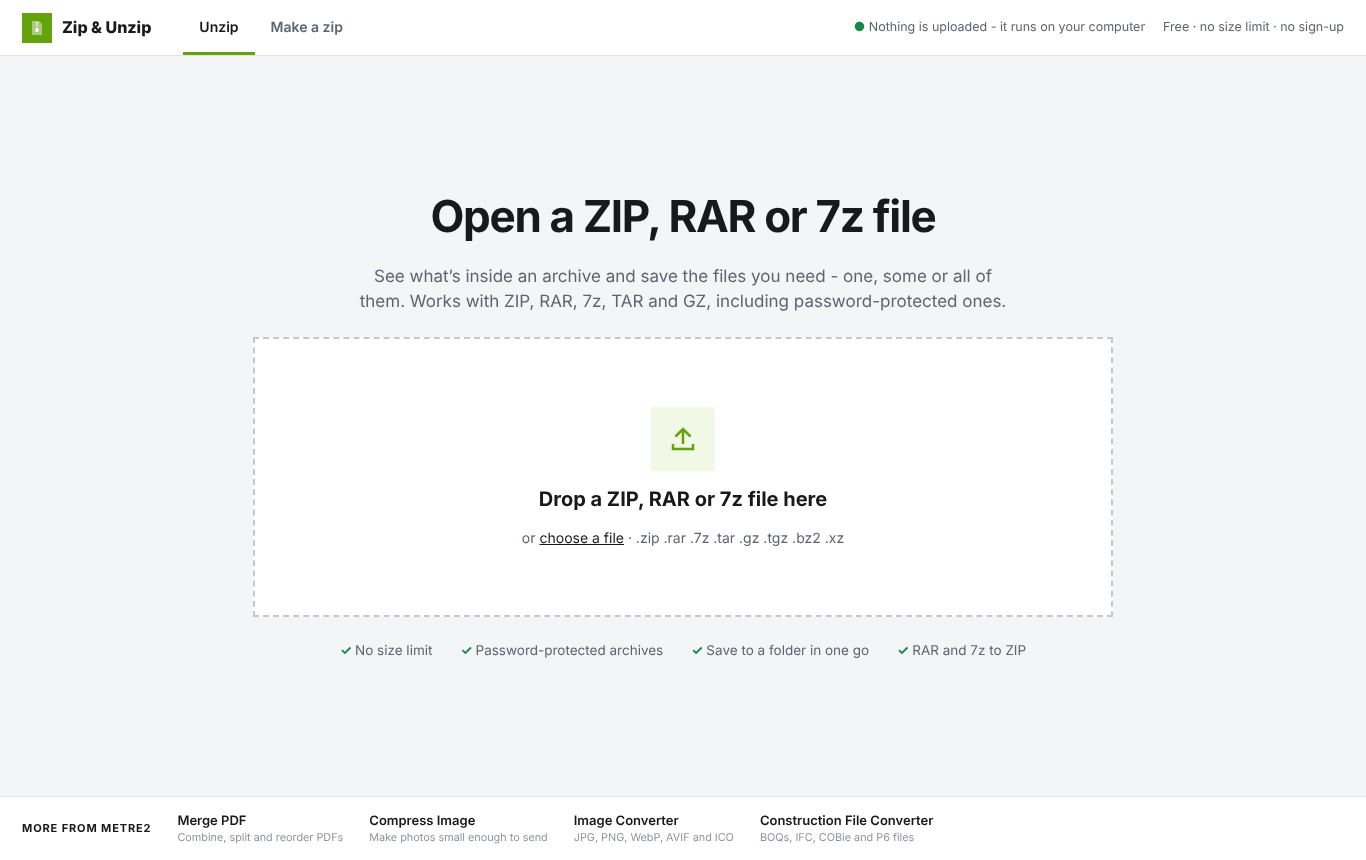
Drop an archive to open it.
Yes - no sign-up, no size limit.
Drop the .rar file in. You'll see everything inside; press Save into a folder to put it all on your computer, or the arrow next to a file to save just that one.
Yes, if you know the password. It's asked for when you open the archive and never leaves your computer.
No. Archives are unpacked inside your browser with libarchive, the same library many Linux and Mac tools use.
Not yet - zips made here have no password. To protect a PDF, use Protect PDF.
Windows can't open RAR or 7z files at all on many PCs, struggles with very large zips, and can't open password-protected zips that use AES encryption.
Free, in your browser, with nothing uploaded. Works best in Chrome or Microsoft Edge on a computer.
Microsoft and the Microsoft Store logo are trademarks of the Microsoft group of companies.