Before the call starts
Find out whether people will hear and see you before the meeting, not during it. See your microphone's level as you speak and hear yourself back, check your webcam's picture and real resolution, and play sound through the left and right speakers. If something's wrong, it tells you what to try.
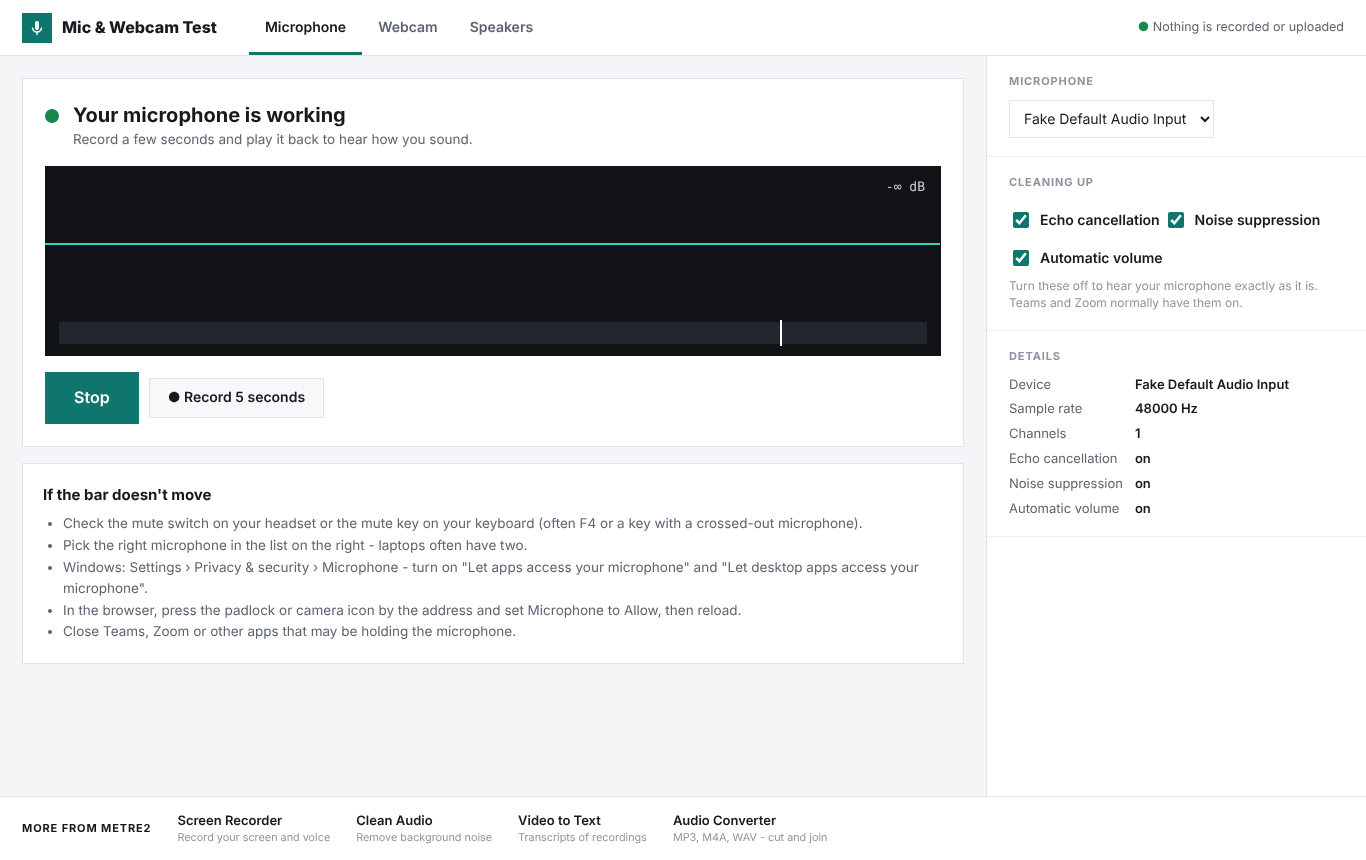
Speak and watch the level - it tells you if you're too quiet, clipping or muted.
Record five seconds and play it back to hear what others hear.
See your camera and its real resolution - 720p, 1080p or 4K - and take a snapshot.
Tones through each side and a sweep, to check headphones and speakers.
When something's blocked or silent, the steps to fix it in Windows, macOS and the browser.
Sound and video stay on your computer and are gone when you close the page.
Free · In your browser · Nothing recorded · Mic, camera, speakers
The webcam check, and the start screen.
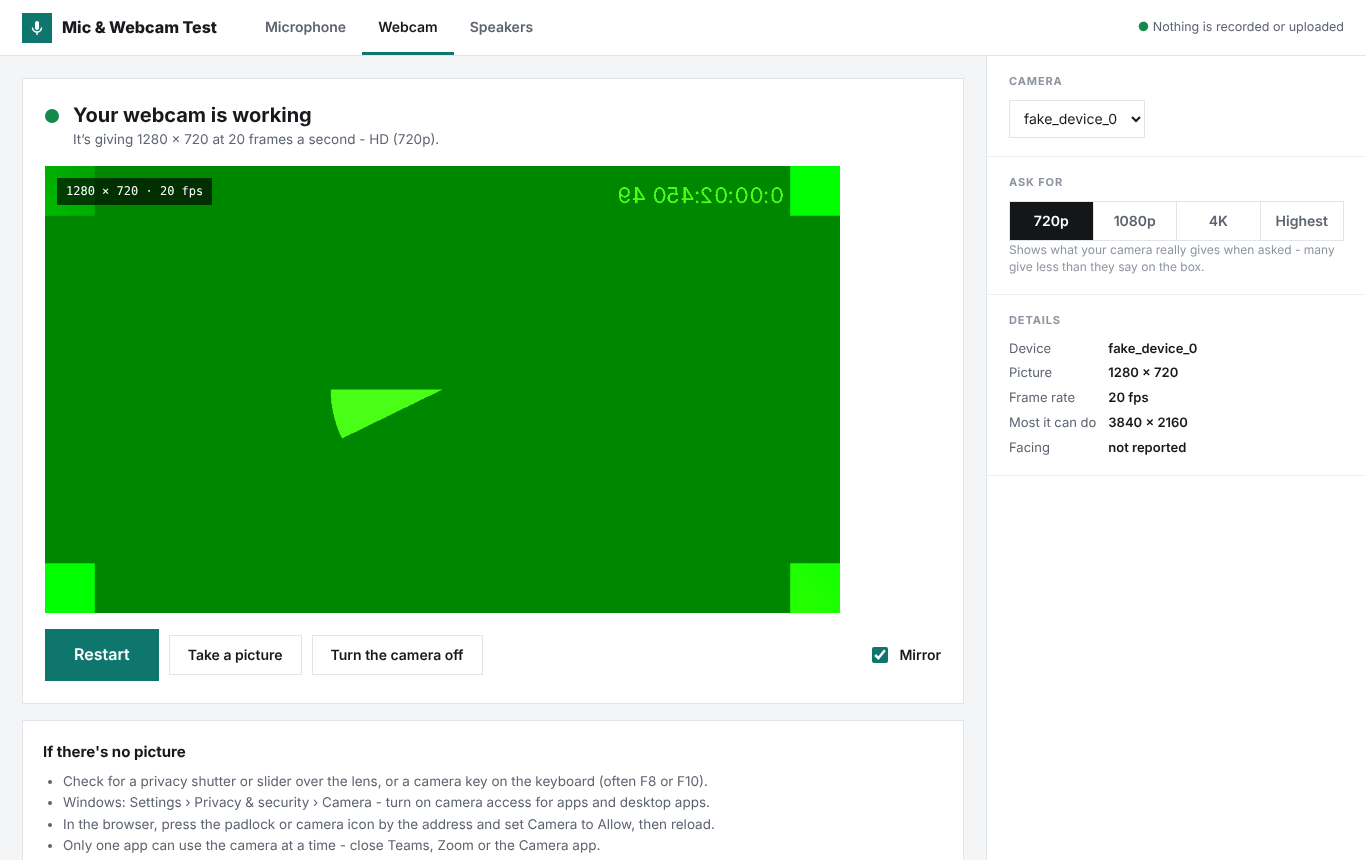
Your camera's picture and real resolution.
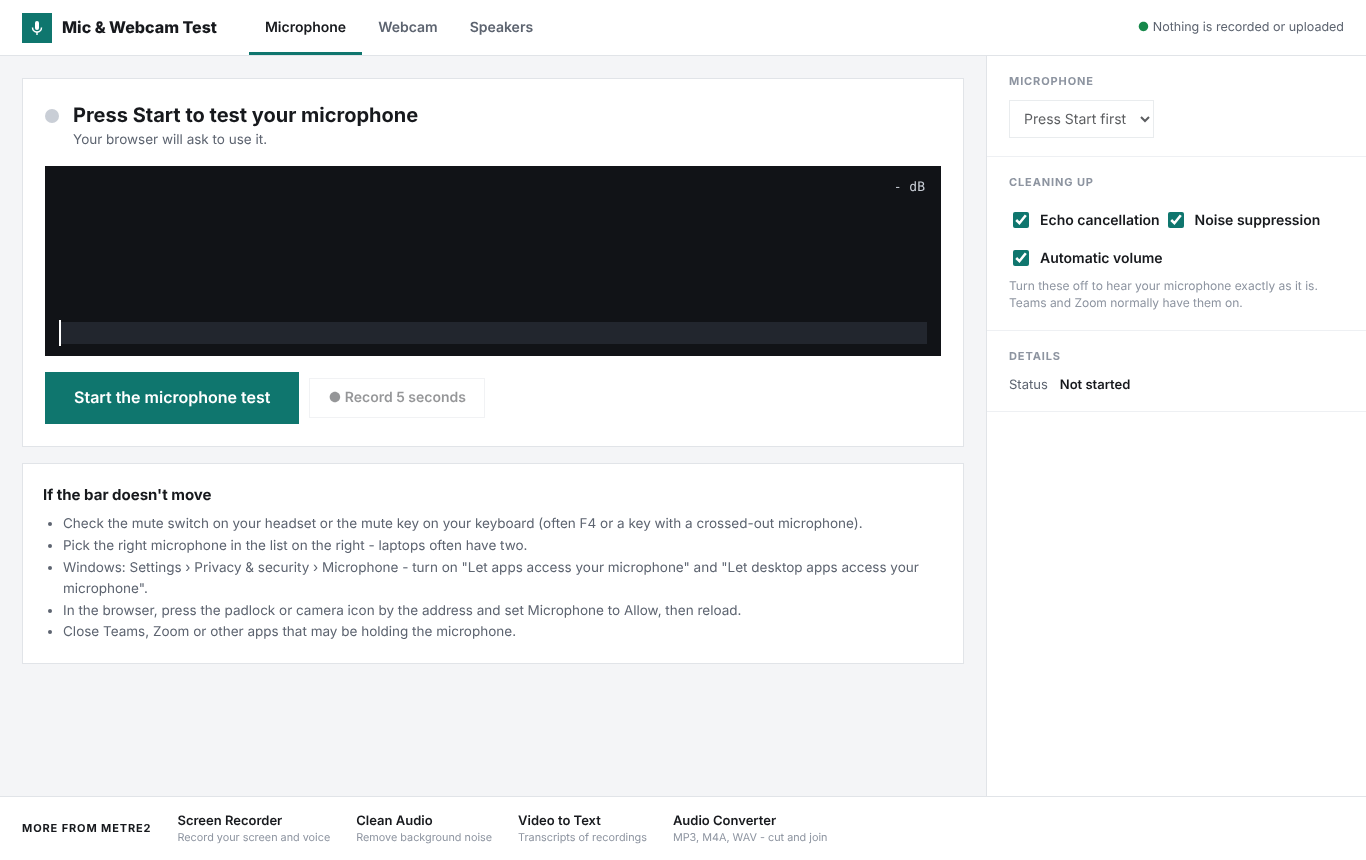
Pick what to check.
No - the 5-second recording stays in the page and is thrown away when you close it.
Usually the browser was blocked from using it, or the wrong microphone is chosen. The page shows how to allow it and lets you pick another microphone.
Another app (Teams, Zoom) may be using it - close it and try again. Some laptops have a privacy shutter or a camera key.
Yes - microphone and camera tests work in phone browsers too.
Yes.
Free, in your browser, with nothing uploaded. Works best in Chrome or Microsoft Edge on a computer.
Microsoft and the Microsoft Store logo are trademarks of the Microsoft group of companies.