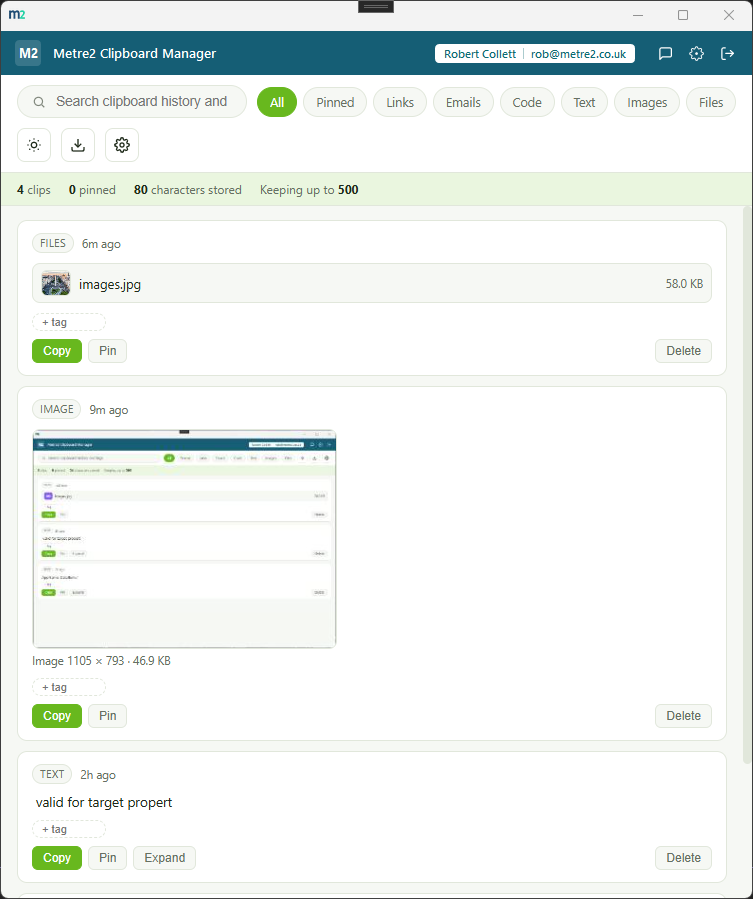
A persistent clipboard history with search, pinning and quick-paste - keeping far more
than Windows' native Win+V history, and letting you pin the snippets you reuse most so
they never age out of your history.
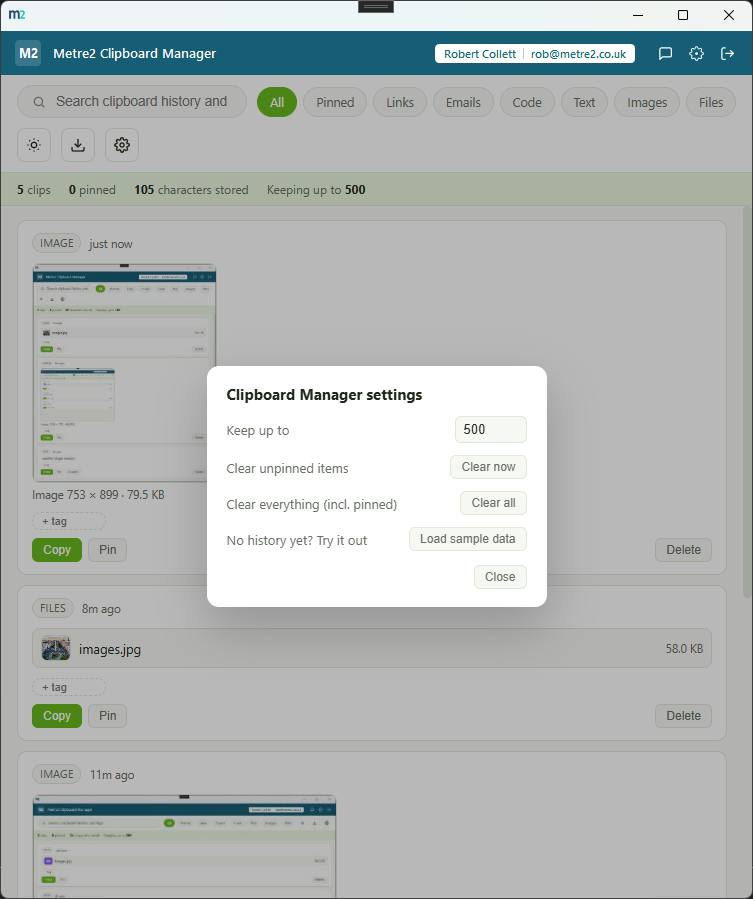
A settings panel for adjusting history size and clearing unpinned or all clips, plus sample data to try the app immediately
Files copied in Explorer show a real thumbnail for image files, not just a generic icon
Keeps far more than Win+V
Windows' own clipboard history caps out at 25 items and clears on restart unless you
pin every one by hand. Keep up to 500 here, persistently, adjustable up to 2,000.
Pin what you reuse constantly
A genuine permanent pin, not a per-item workaround to a small cap - pinned snippets
are never auto-evicted when your history fills up, only deleting removes them.
Search content and tags together
A live search box matches what you copied and any tags you've added, plus filter
chips to narrow the feed straight to Pinned, Links, Emails, Code, Text, Images or Files.
One-click quick-paste
Copy any card from your history straight back to your live clipboard - including images
and files, not just text - no scrolling back through your own typing to find something
you copied an hour ago.
Content type detected automatically
Links, emails and code snippets are recognised and styled differently the moment
they're captured - code even gets its own monospaced preview block.
Captures images and files too
Copy a screenshot or picture and it shows up with a thumbnail preview, dimensions and
file size. Copy one or more files in Explorer and each one shows up with a colour-coded
type icon, filename and size - and for image files, a real thumbnail, not just a generic
icon. Quick-paste either straight back to a real image or a real file selection.
Tag anything for later
Add free-form tags to any history item - a quick way to group snippets by project,
client or purpose so search finds exactly what you're after.
Export your history to CSV
Back up or hand off your clipboard history as a spreadsheet in one click - timestamp,
pinned state, tags and full content for every item.
Light or dark, your choice remembers itself
Theme switches with one click and stays that way between sessions, matching the shared style across the Metre2 desktop apps.
Works entirely offline
Everything lives in local storage on your device - no account required for the
clipboard feature itself, no server, no internet connection needed day to day.
How it compares to Windows' built-in clipboard history
Win+V is a genuinely useful built-in feature, but it was designed for short-term recall,
not a searchable, permanent archive of things you reuse constantly. Here's how a
dedicated clipboard manager compares.
Feature
Metre2 Clipboard Manager
Windows Win+V clipboard history
Pricing model
Free
Free, built into Windows
History size
Up to 500 items (adjustable to 2,000)
✕ Capped at 25 items
Survives a restart
✓
✕ (unless "clipboard history" sync is on, still capped)
Search by content or tag
✓
✕
Filter by content type
✓ (Links/Emails/Code/Text/Images/Files)
✕
Captures images and copied files
✓
✓ (images only, no preview/search)
Pin favourites permanently
✓ (never auto-evicted)
✓ (but still counts toward the 25-item cap)
Export history
✓ (CSV)
✕
General comparison as of August 2026 - Windows' clipboard history behaviour varies by
version and settings. Not sponsored by or affiliated with Microsoft.
Frequently asked questions
How is this different from Windows' built-in clipboard history (Win+V)?
Windows' Win+V history is capped at 25 items and clears on restart unless you pin every single one manually. Clipboard Manager keeps up to 500 items persistently across restarts, lets you search and filter by type or tag, and pinning is a genuine permanent keep rather than a per-item workaround to a small cap.
How does it detect new copies?
It polls the Windows clipboard roughly every 800ms while the app is running and adds anything new to your history automatically - no need to open the app first or trigger a special shortcut, just Ctrl+C as normal.
What happens when my history fills up?
Once you pass your configured limit (500 by default, adjustable from 20 to 2,000), the oldest unpinned entries are dropped first to make room. Pinned entries are never auto-removed - only deleting them by hand removes a pin.
Can I search and filter my history?
Yes - a live search box matches both content and tags, and filter chips narrow the feed to Pinned, Links, Emails, Code, Text, Images or Files. Content type is detected automatically as each item is captured.
Does it capture images and copied files too?
Yes. Copy a screenshot or picture and it shows up in your history with a thumbnail preview, dimensions and file size. Copy one or more files or folders in File Explorer and each one shows up with a type icon, filename and size - image files get a real thumbnail. Quick-paste either back exactly as you'd expect - an image clip pastes as an image, a files clip pastes as a real file selection.
What does "quick-paste" mean here?
Click Copy on any card in your history and that item is written straight back to your live clipboard, ready to paste with Ctrl+V wherever you need it - no need to scroll back through your own typing to find it again.
Where does my clipboard history go?
Everything stays on your device in local storage - nothing is uploaded anywhere, and the app works entirely offline. Text history and image thumbnails use local storage; full-resolution images captured off the clipboard are kept in a local browser database (IndexedDB) on your device, cleaned up automatically when you delete or trim history. Be mindful of what you copy while it's running, the same as you would with any clipboard tool: sensitive data like passwords, screenshots or files will be captured into history like anything else unless you delete it.