See - and control - what launches when Windows starts
Your Run key, the machine-wide Run key, your Startup folder and the shared Startup folder - all in one list, instead of scattered across Task Manager, the registry and two different folders. Tag each item with your own impact rating and category, and switch off the ones you control with one click.
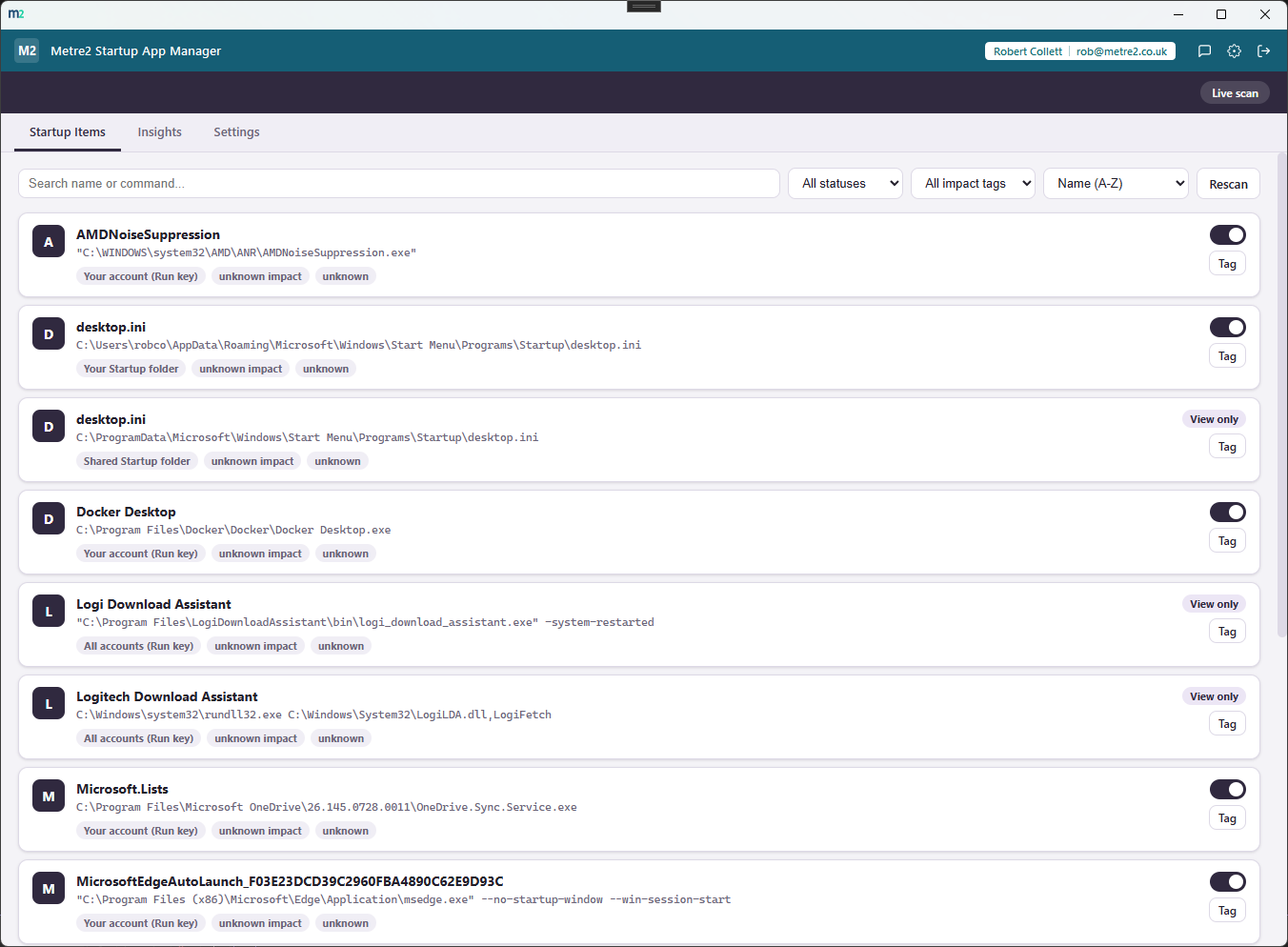
Your Run key, the machine-wide Run key, your Startup folder and the shared Startup folder - normally scattered across the registry, two folders and Task Manager - all shown together with a clear source label on each item.
Switch off the items you control - your Run key and your Startup folder - without opening the registry editor. Re-enable at any time; the original value or file is kept so it comes back exactly as it was.
Only your own Run key and your own Startup folder are ever written to - both per-user locations that don't need administrator rights. Machine-wide items are shown, not hidden, but strictly read-only.
Mark each item's likely impact on boot time (low/medium/high) and what it is (essential/useful/bloat) - your own notes, layered on top of what Windows reports, kept locally and merged back in on every rescan.
Totals by source, by impact and by category at a glance, so you can see at a glance how many items you're carrying and where most of them are coming from.
Export the full list - including your own notes - to CSV for a spreadsheet, or export and import your annotations as JSON to back them up or move them to another PC.
Search by name, filter by status/impact/source, and sort by name, source or impact - useful the moment the list gets past a handful of items.
Every scan reads straight from your own registry and file system. Your notes are stored only on this device via local storage - no account, no cloud sync, no network call anywhere in the app.
Task Manager only shows two of these four locations, and neither it nor File Explorer group everything with the full command line and your own notes attached.
Task Manager's Startup tab is the usual first stop for a slow-booting PC, but it only covers two of the four places Windows actually reads at sign-in. Here's how a dedicated app compares.
| Feature | Startup App Manager | Task Manager's Startup tab | Manually checking the registry |
|---|---|---|---|
| Pricing model | Free | Built into Windows | Free, but manual |
| Shows both Startup folders, not just the Run keys | ✓ | ✕ | ✕ (folders only, separately) |
| Your own impact/category notes, kept per item | ✓ | ✕ | ✕ |
| No administrator rights needed for your own items | ✓ | ✓ (for viewing) | Varies |
| CSV/JSON export of the full list plus your notes | ✓ | ✕ | ✕ |
General comparison as of August 2026.
Every startup location in one list, with a toggle for the ones you control
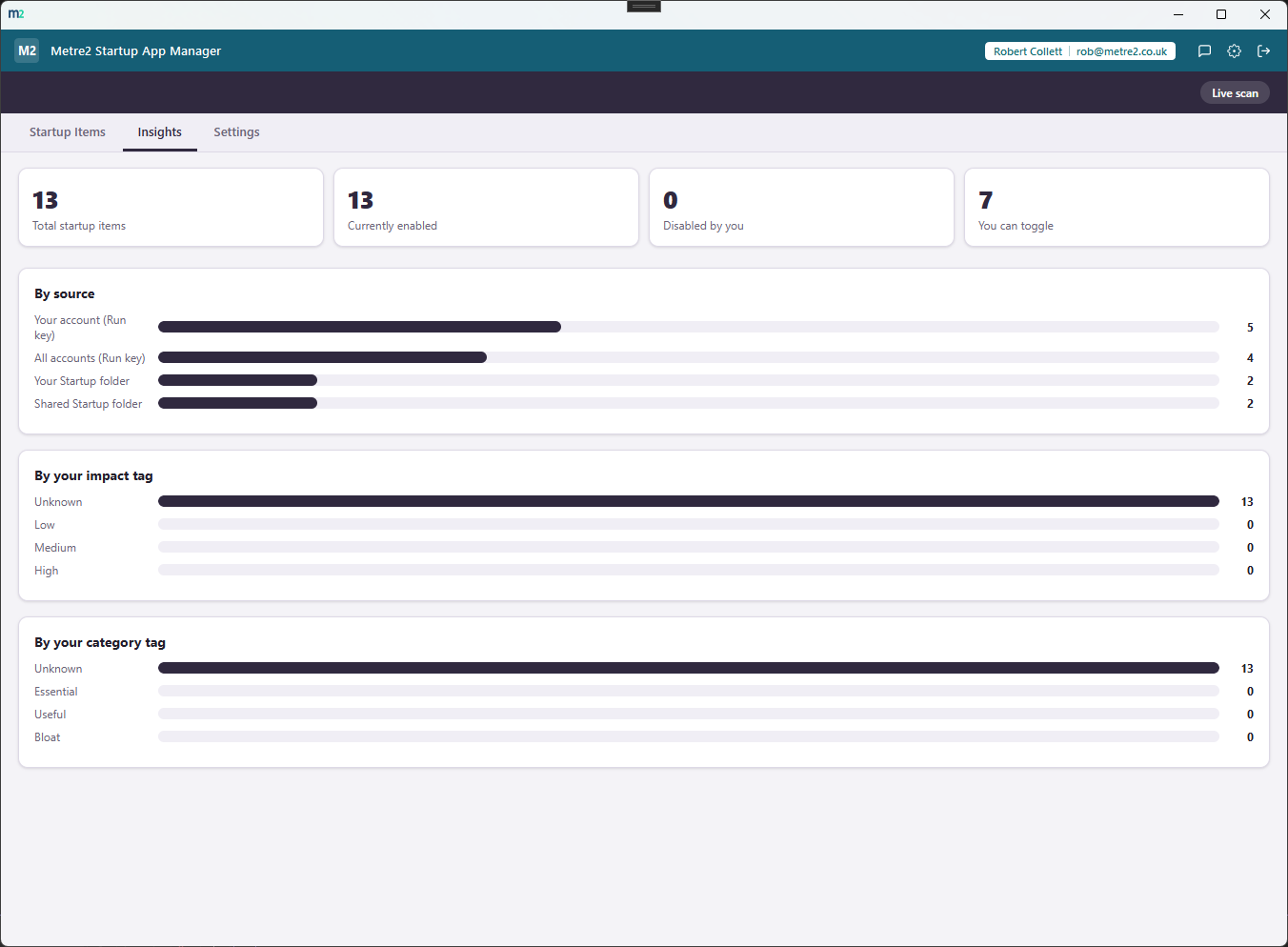
Insights - totals and a breakdown by source, at a glance
No. It only ever reads and writes your own Run registry key and your own Startup folder - both per-user locations that don't need elevation. The machine-wide Run key and the shared Startup folder are shown for visibility, but are read-only.
For your Run key, the registry value is removed - but a copy is kept so re-enabling restores it exactly. For your Startup folder, the shortcut file is moved into this app's own data folder rather than deleted, and moved back when you re-enable it.
Not necessarily. Windows tracks enabled/disabled state for Task Manager's own Startup tab using an internal format this app deliberately doesn't touch. An item disabled here may simply stop appearing in Task Manager's list rather than showing as "Disabled" there - the effect (it won't launch) is the same either way.
No, not from this app - those need administrator rights and Task Manager's Startup tab (run as administrator). This app shows them so you have the full picture, but only ever writes to the two per-user locations.
No, it's a free app.
No. Every scan reads straight from your own registry and file system, and your own impact/category notes are stored only in this app via local storage. Nothing is ever sent to a server.