How-to guide
To print a poster bigger than your printer, split it into tiles: sheets that overlap a little so they can be trimmed and joined on the wall. An A0 poster (841 x 1189 mm) fits on 15 A3 sheets. This guide tiles an A0 poster in Metre2 Print Imposition Pro, sets the overlap and moves it to SRA3 to use fewer sheets.
Open the poster's PDF (one large page) and choose Tile. The A0 poster sample is 841 x 1189 mm.
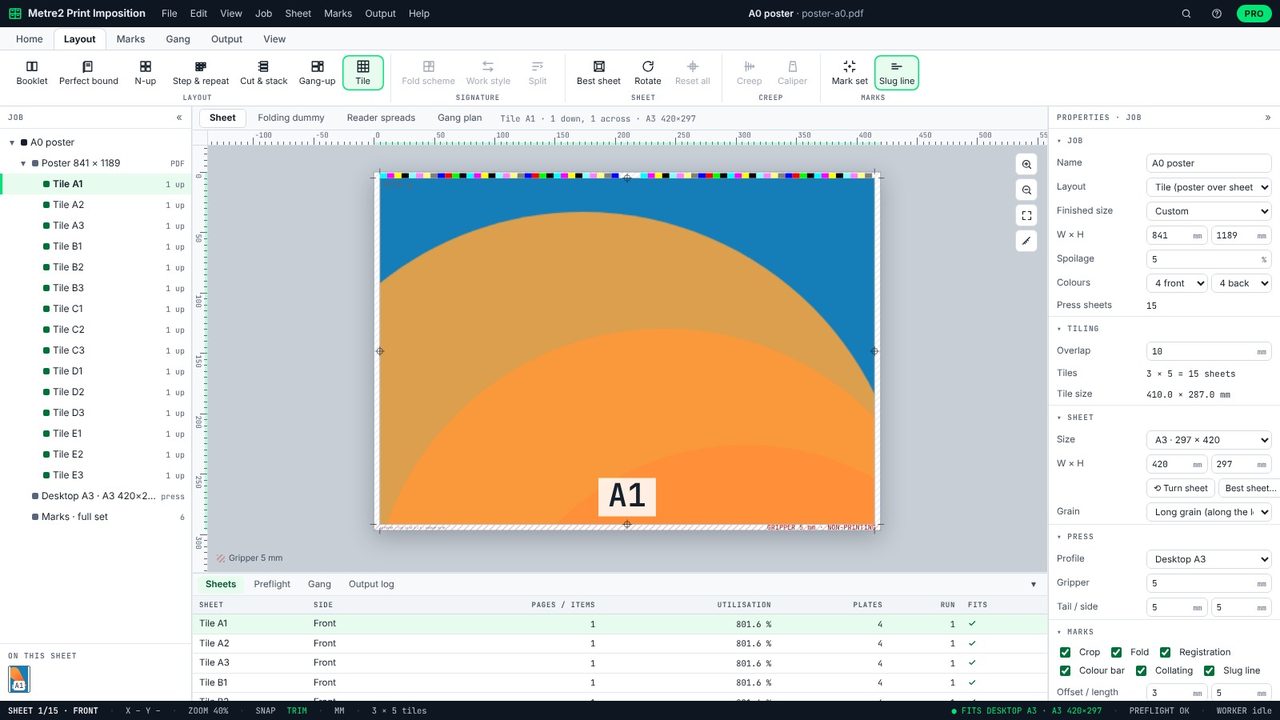
On A3 landscape with 5 mm margins, each tile is 410 x 287 mm, so A0 takes 3 across and 5 down: 15 tiles, named A1 to E3 like a grid. Page Down steps through them.
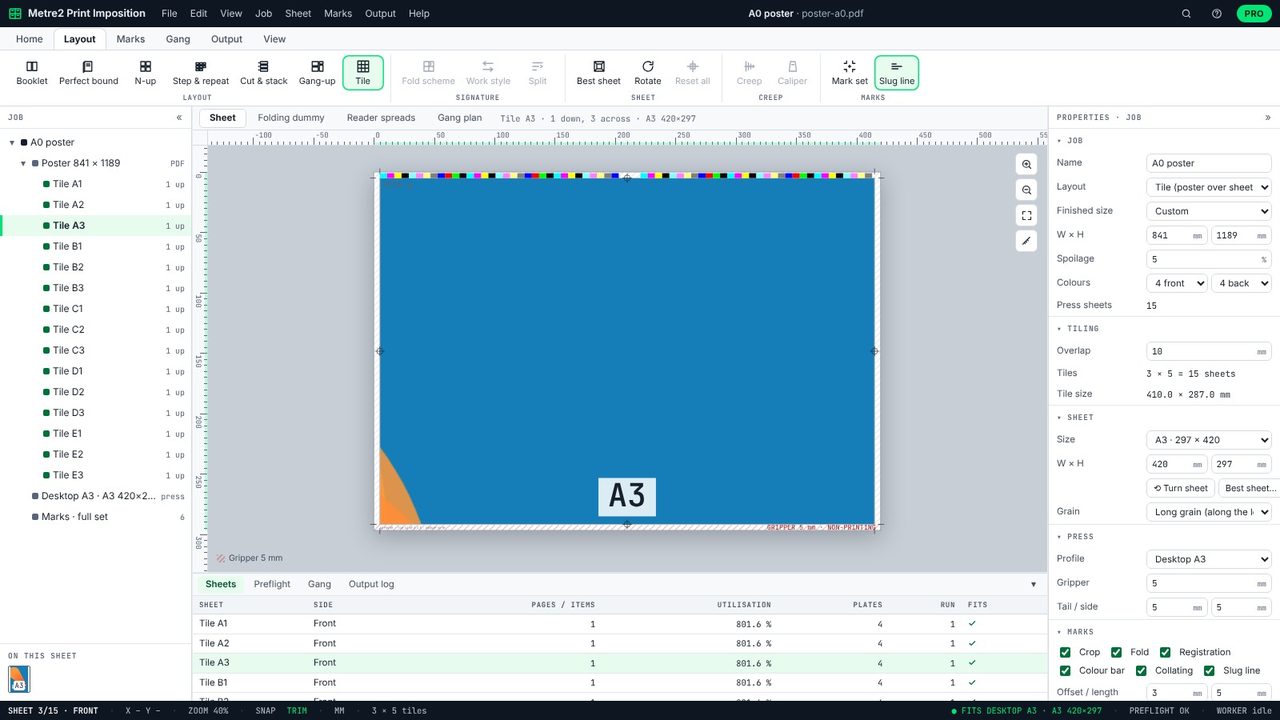
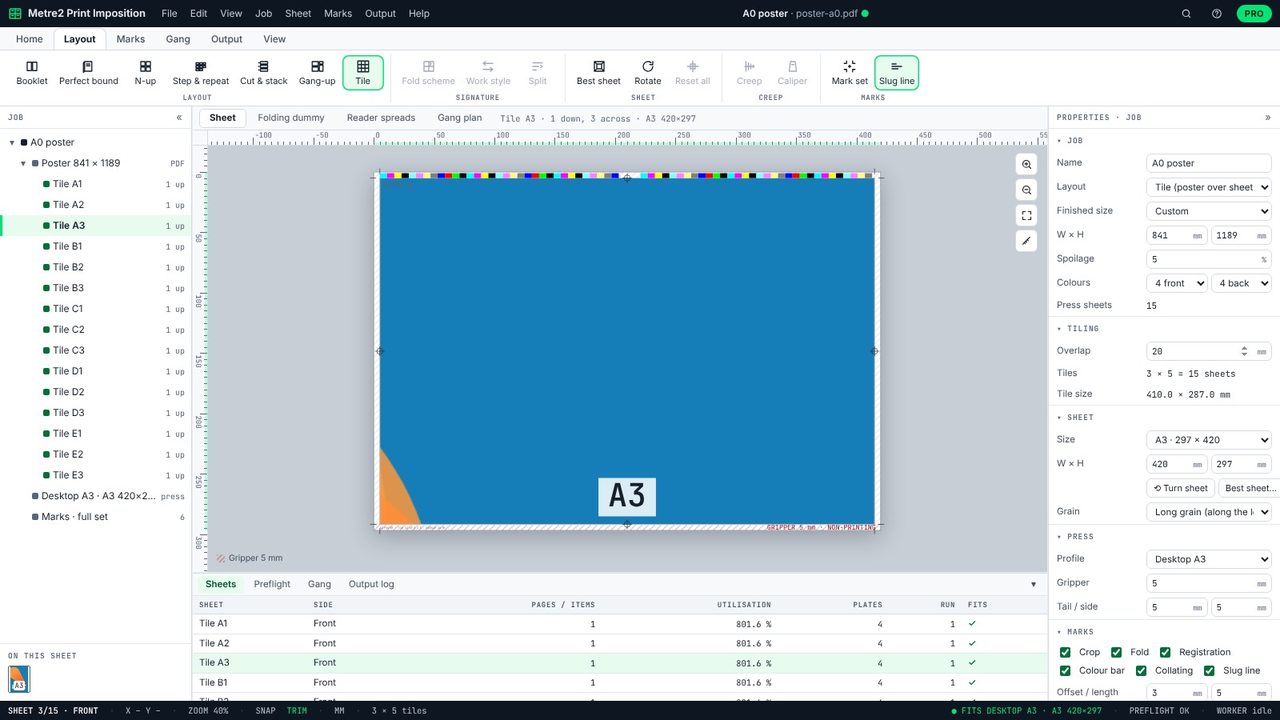
Overlap is how much each tile repeats its neighbour, to trim and glue. Change it from 10 to 20 mm for an easier join: here it still fits in 15 tiles.
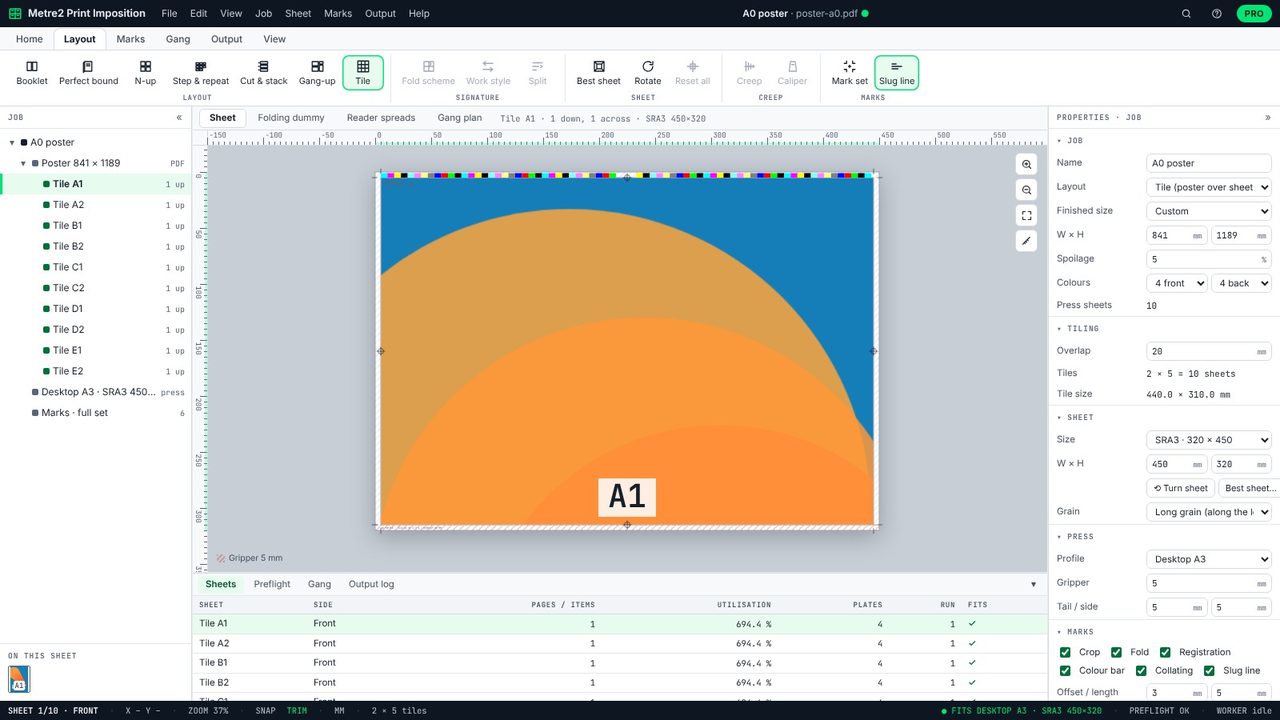
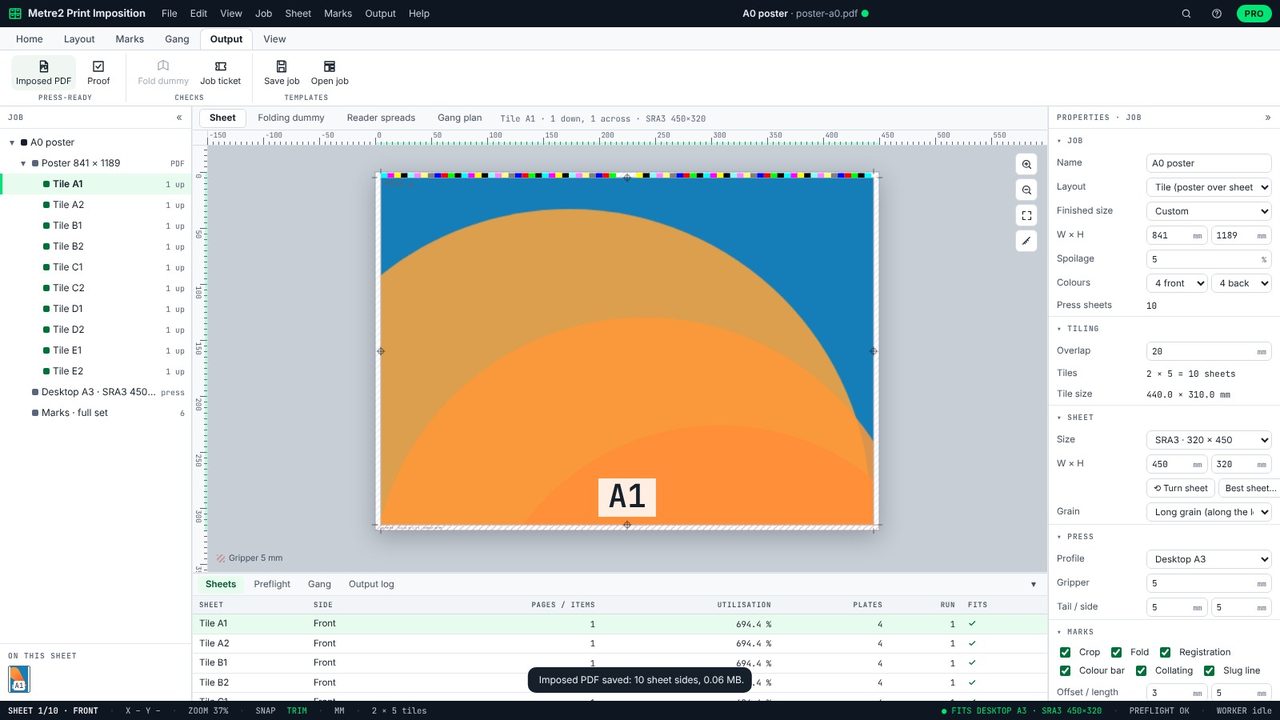
Change the sheet size to SRA3: tiles become 440 x 310 mm and the poster needs 2 across and 5 down - 10 sheets instead of 15.
Output > Imposed PDF saves one page per tile with crop marks and a slug naming each tile, so they go up in the right place.
15 with a 10 or 20 mm overlap and 5 mm printer margins (3 across, 5 down). On SRA3 it's 10.
10 to 20 mm is usual: enough to trim and glue without losing much of the design.
Tiling is in Print Imposition Pro, with a 7-day free trial.
No. Print Imposition runs in your browser; the PDF stays on your computer.