How-to guide
A subcontractor's programme is only useful if it fits the main contractor's: starting when the building is watertight, finishing before the ceilings close, using float that is really there. Drawing it separately in Excel means it never quite lines up. Metre2 Programme Studio opens the main contractor's P6 or MS Project programme free in your browser, so you can plan your package inside it, linked to their activities, and see straight away how much float you have.
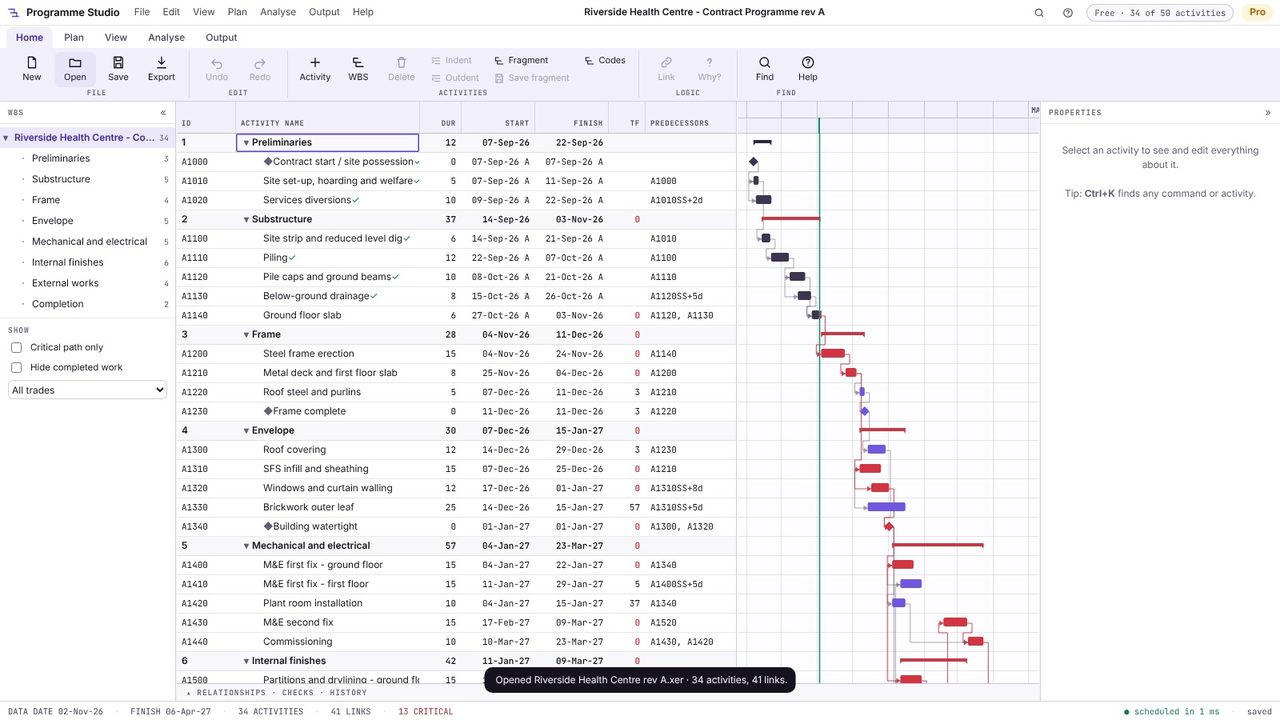
Ask for the programme as a P6 .xer or XML file, or MS Project XML, and open it in Programme Studio (Open, or drop it on the window). You see their WBS, dates, logic and critical path, rescheduled from their data date.
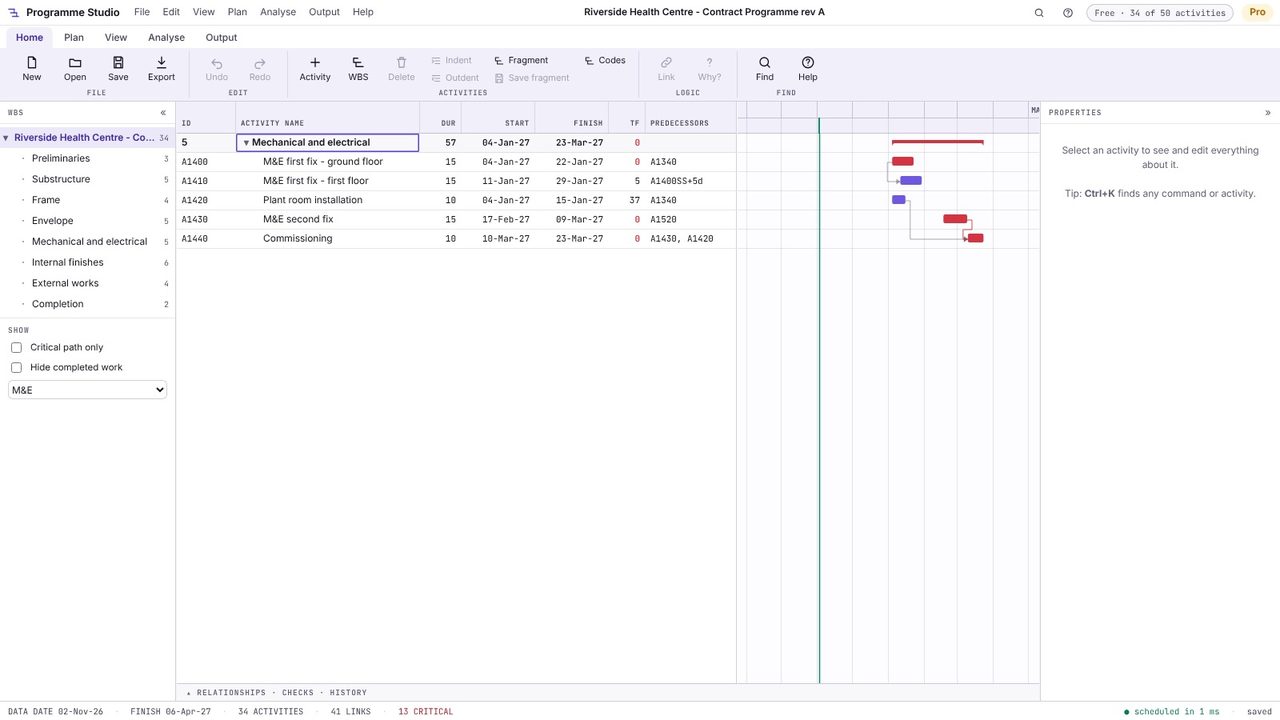
Choose your trade in the left panel (here M&E) to see only your activities in their programme: the first fix, plant room, second fix and commissioning, with their dates and float. Activity codes from P6, such as trade or subcontractor, give the list.
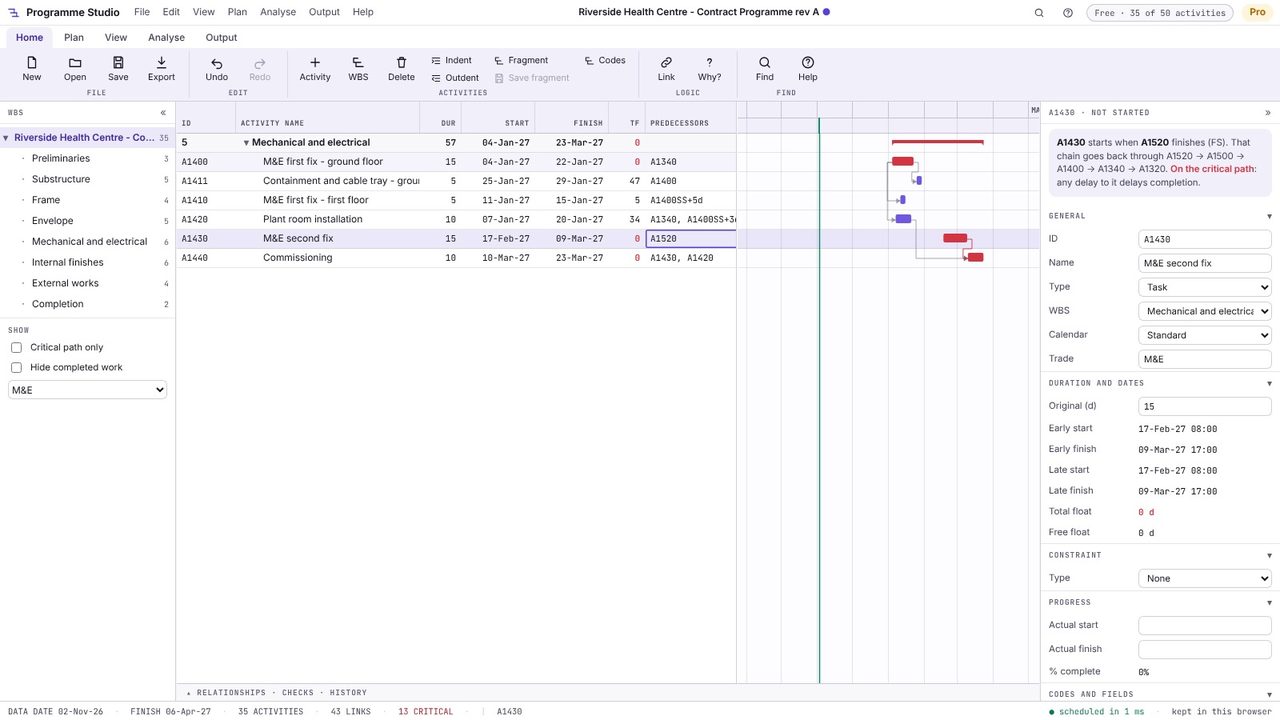
Select one of your activities and press Insert to add your own detail below it. While the trade filter is on, a new activity takes that trade, so it stays on screen. Type its predecessors to tie it to their programme: here containment and cable tray starts after A1340 (building watertight) and three days into the first fix (A1400SS+3).
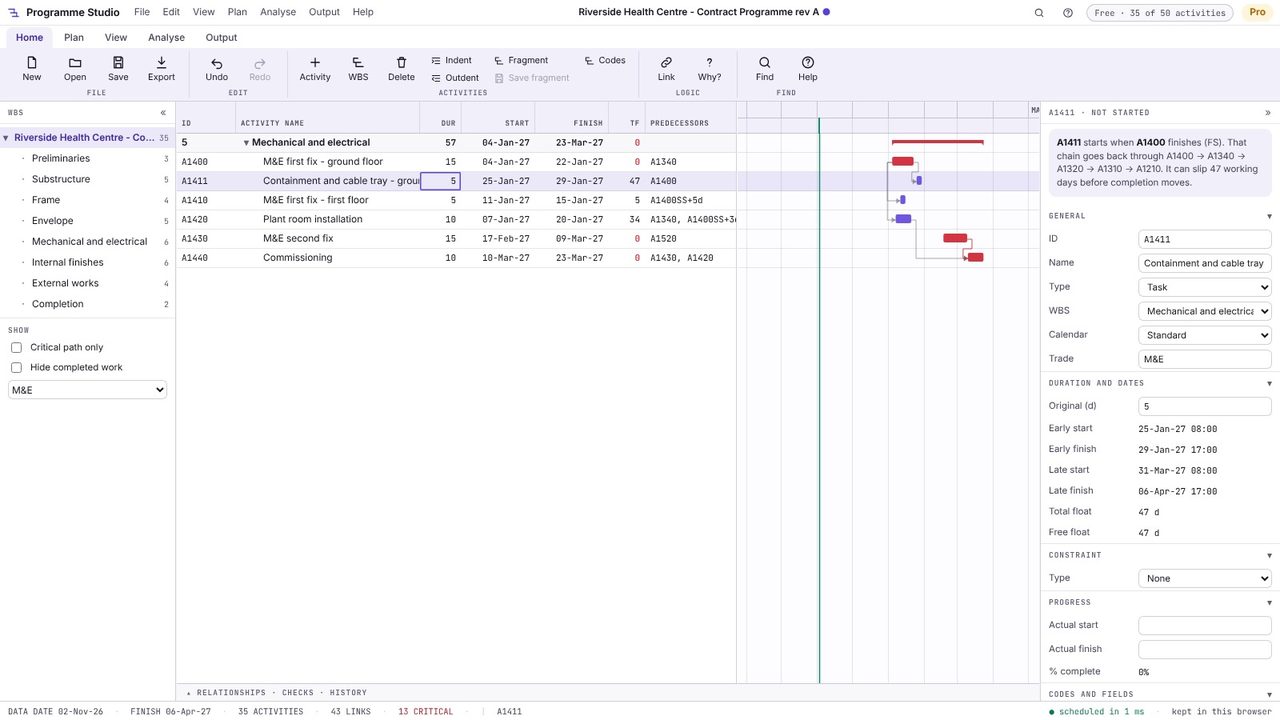
Click your activity: the properties panel says what it is waiting for and how far it can slip before completion moves (47 days here). If your detail would push their activities, it shows at once in their dates and critical path.
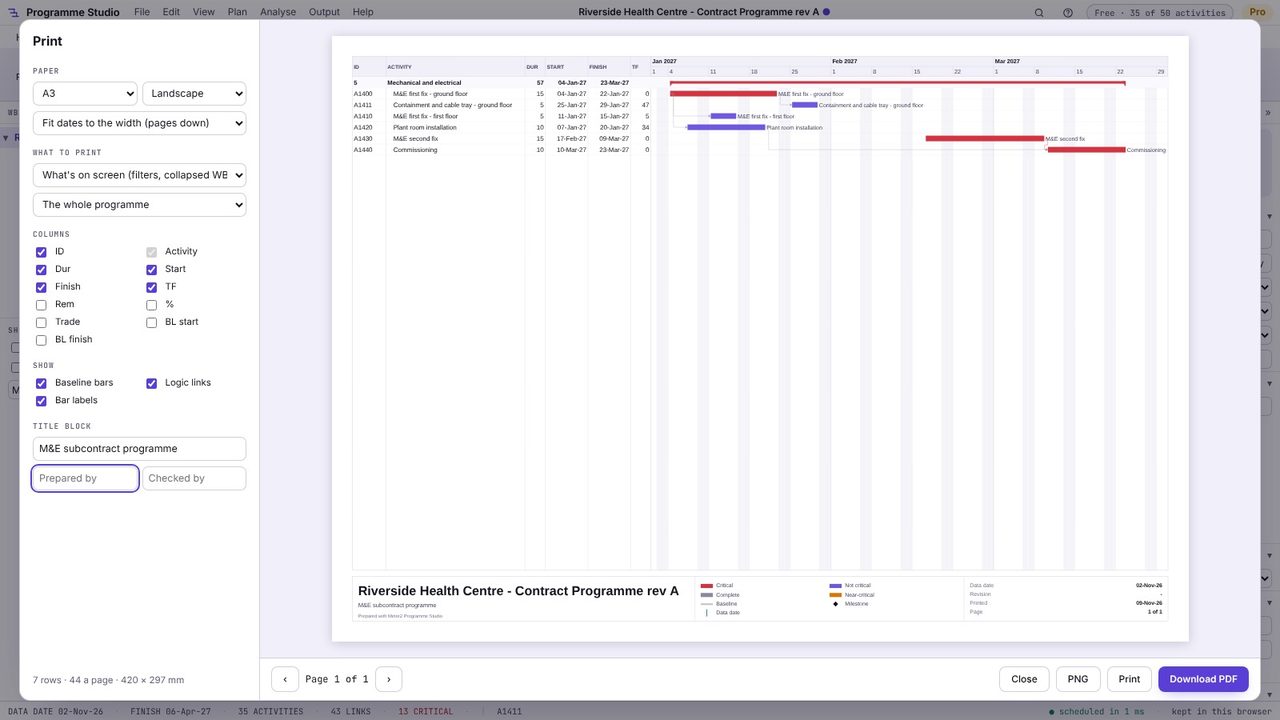
Press Ctrl+P with What's on screen to print just your trade, with a subtitle such as "M&E subcontract programme" in the title block, on A4 or A3.
Your package's activities in enough detail to manage the work, linked to the main contractor's activities and key dates they depend on (access, watertight, ceilings closed), with durations based on your resources, and the information and approvals you need and when.
Yes. Programme Studio opens .xer and P6 XML files of any size in your browser, free, with the critical path, float, trades and WBS.
Plan inside their programme rather than alongside it: link your activities to theirs as predecessors and successors, and the dates and float come from the same calculation.
No. Programme Studio runs in your browser and your programme stays on your computer: it is kept in the browser as you work and saved as a file when you choose Save. The only exception is an MS Project .mpp file, which a browser cannot read: Programme Studio asks before converting it on Metre2's server, in memory, and nothing is kept.