How-to guide
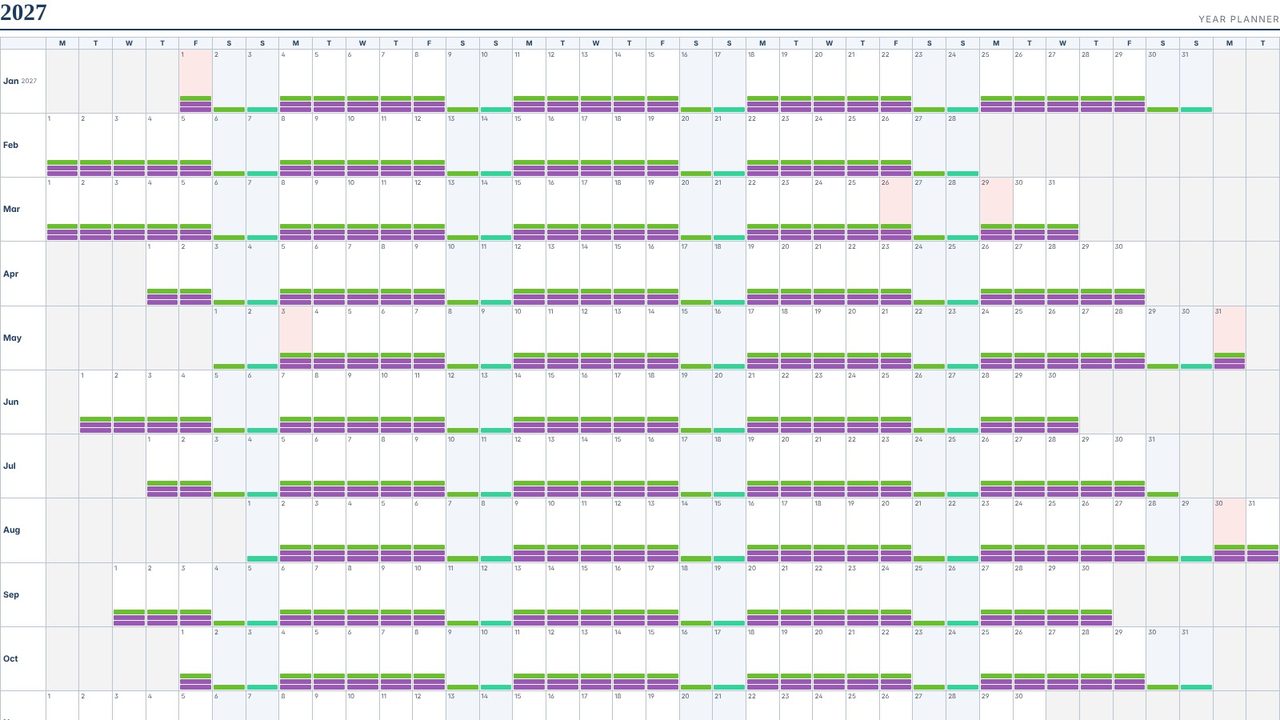
Calendar Pro's Year view puts all twelve months on one screen, with a dot for each day's events in their colours and UK bank holidays shaded - handy for leave, shutdowns and programme milestones.
Click Year at the top, or press 6.
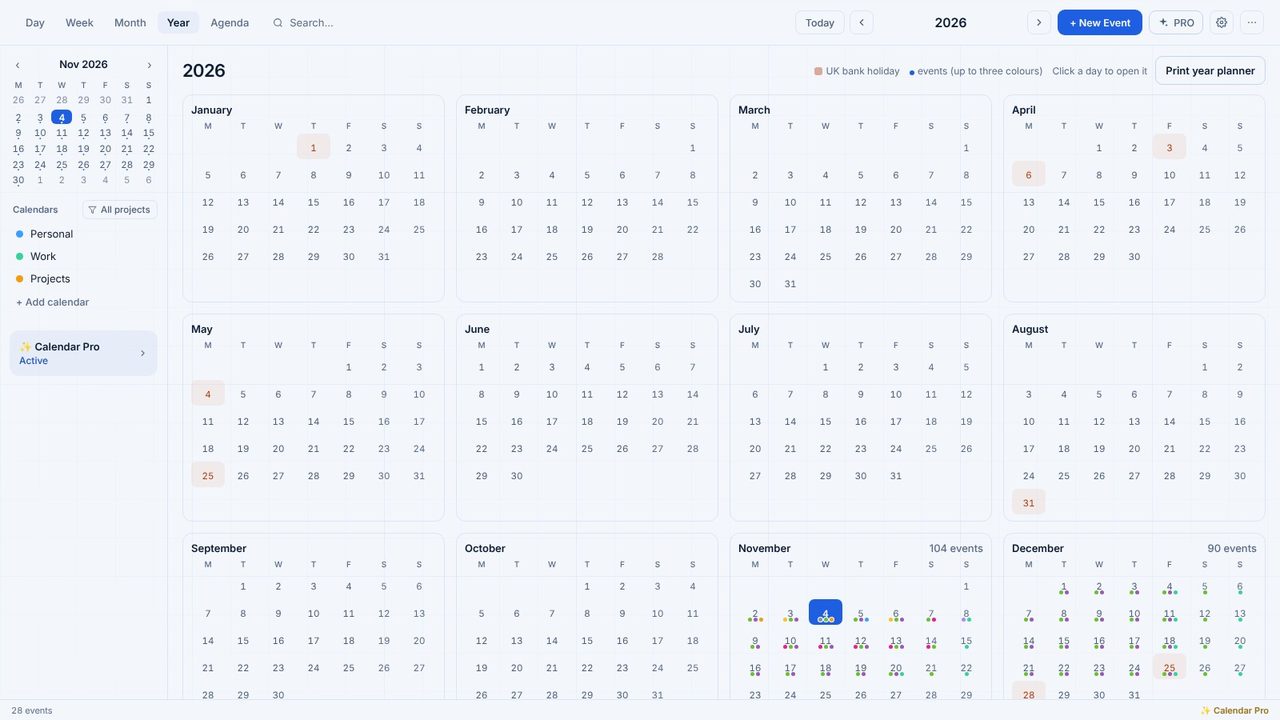
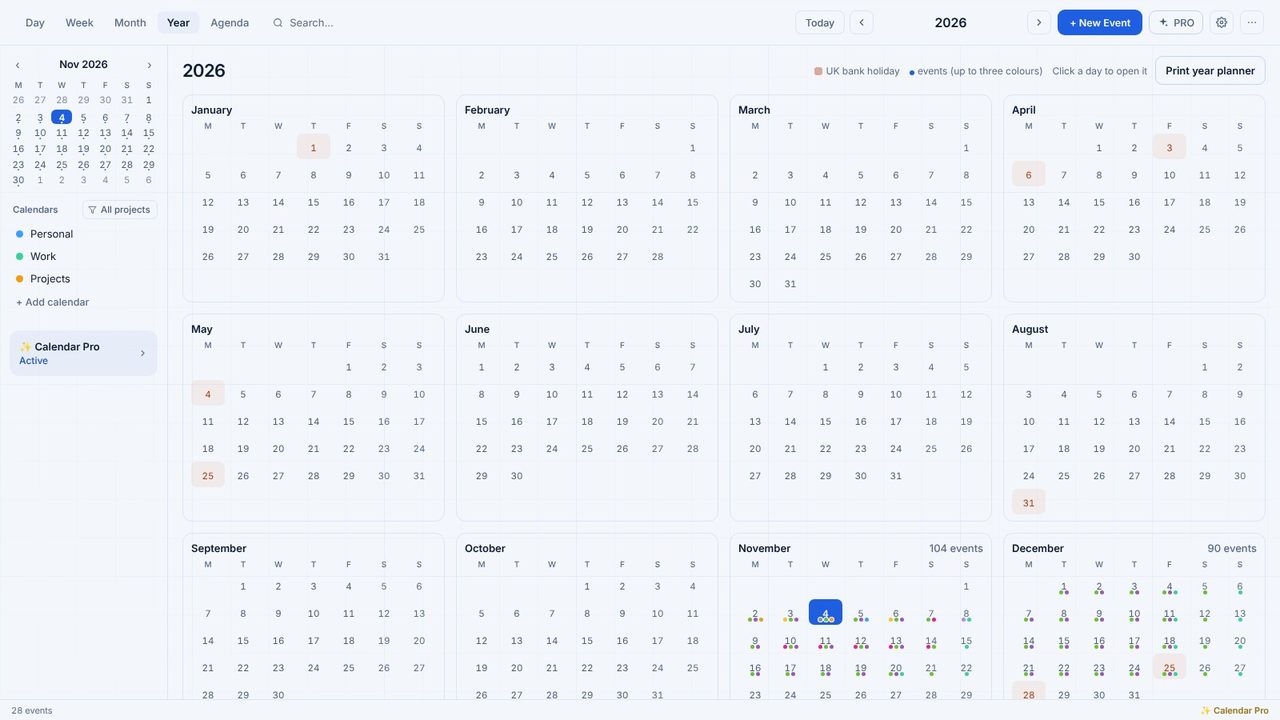
Each day shows up to three dots in its events' colours. Hover for what's on.
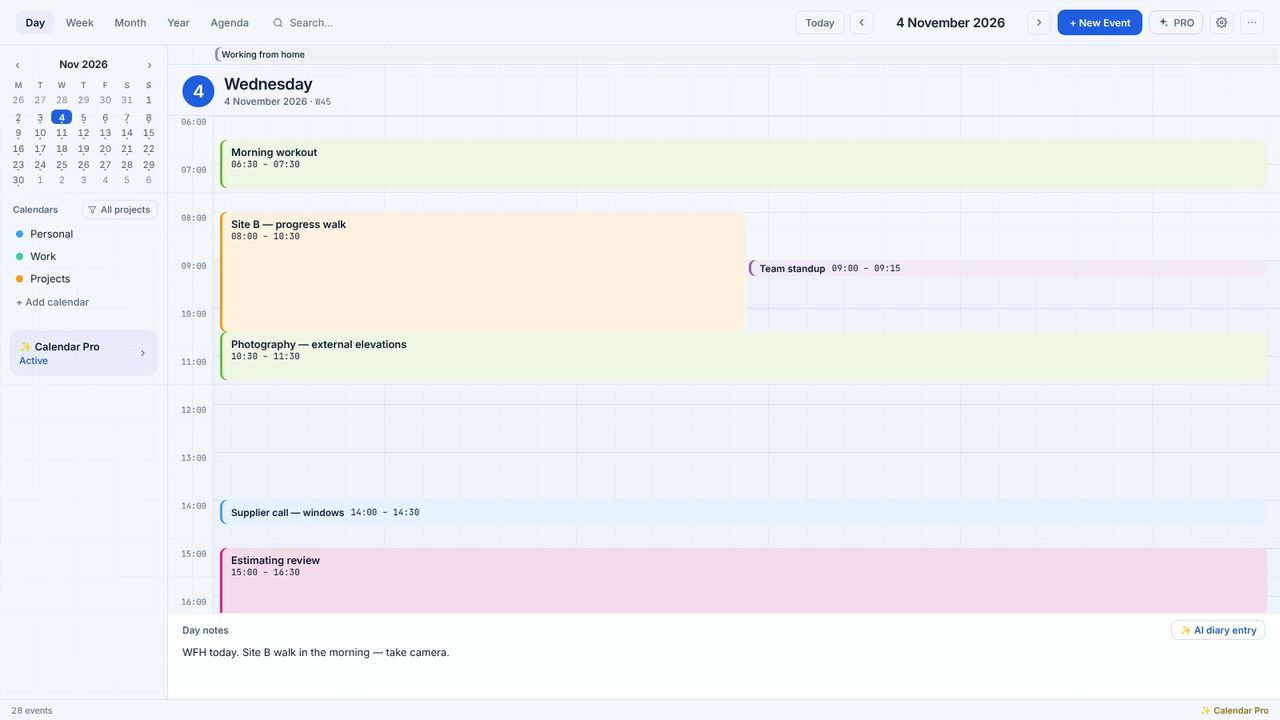
Click any day to open it in Day view.
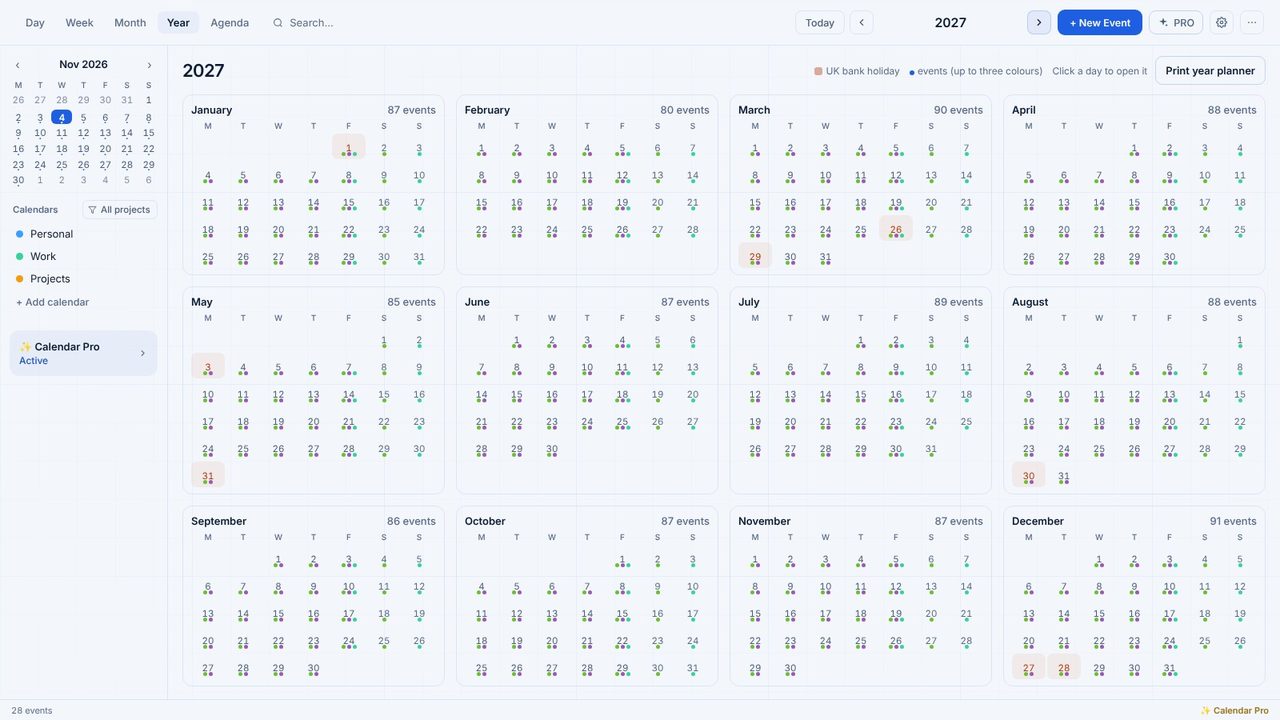
Back in Year view, the arrows go back and forward a year.
Print year planner opens the year wall planner from 1 January.
The Year view is part of Calendar Pro, with a free 7-day trial. The other five views are free.
