How-to guide
A scanned PDF is a picture of the paper: there's no text in it, so neither Windows nor a PDF reader can search it. The same goes for photos of delivery notes, whiteboards and site notices. Metre2 Document Vault Pro recognises the text in scans and photos with the text recognition built into Windows - offline, on your PC - and adds it to the search, so a scanned drawing turns up next to the email that mentions it.
Click Add folder and pick the project folder. Scanned PDFs, photos (.jpg, .png, .tif) and every other document in it are added. Without Pro, scans are listed under Needs attention as having no text to search.
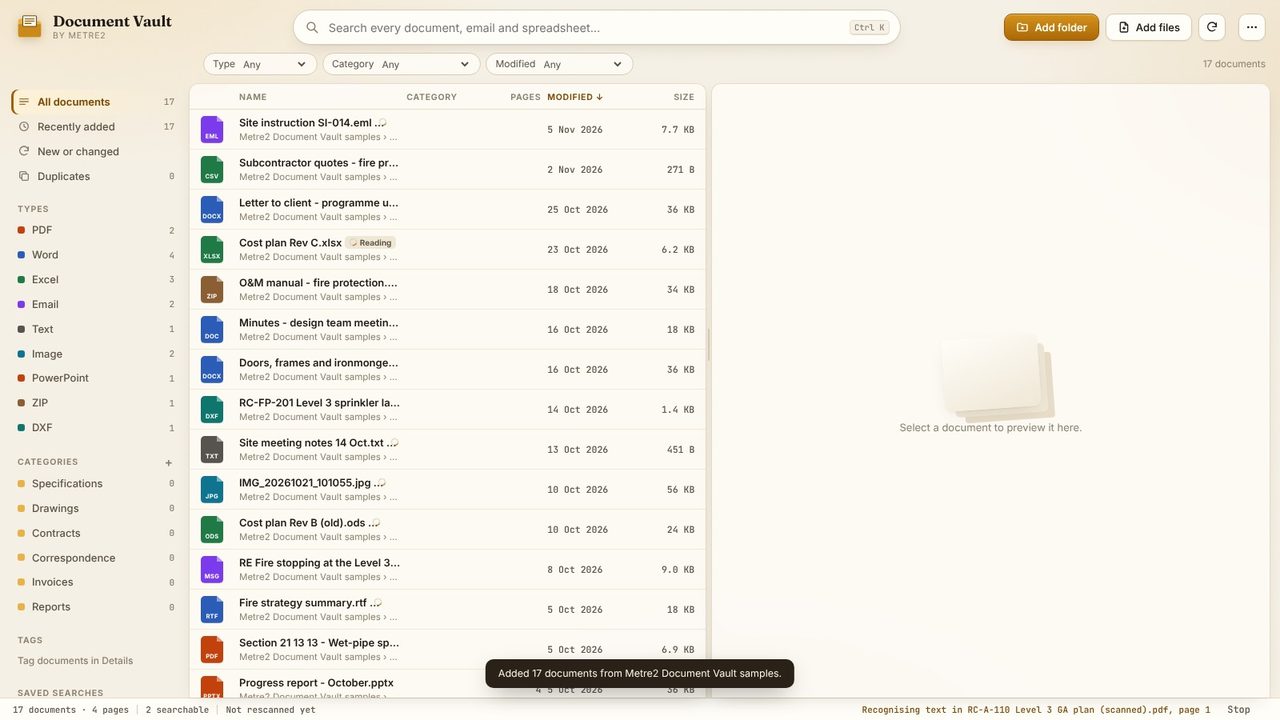
With Pro, pages with no text are recognised with Windows' own OCR, in the language you choose in Settings. It runs on your PC, offline - nothing is uploaded. Recognised documents are marked Text recognised.
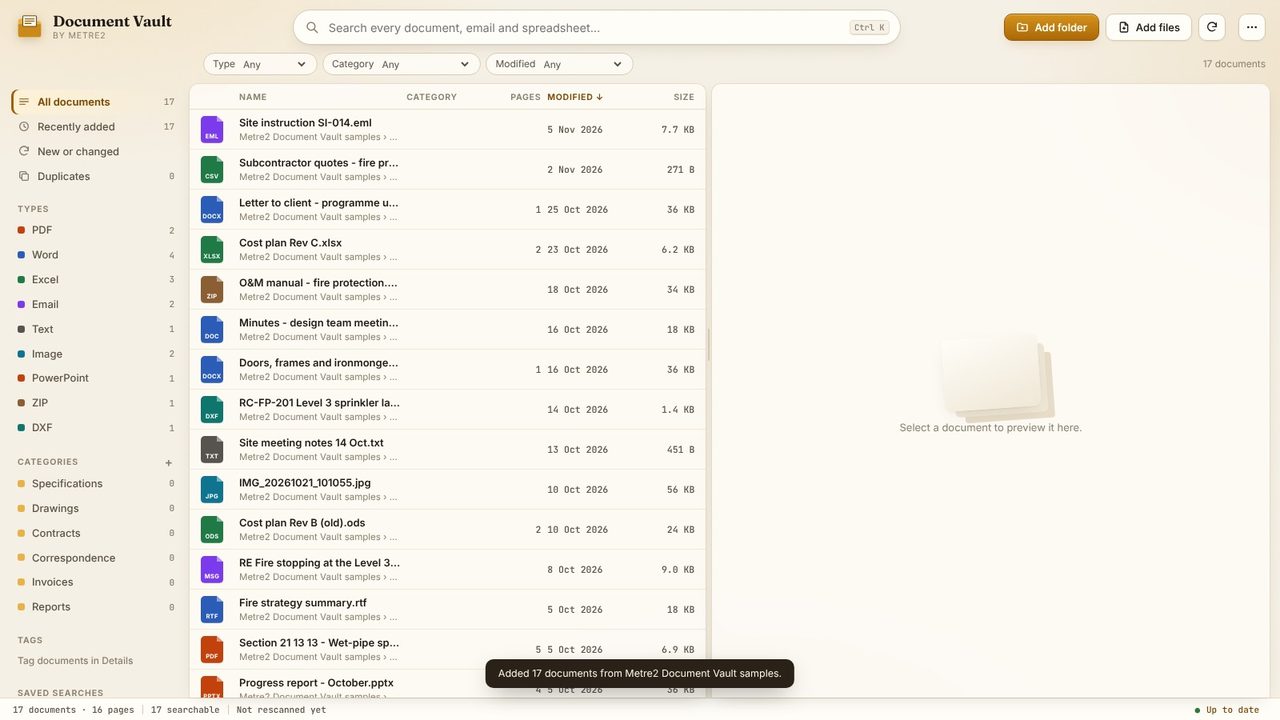
Search for a reference - here duct D-14. The scanned GA plan is found by its recognised text, alongside the email instruction and the DXF sprinkler layout that mention the same duct.
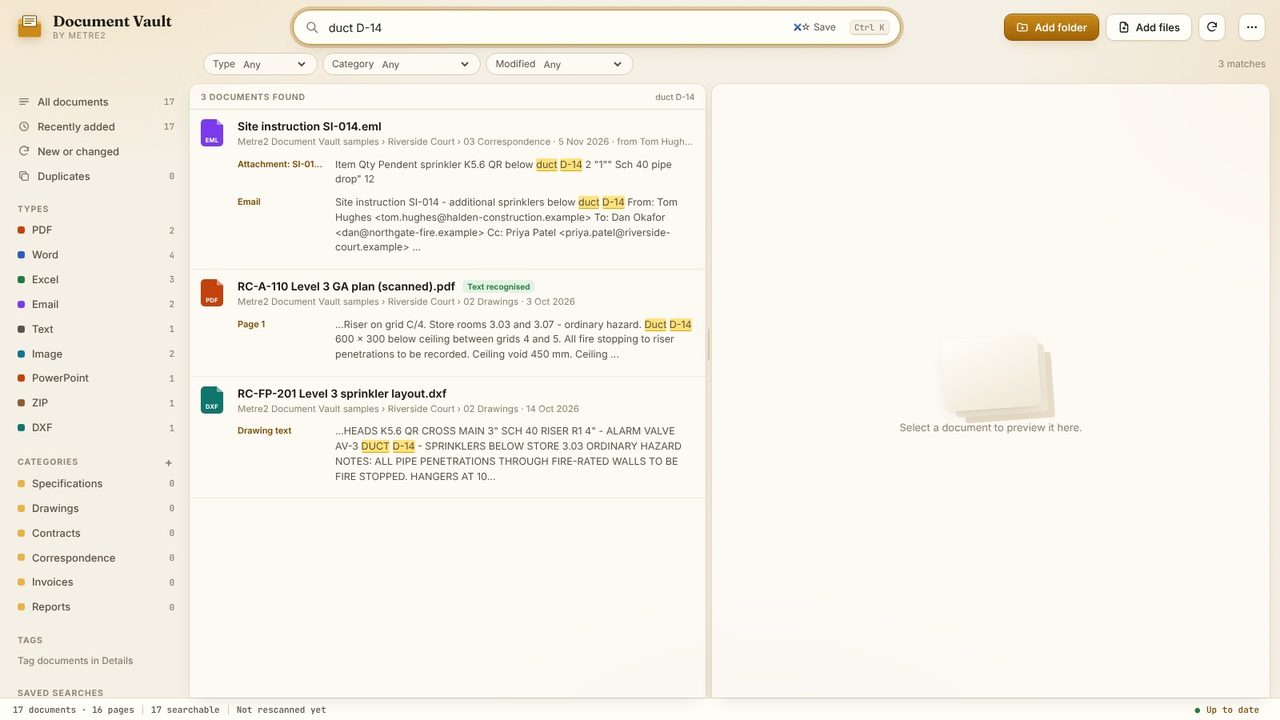
Click the result to see the scanned page. The snippet shows the recognised text around your search, so you can tell it's the right drawing before you open it.
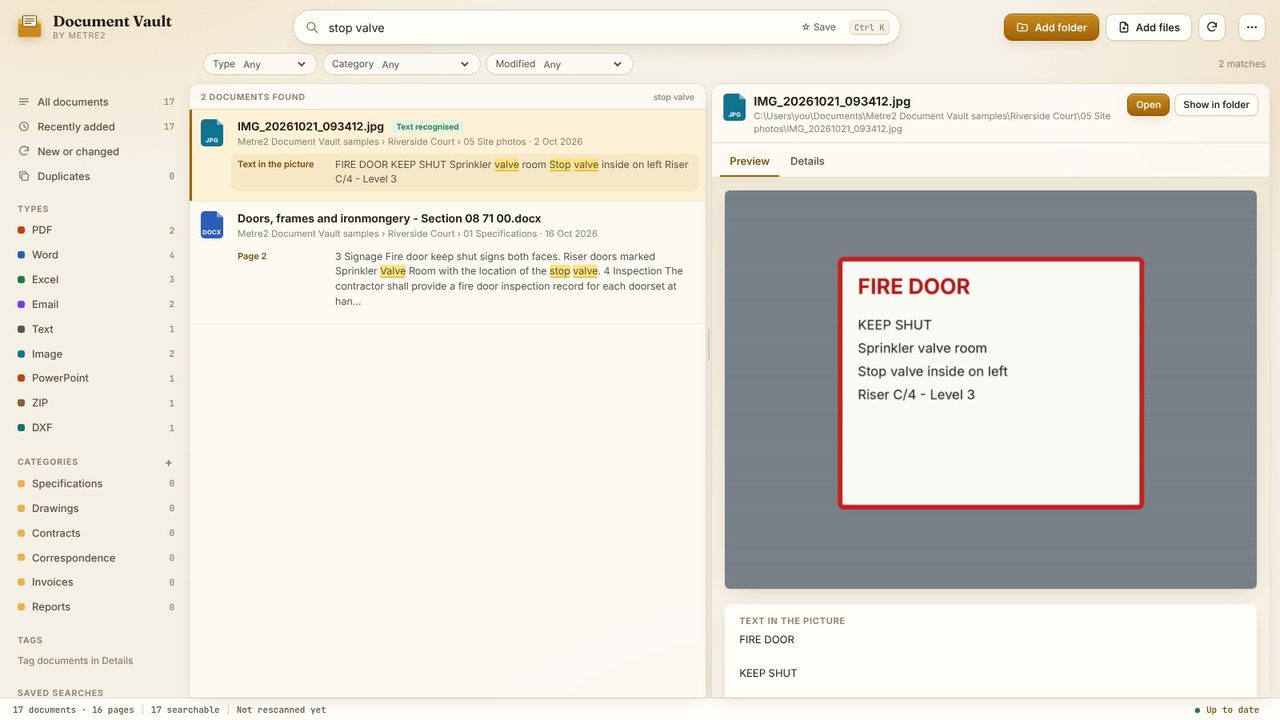
Photos are recognised too. Searching stop valve finds a photo of a fire door notice - the recognised text is shown under the picture in the preview.
No - the recognised text is kept in Document Vault's index, and your PDFs aren't changed. To save a scan as a searchable PDF, Metre2 Scanner Pro adds an invisible text layer when you scan.
No. It uses the OCR engine built into Windows 10 and 11, so it works offline and nothing leaves your PC.
Text recognition is part of Document Vault Pro, a one-off purchase in the Microsoft Store, with a 7-day free trial in the app. Searching PDFs with text, Word, Excel, emails and text files is free.
Not reliably. Windows' text recognition is built for printed and typed text: drawings' title blocks and notes, letters, delivery notes and signs.