How-to guide
Most drawings say their scale in the title block - 1:100 @ A1, 1:50 @ A3 - but that only holds if the PDF is at the paper size it was drawn for. Takeoff Studio reads the scale note for you, checks it against the page size and sets the scale in one click. It's free on Windows, and your drawing never leaves your PC.
Open the drawing with Load PDF and go to the sheet you want to measure. If the page has a scale note, the status bar at the bottom tells you which scale it found, such as 1:50 @ A2 or 3/16" = 1'-0".
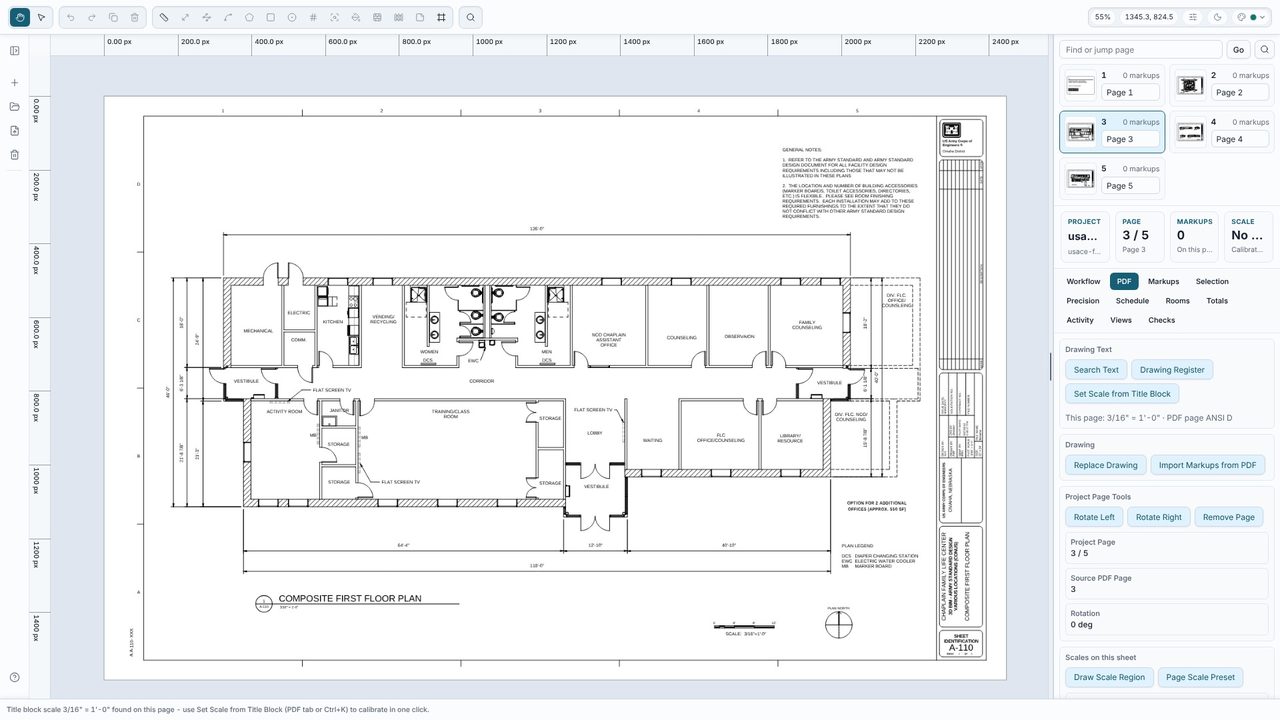
In the PDF tab choose Set Scale from Title Block (or press Ctrl+K and type title block). Takeoff Studio finds scale notes in the page text - 1:100 @ A1, Scale 1:200, or imperial ones such as 1/4" = 1'-0" - and shows what it found. Click Show to zoom to the note on the drawing.
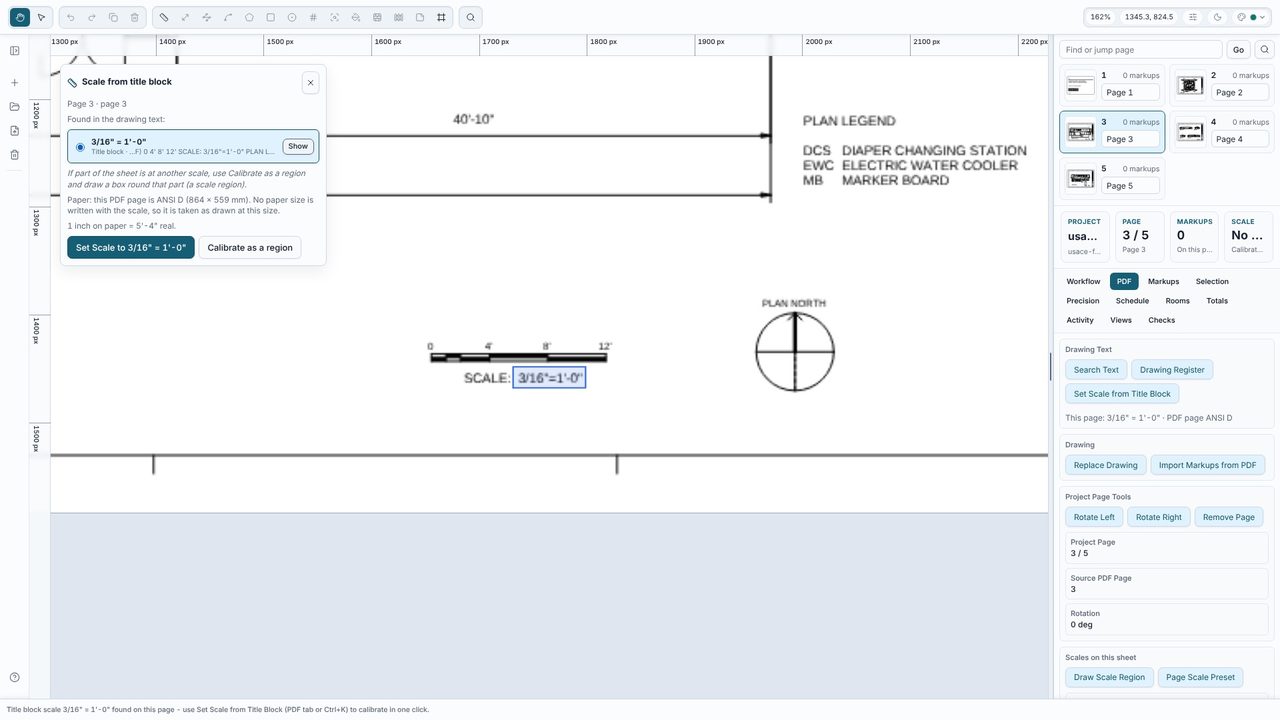
A scale only holds at the paper size it was drawn for. Takeoff Studio compares the size in the note with the size of the PDF page. If they match, it says so. If an A1 drawing has been saved at A3, it warns you and offers the scale at this size (1:100 @ A1 on an A3 page measures 1:200) as well as the scale as written.
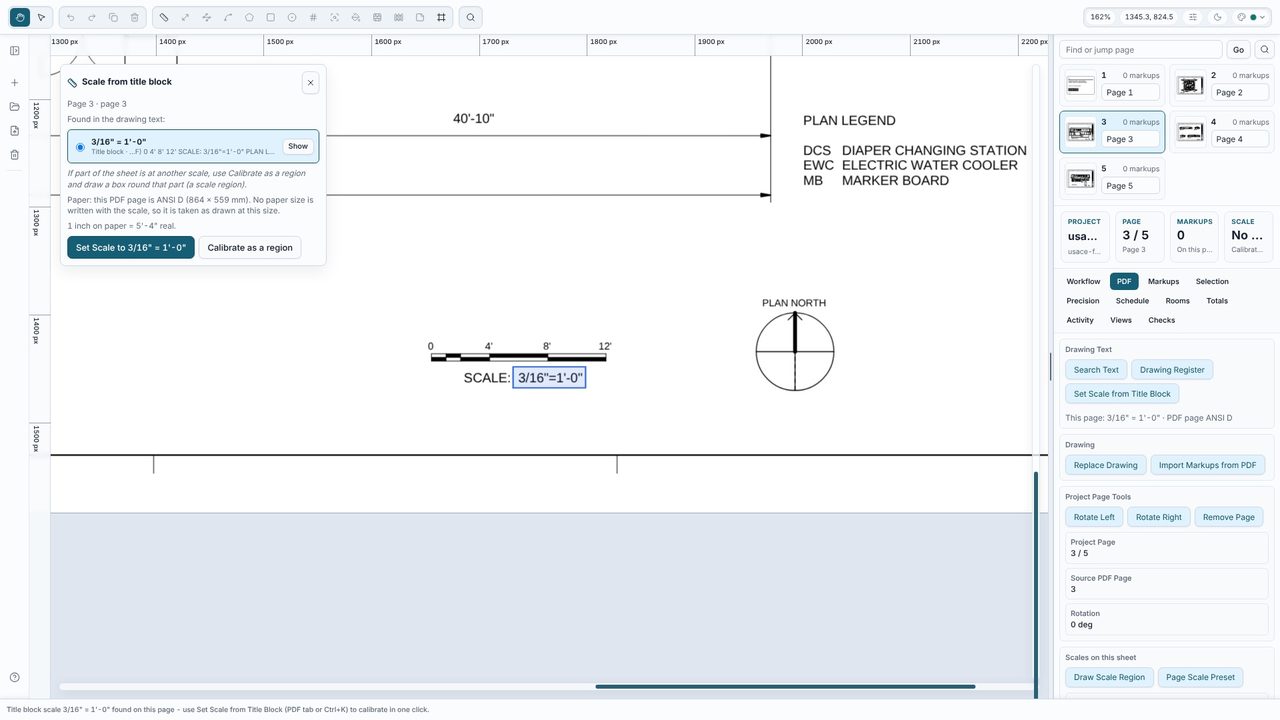
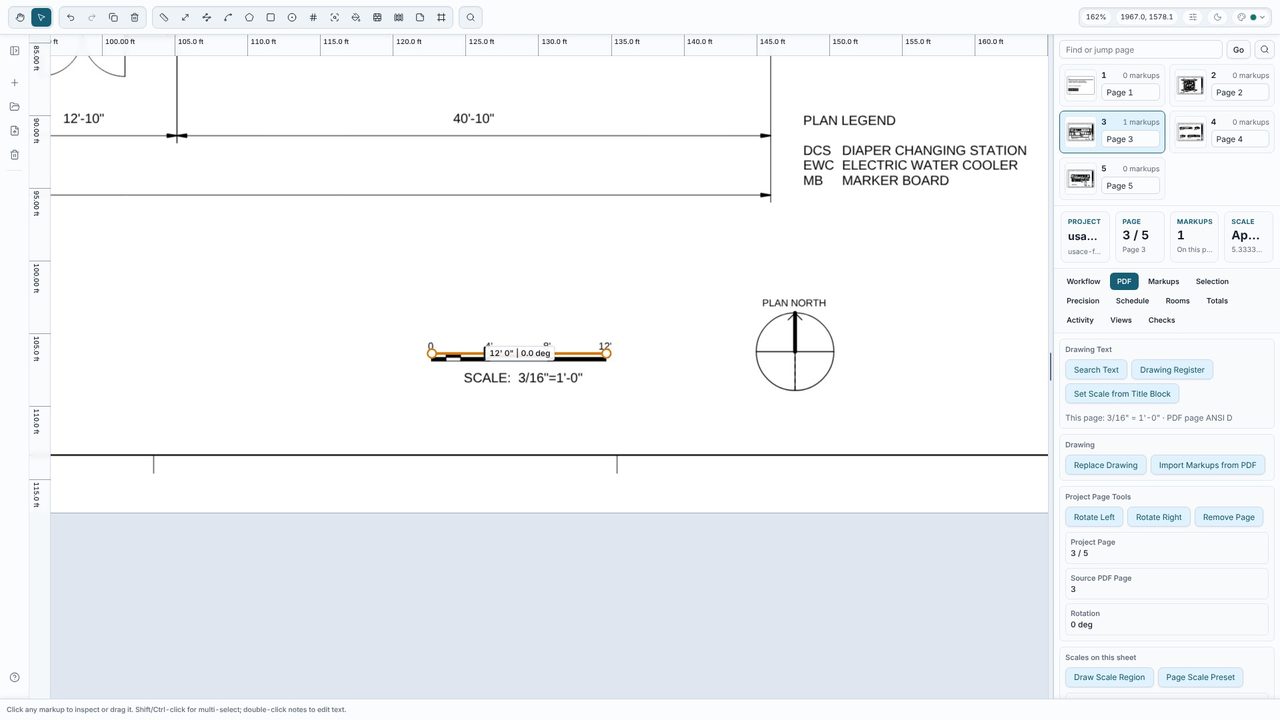
Click Set Scale to the scale it found, and the page is calibrated. Then measure something you know to check it - a printed dimension, or the drawing's scale bar: here the 12' bar measures 12'-0". If the sheet has details at other scales, pick the scale for the part you're measuring, or click Calibrate as a region and draw a box round that part so it gets its own scale.
Yes. Reading the scale from the title block, the drawing register and more than one scale on a sheet are all free in Takeoff Studio.
Takeoff Studio lists every scale note it finds on the sheet. Set the page to the main one, then use Calibrate as a region for each detail or viewport at another scale. Measurements inside a region use its scale.
Yes. Notes such as 1/4" = 1'-0" and 1" = 20' are read, and you can show quantities in feet and inches.
No. The drawing's text is read on your PC. Takeoff Studio is a Windows app and works offline.