How-to guide
Site visits, valuations and deadlines all belong to a project. Metre2 Calendar, free on Windows and in your browser, keeps each event tagged to its project and shows the week as a time grid, the month with week numbers, or a Gantt-style timeline.
Click + New Event (or press N). Give it a title, a category, the day and the start and end times.
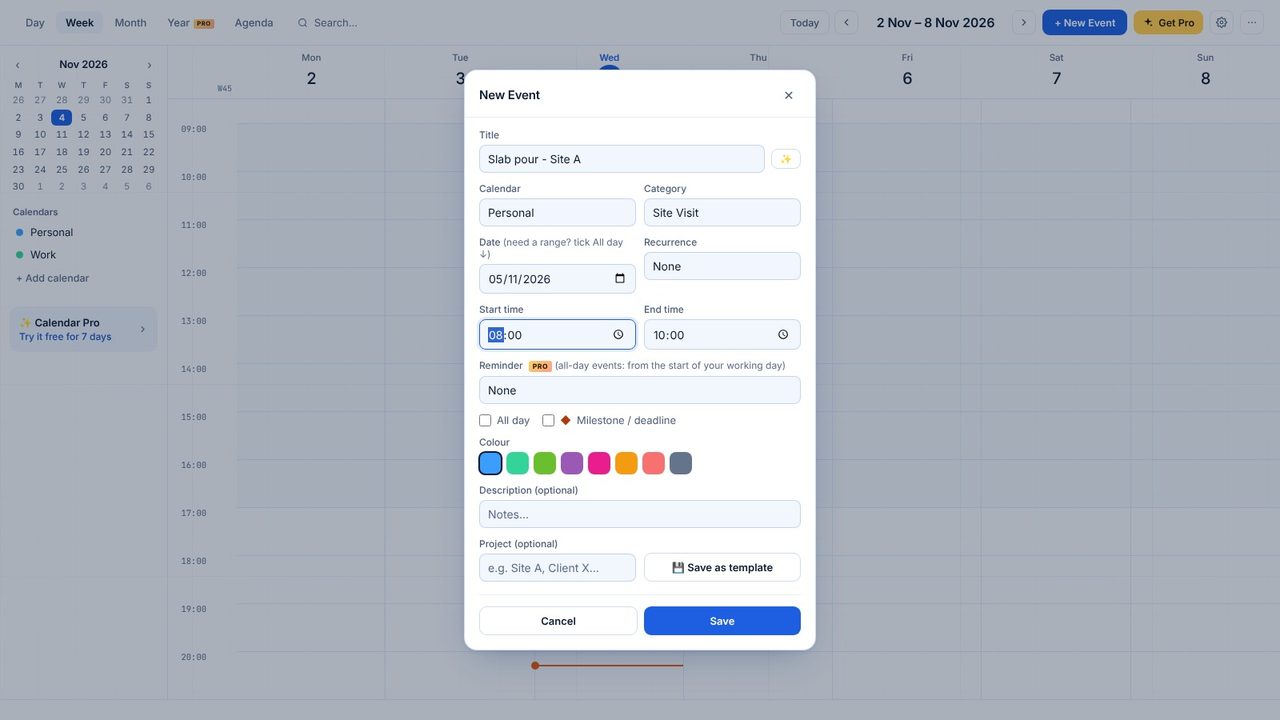
Type the project in Project - Site A here - and save. The project appears as a filter chip in the sidebar.
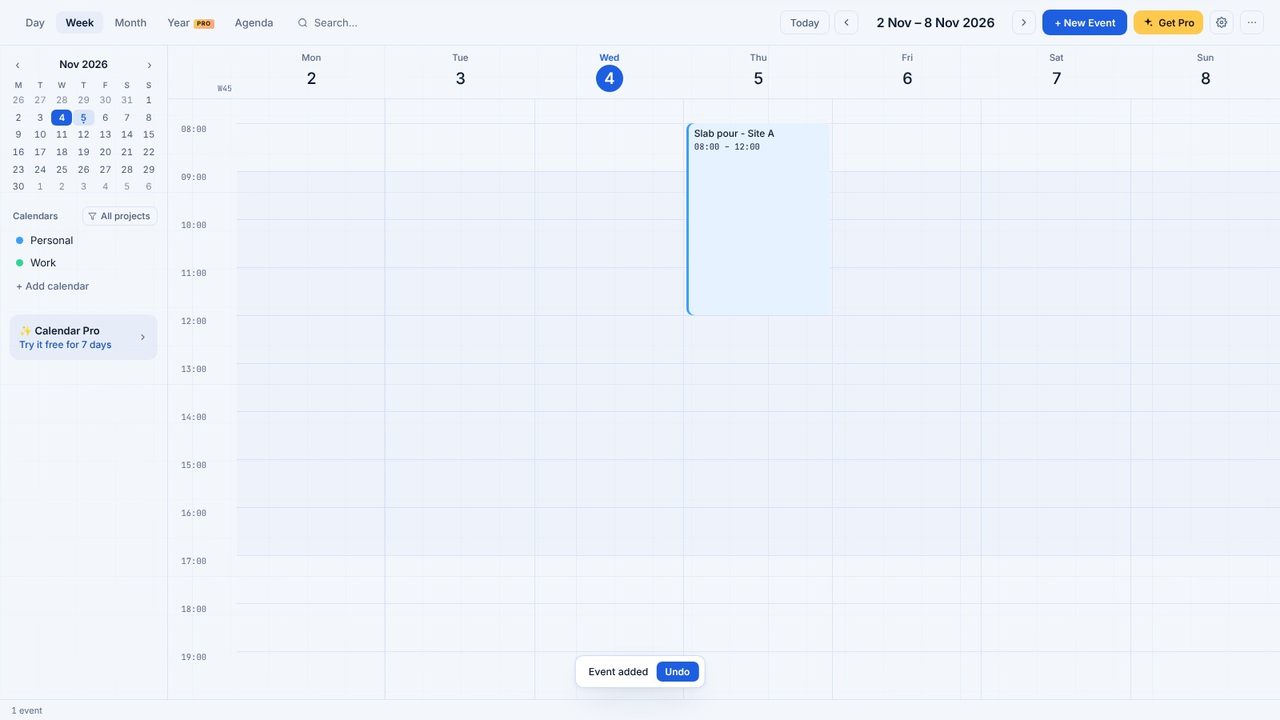
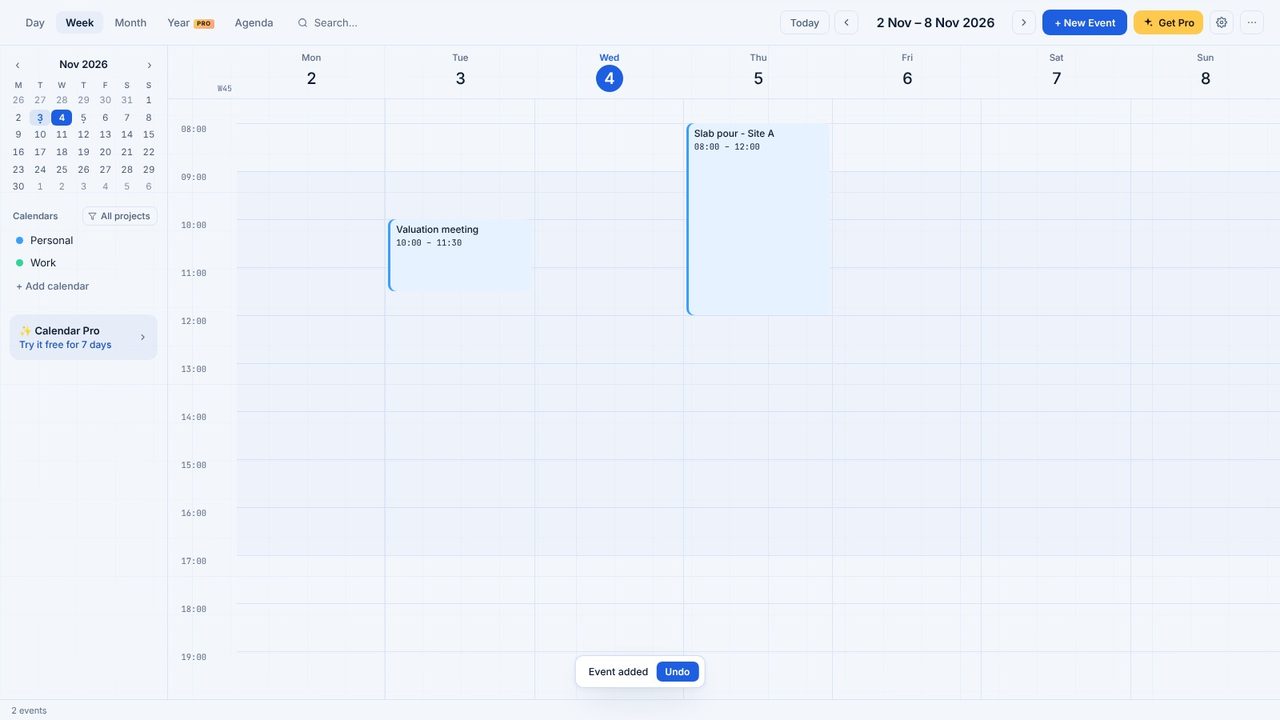
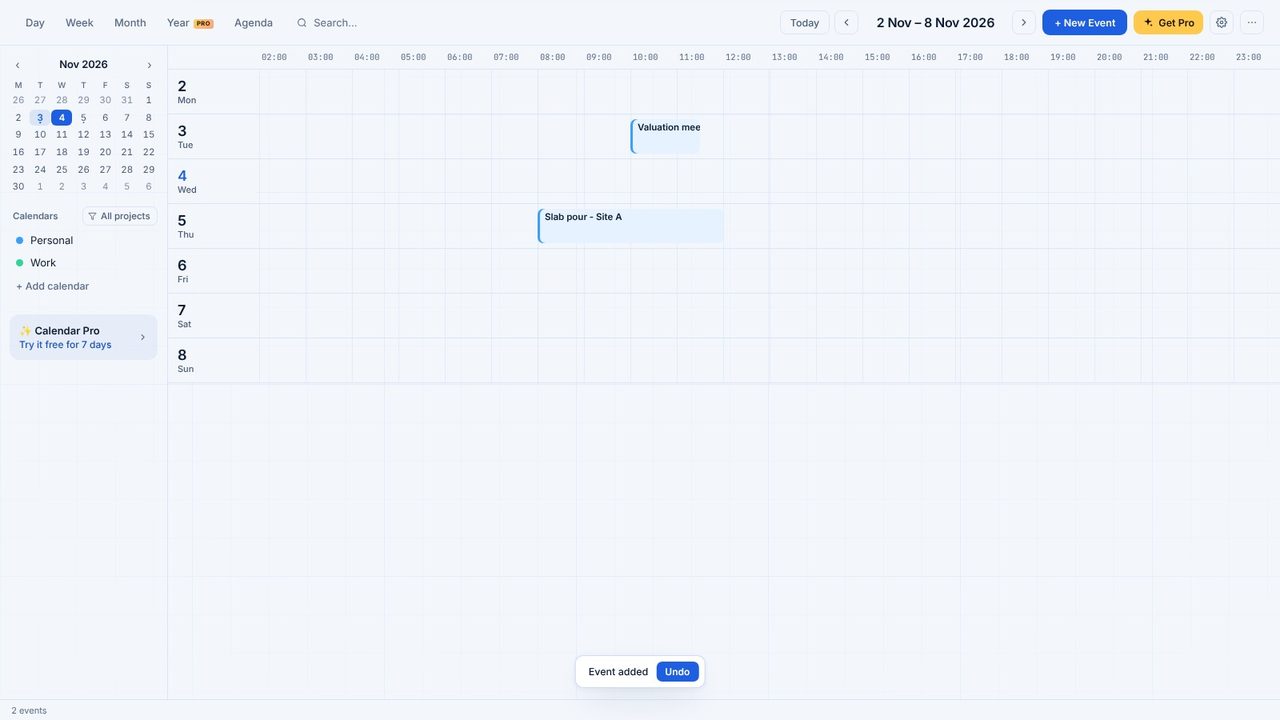
The valuation meeting goes on Tuesday, tagged to the same project. Drag any event to move it; drag its bottom edge to change how long it runs.
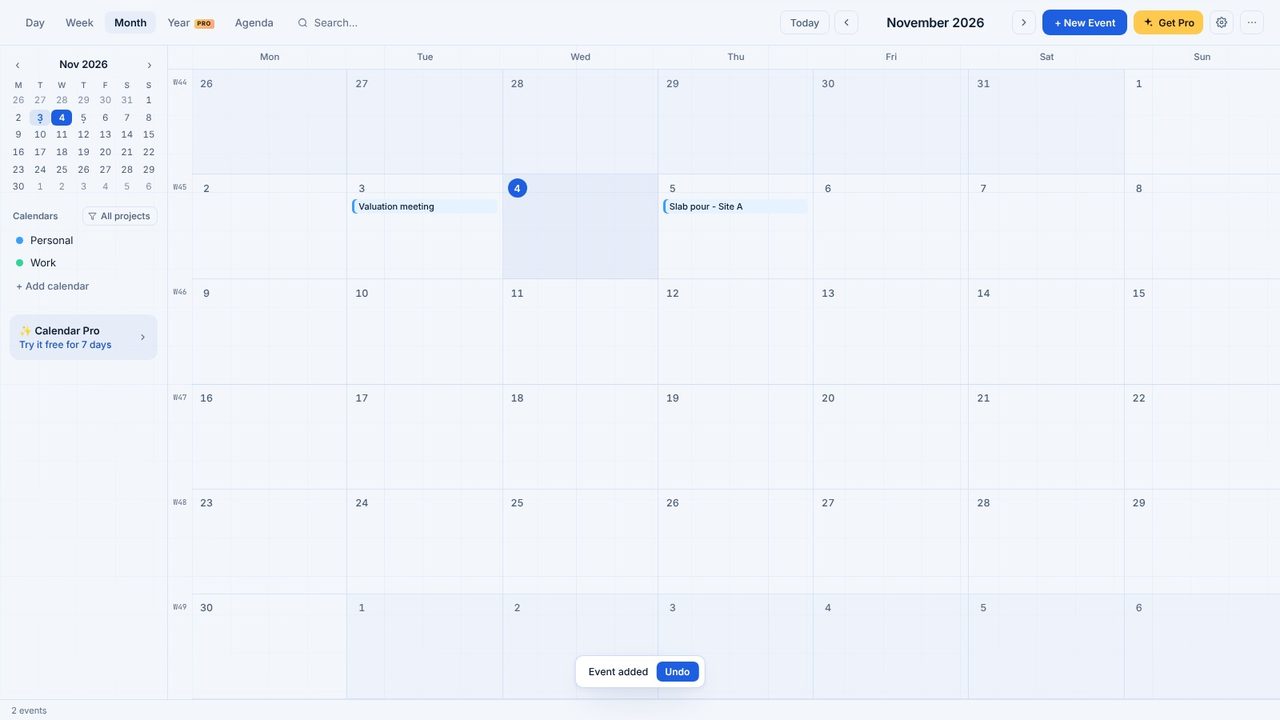
Month (or press 4) shows ISO week numbers, milestones and UK bank holidays.
Timeline (press 3) lays the week out Gantt-style - hours left to right, one row per day - so clashes stand out.
Yes. The views, projects, time tracking, templates and the site diary are free, in the Windows app and in your browser.
No. It opens straight to your diary, and everything stays on your PC.
