How-to guide
Desktop Publishing opens .pub files created in Microsoft Publisher (98 to 365) - pages, text, pictures, shapes and tables - and tells you plainly what came across and what didn't.
Click File, then Open. You can also drag a .pub file onto the window, or right-click it in File Explorer and choose Open with.
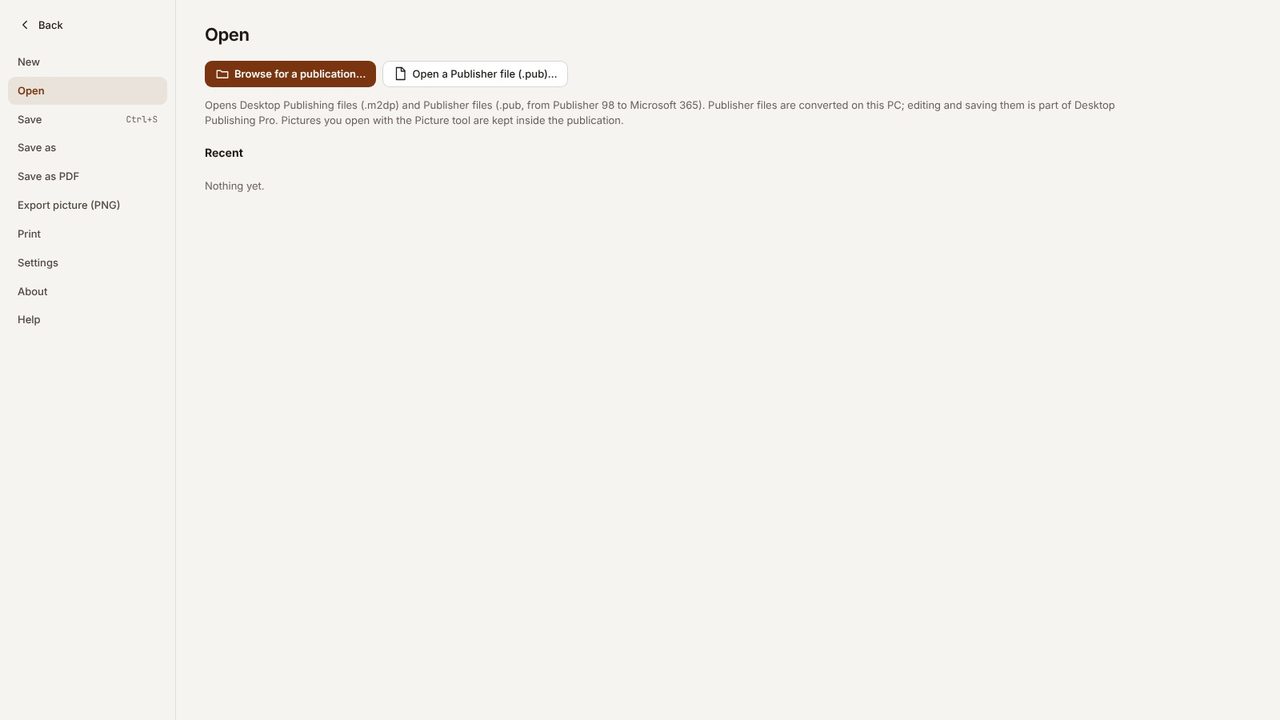
Click Open a Publisher file (.pub) and pick the file. It is read on your PC; nothing is uploaded.
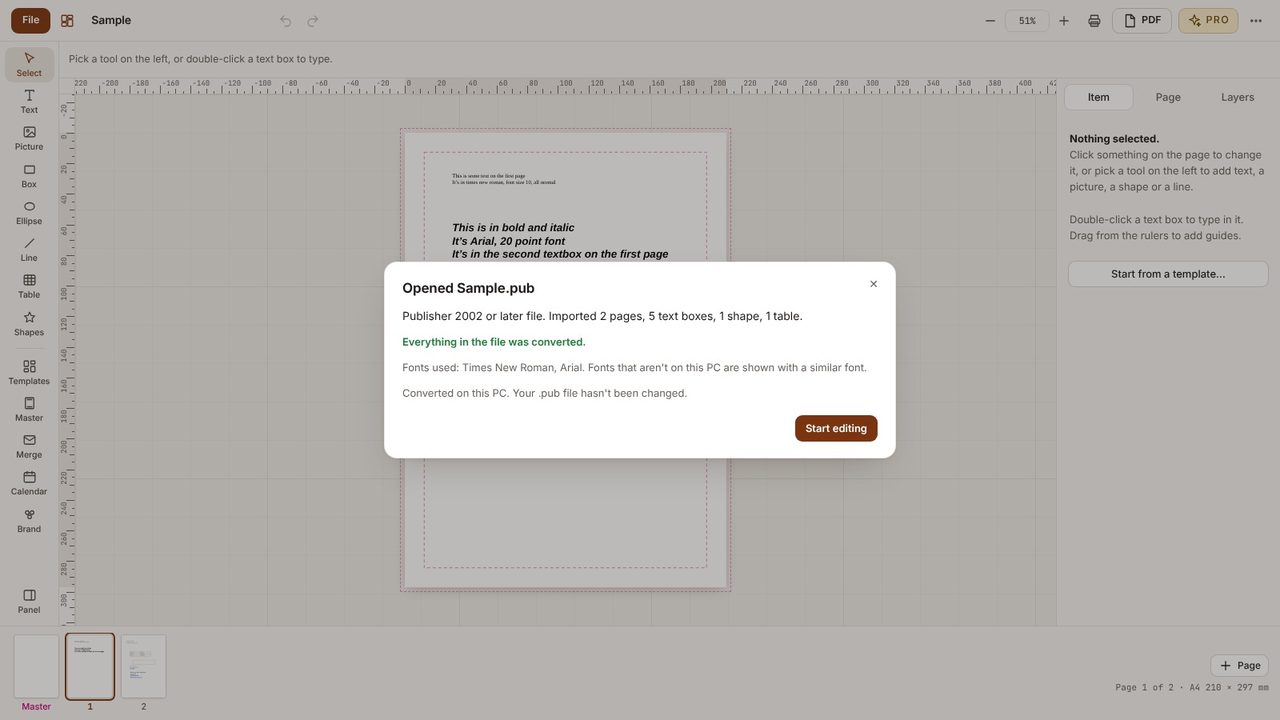
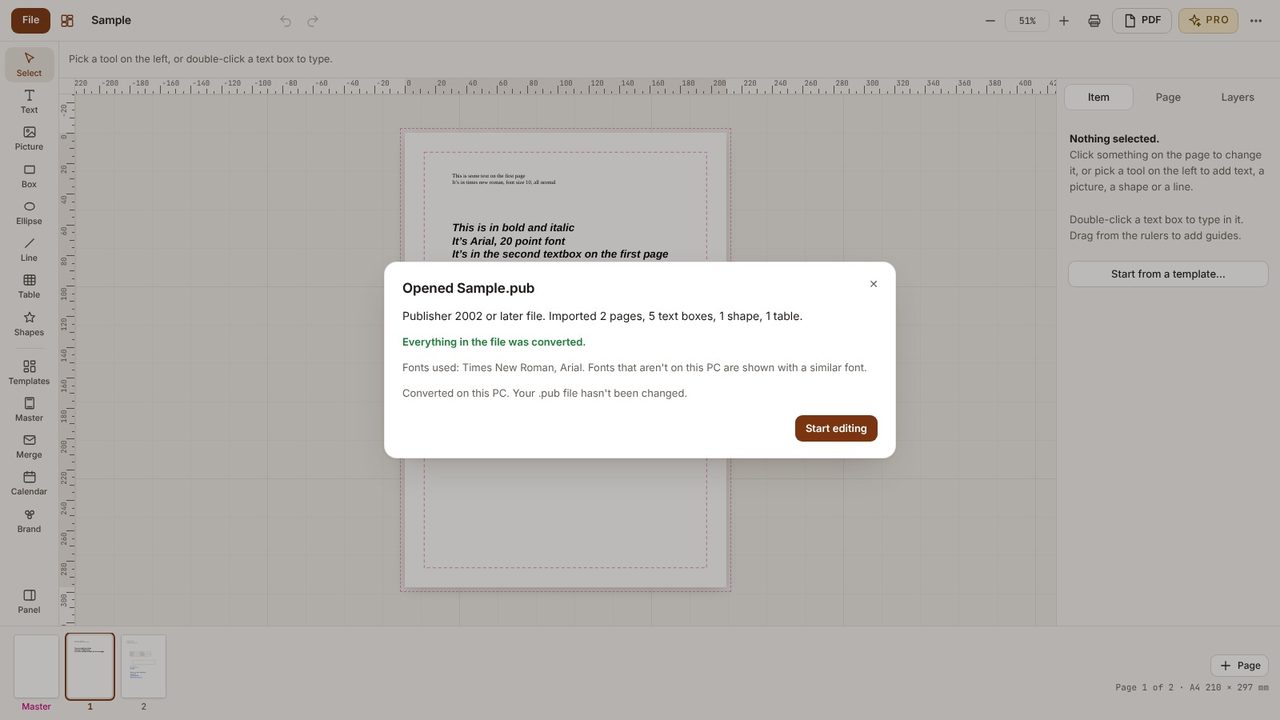
The report counts the pages, text boxes, pictures and shapes it brought in, and lists anything it couldn't convert - for example gradient fills shown as a flat colour, or fonts swapped for a close match.
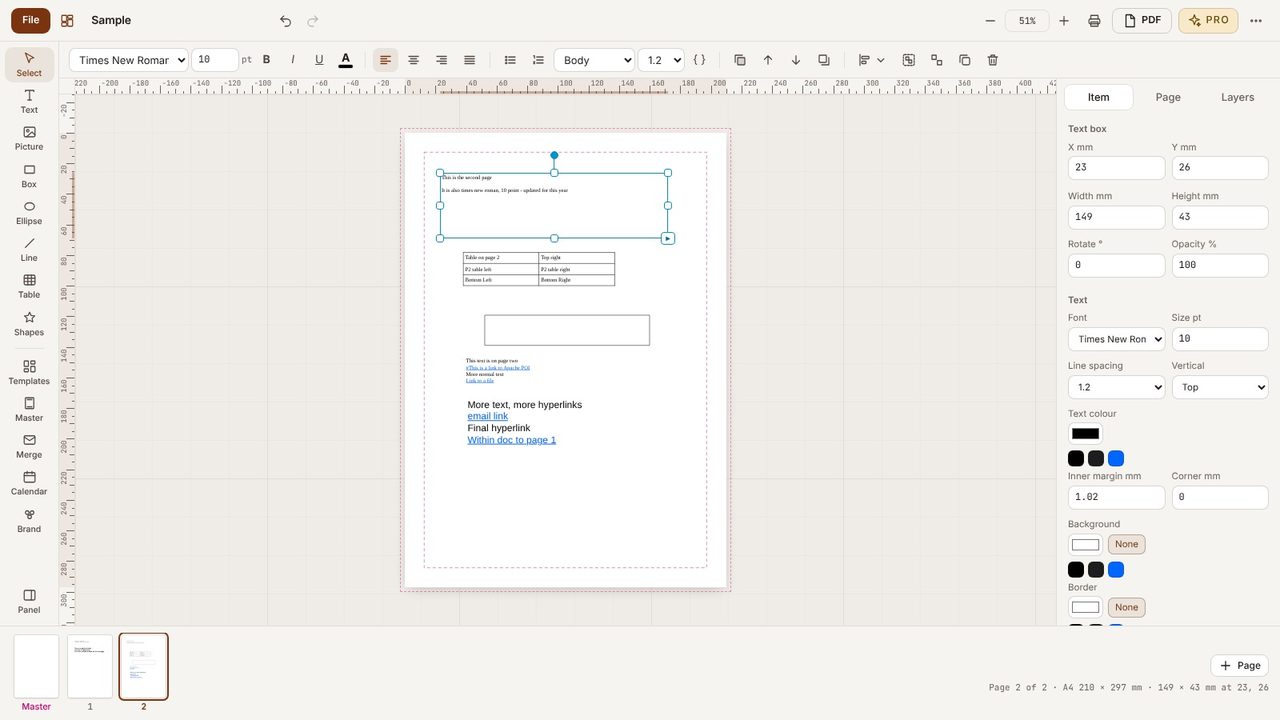
Click the pages along the bottom. Linked text boxes stay linked, so text still flows from one to the next.
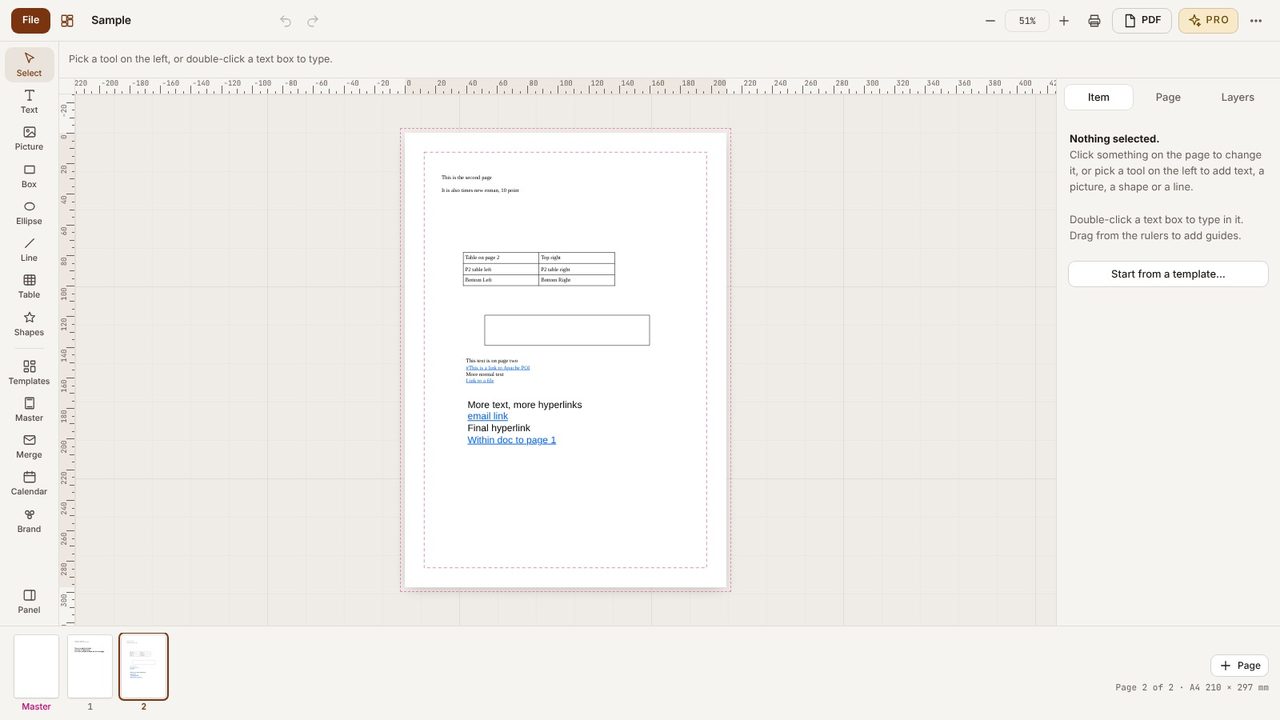
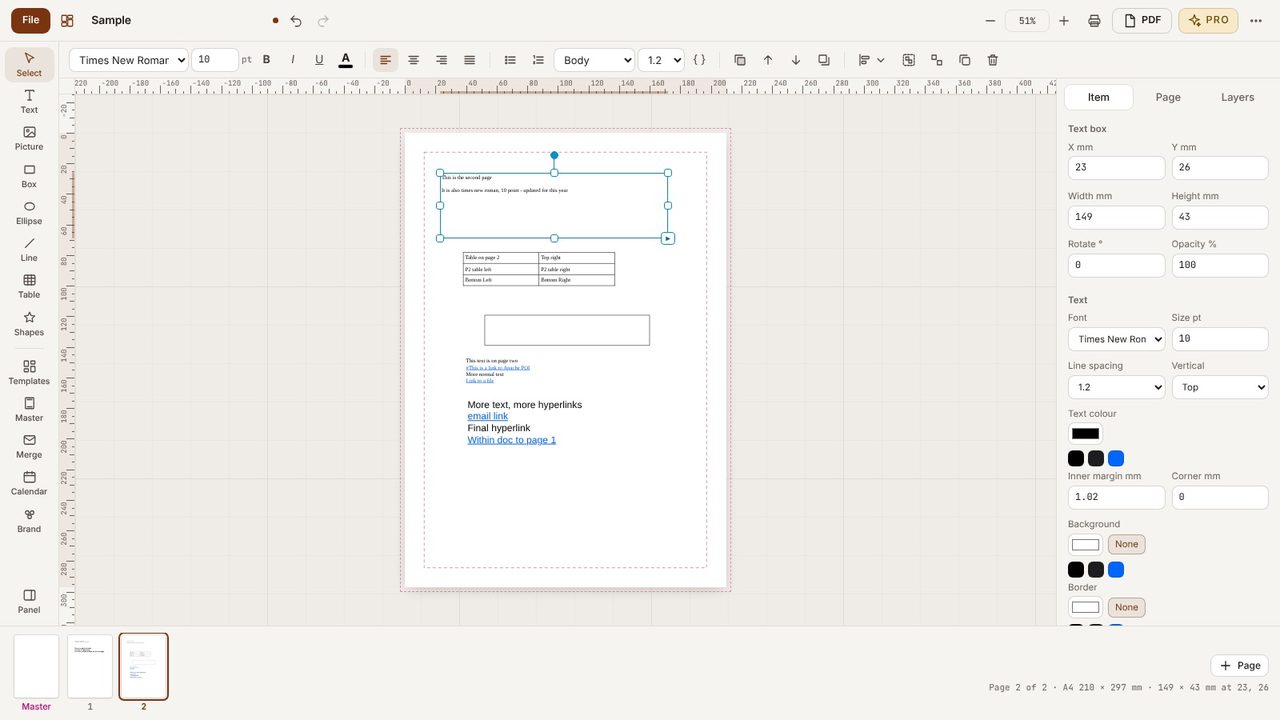
Double-click a text box to type, drag pictures, change colours - it's now an ordinary Desktop Publishing publication.
Press Ctrl+S to save it as a .m2dp file. The original .pub file is never changed.
Files from Publisher 98, 2000, 2002 and later, up to Publisher for Microsoft 365.
No - .pub is a closed format. Save as .m2dp, or export a PDF or PNG.
The browser edition shows a preview; editing and saving need the Windows app with Pro.
