How-to guide
A roof plan shows each slope squashed flat, so the area you measure on plan is less than the roof you'll actually cover. Takeoff Studio, free on Windows, corrects for it: measure the slope on plan, type the pitch, and it gives you the true area on the slope. Your drawing never leaves your PC.
Open the drawing with Load PDF. In the PDF tab choose Set Scale from Title Block; if a sheet has more than one scale, pick the one for the plan. Or Calibrate (R) from a dimension you trust.
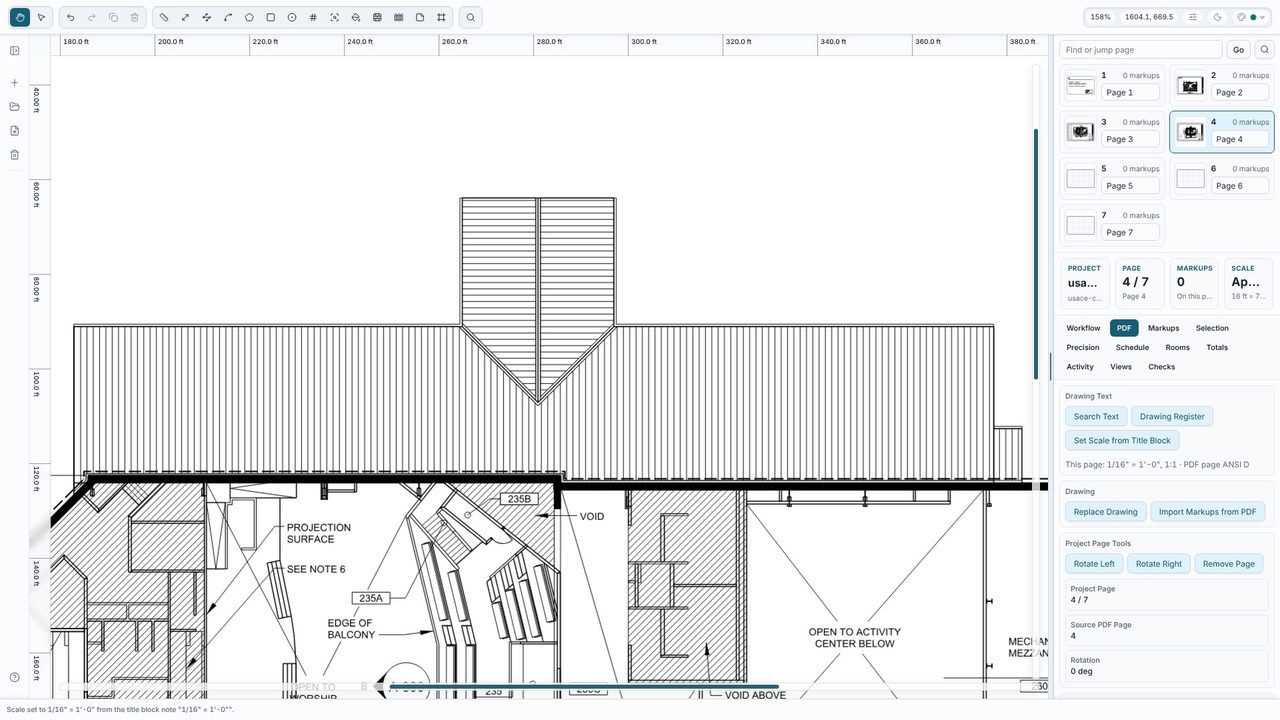
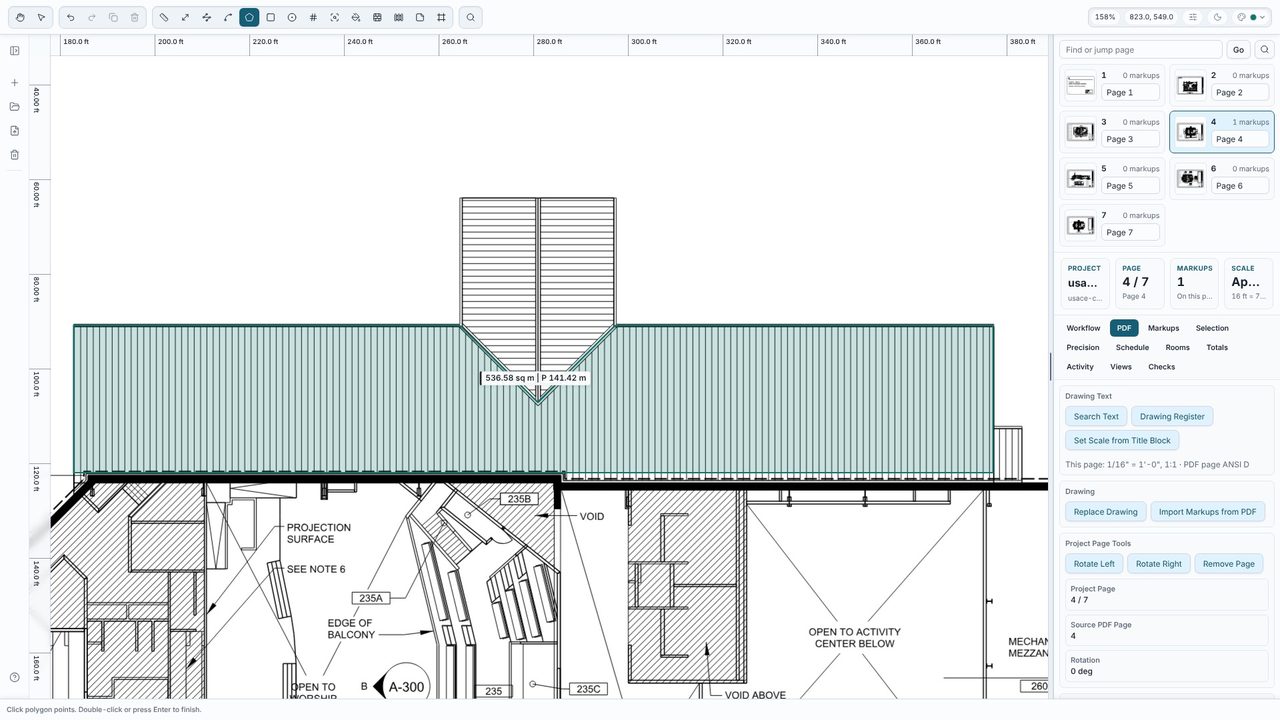
Choose Area (A) and click each corner of one roof slope - eaves, verge, ridge and any valleys - then press Enter or double-click. Measure slopes that share the same pitch together, or one at a time if they differ. This slope is 536.58 m² on plan.
Select the area and, in the Selection tab under Quantity, type the Slope as degrees (18.4), a rise to run ratio (4:12 or 1:3) or a percentage (33.3%), and press Enter. If the other side of the roof is the same, set Times to 2 instead of drawing it again.
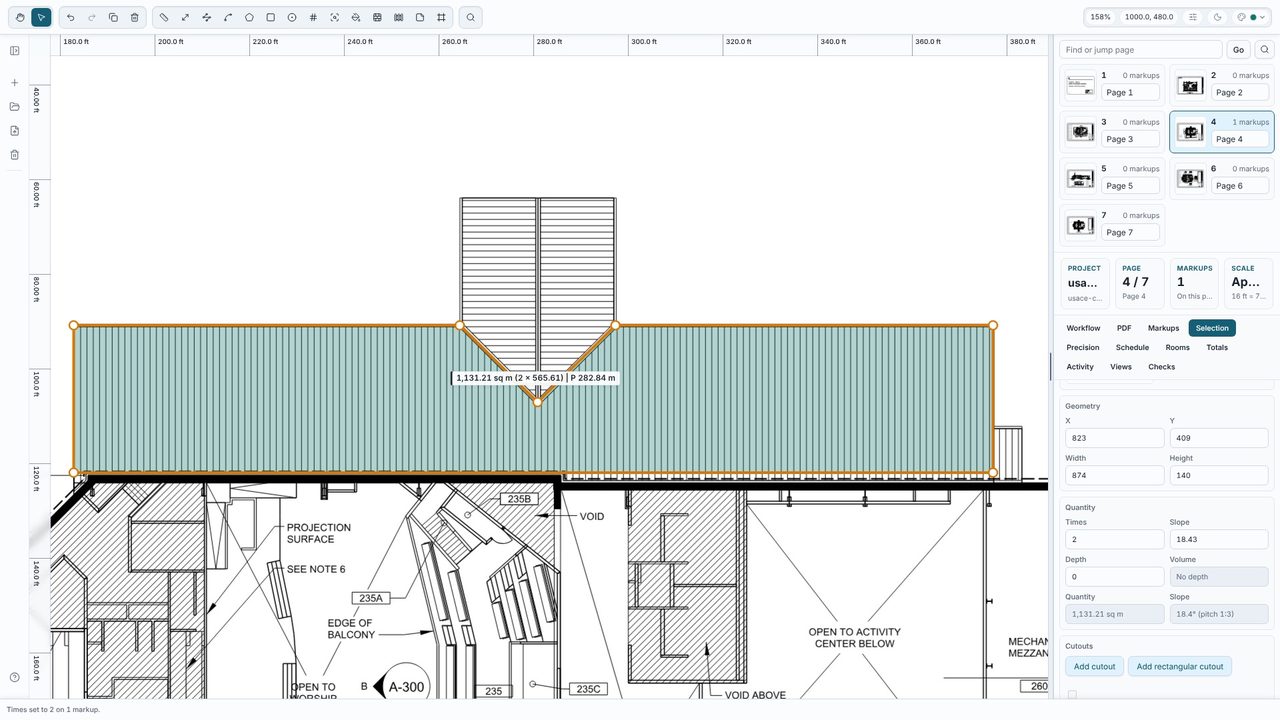
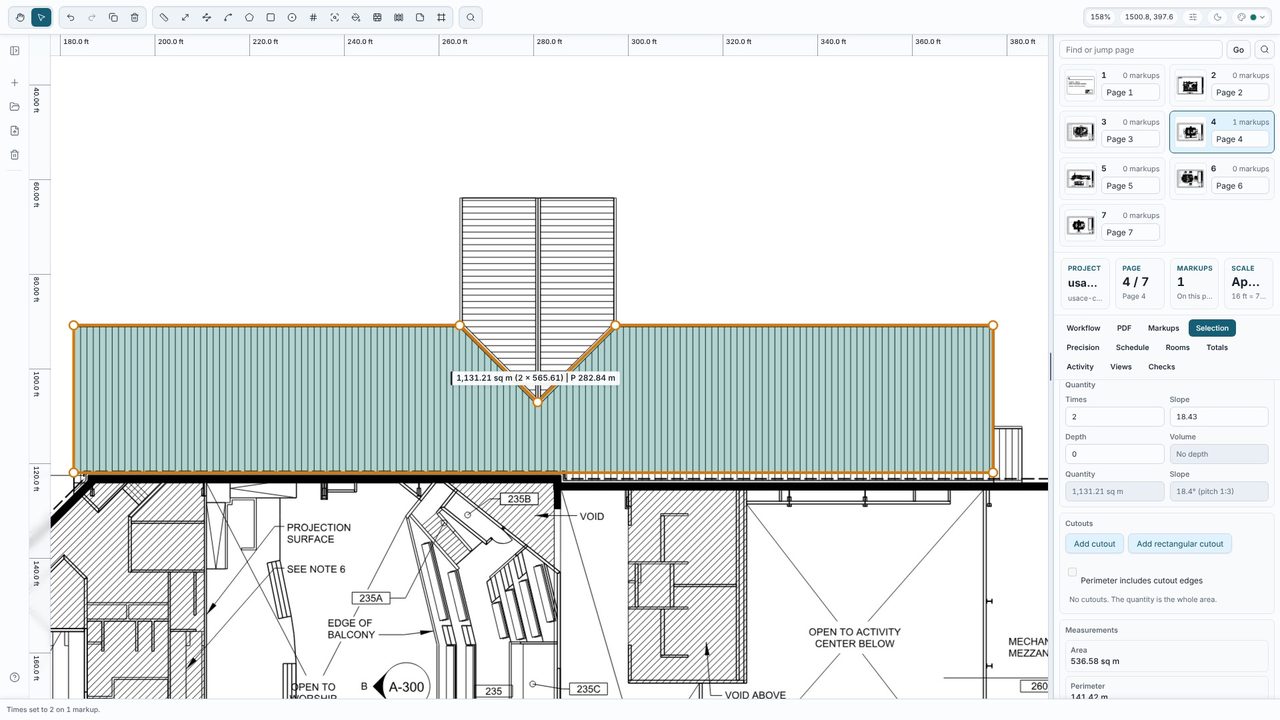
The Selection tab shows the plan area, the slope and the area on the slope - 565.61 m² for this slope, and 1,131.21 m² for both with Times 2. The on-slope figure is what goes into the label, the Totals and any export.
Main roof - standing seam) so the totals add up by material.Yes. Slope, Times and every measuring tool are free in Takeoff Studio, with no account. Takeoff Studio Pro (£24.99 a month or £199.99 a year, first month free) adds exports, costed schedules, assemblies and more.
Degrees (30), a rise:run ratio (1:2 or 6/12) or a percentage (15%). The Selection tab shows the pitch both ways, for example 18.4° (pitch 1:3).
Yes. Set the slope on a ramp's area or length measured on plan in the same way.
No. Takeoff Studio is a Windows app and works offline - the PDF and your measurements stay on your PC.