How-to guide
Older UK drawings, and anything from the US, are often dimensioned in feet and inches. Takeoff Studio, free on Windows, measures them as they are: calibrate from a dimension like 126'-0", and read areas in square feet and lengths in feet and inches - or switch the same measurements to metric at any time. Your drawing never leaves your PC.
Open the drawing with Load PDF. Click the View options button (top right) and, under Measuring display, set Units to Imperial (ft-in) - or Imperial (ft) for decimal feet. This only changes how quantities are shown; you can switch back to metric at any time.
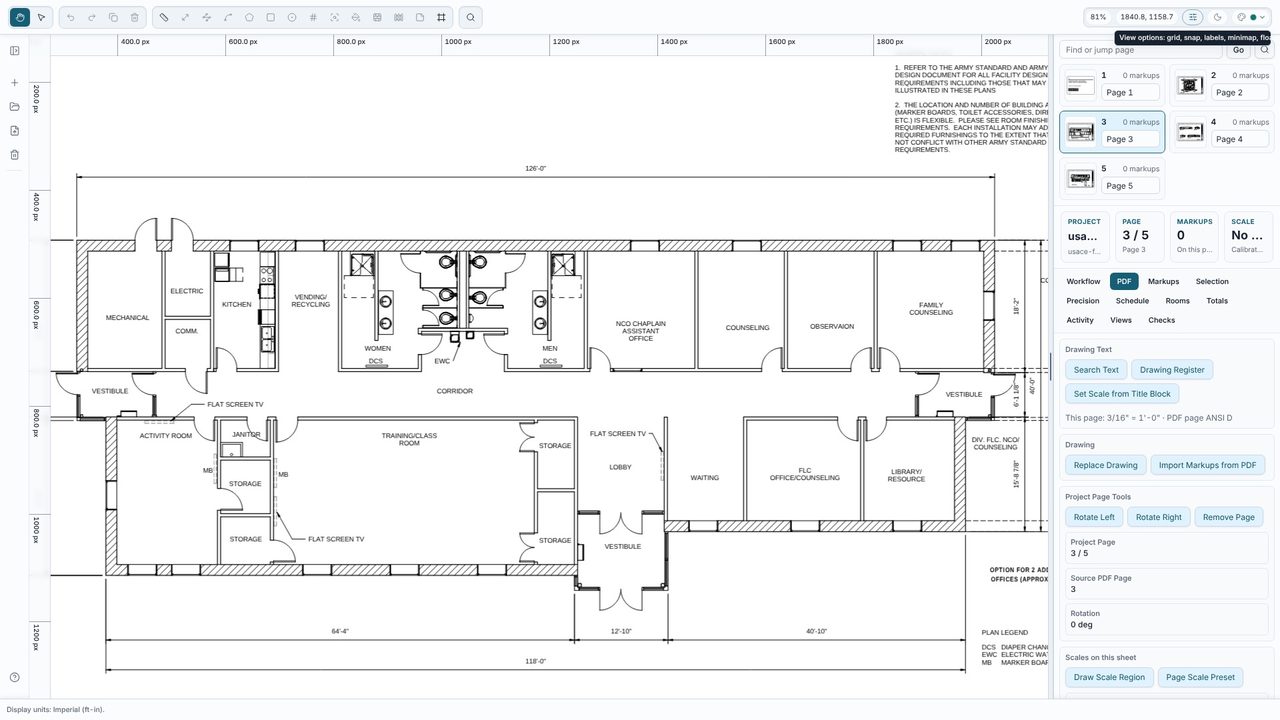
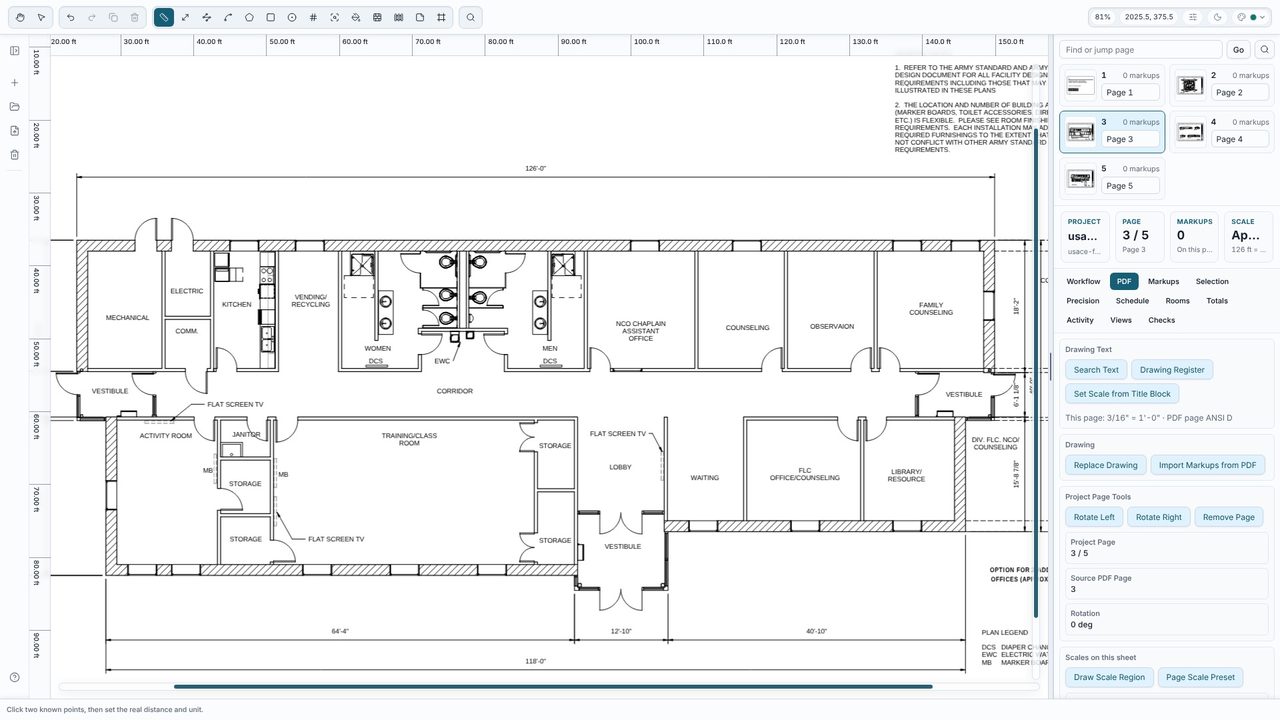
Choose Calibrate (R) and click both ends of the longest dimension you can find - here the 126'-0" overall dimension. Type the length as it's written: 126' 0", 126ft, 12' 6", 150" and 12.5 ft all work. Set the unit to ft and click Apply. If the title block has a scale such as 3/16" = 1'-0", Set Scale from Title Block in the PDF tab does it in one click.
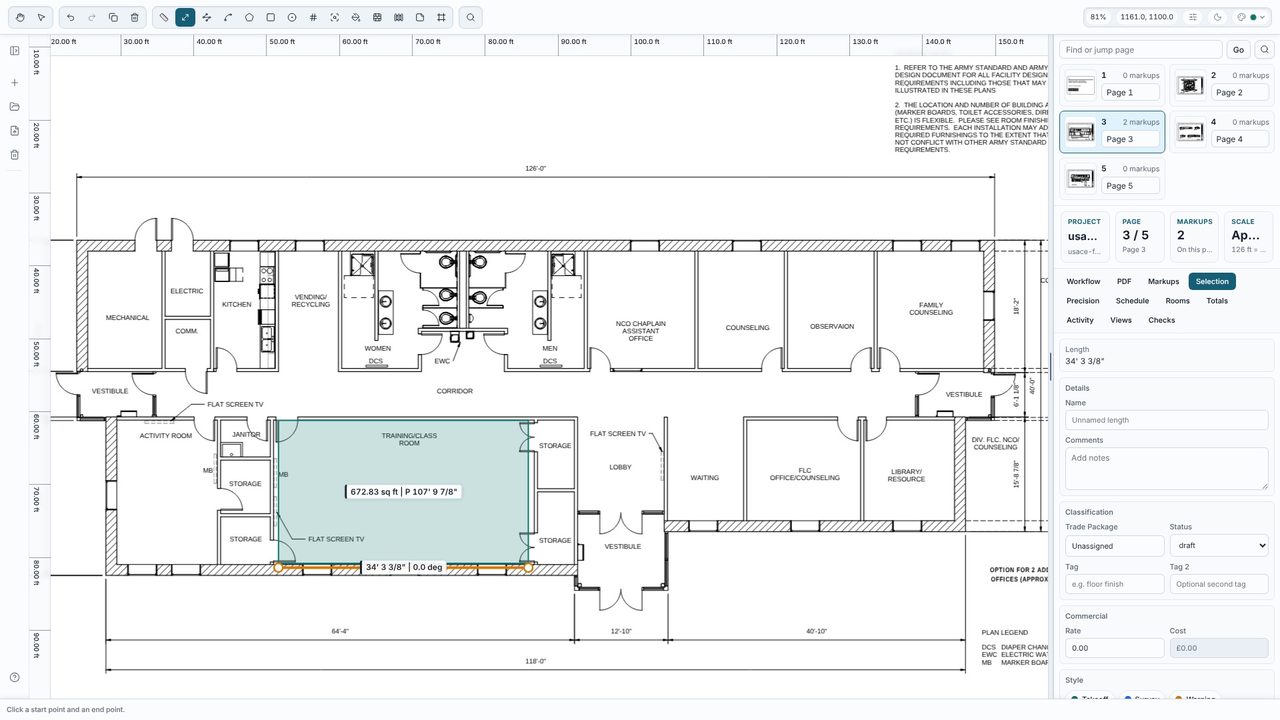
Use the measuring tools as normal. Here Rect (B) round the training room gives 672.83 sq ft with a perimeter of 107' 9 7/8", and Length (L) along the wall gives 34' 3 3/8". Inches are shown to the nearest eighth.
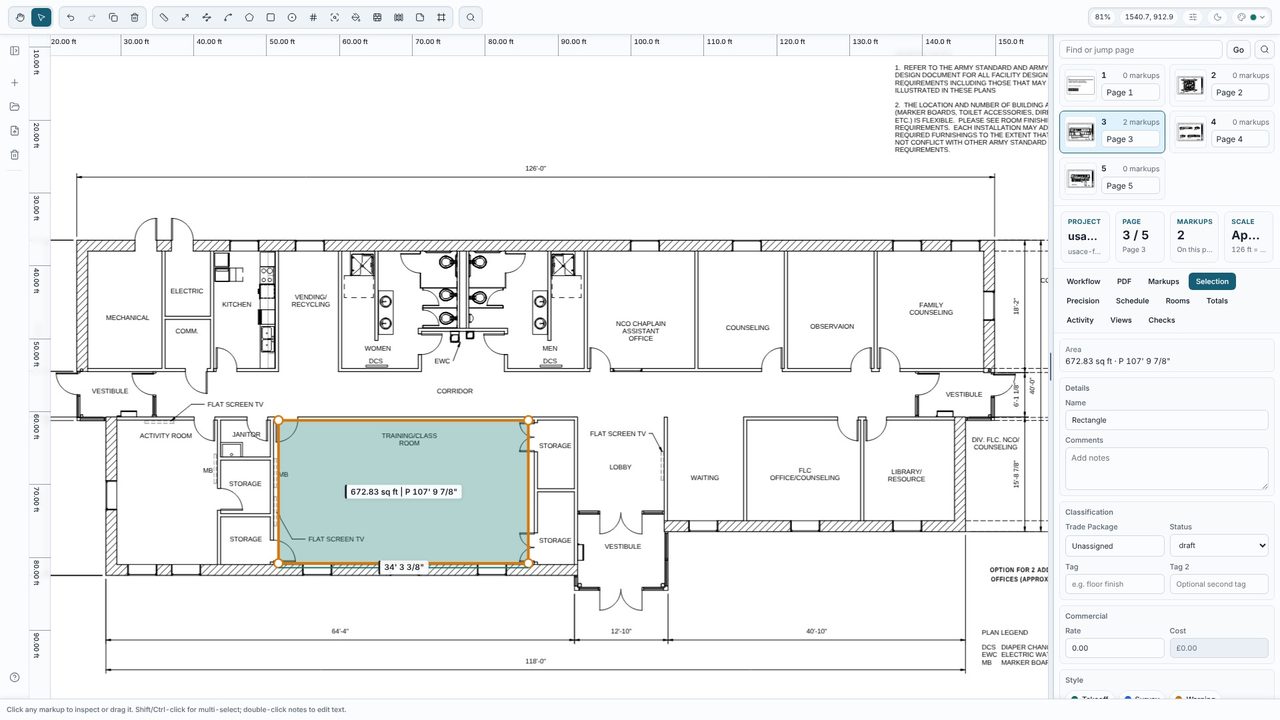
Select a measurement to see its quantities in the Selection tab, in the units you chose. The Totals, the schedule and exports follow the same setting - and volumes show in cubic yards. Change Units to Metric (m) and the same measurements read in m and m².
8' 0" after the first click and press Enter.16" or 2'.Yes. Imperial units, calibration and every measuring tool are free in Takeoff Studio, with no account. Takeoff Studio Pro (£24.99 a month or £199.99 a year, first month free) adds exports, costed schedules and more.
Yes. The calibration and the display are separate: calibrate from the drawing's own dimensions, then set Units to Metric (m) to see m and m², or Imperial to see feet and square feet.
Yes. Set Scale from Title Block finds notes such as 1/4" = 1'-0" or 1" = 20' as well as metric ones like 1:100 @ A1.
No. Takeoff Studio is a Windows app and works offline - the PDF and your measurements stay on your PC.