How-to guide
Tables keep timetables, price lists and fixture lists lined up, and they print and export exactly as they look.
Click Table on the left, or press B.
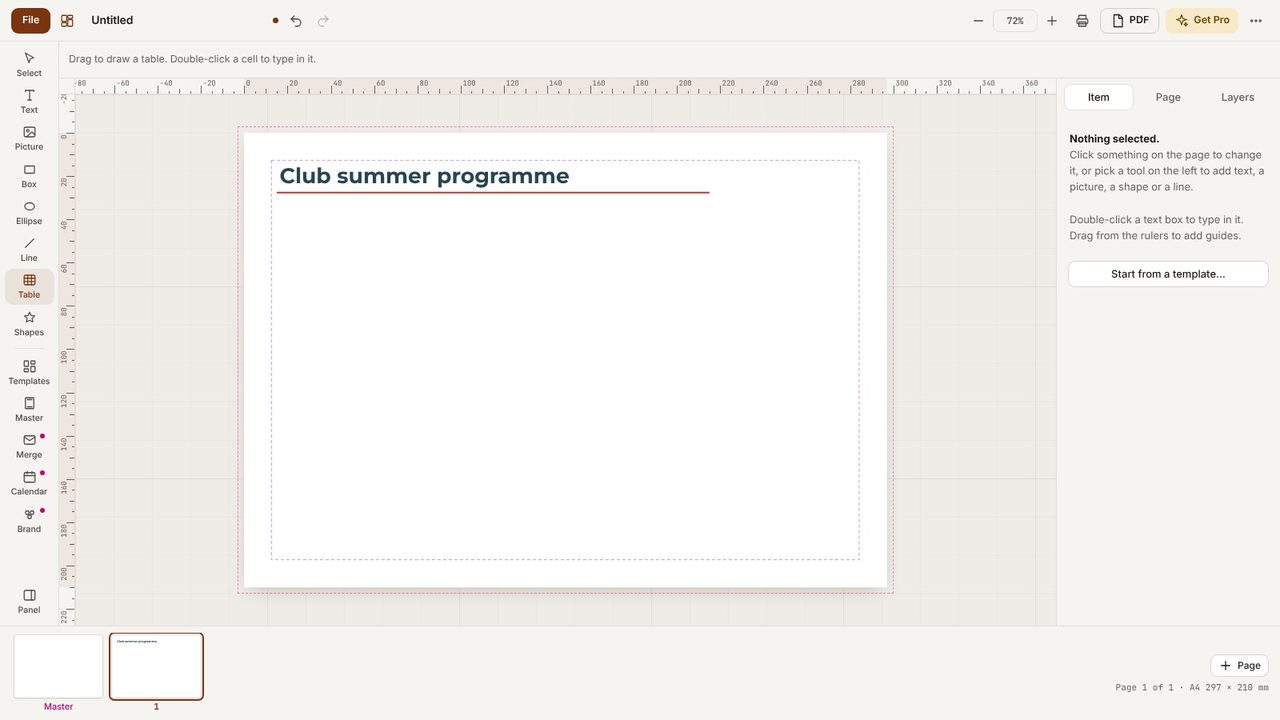
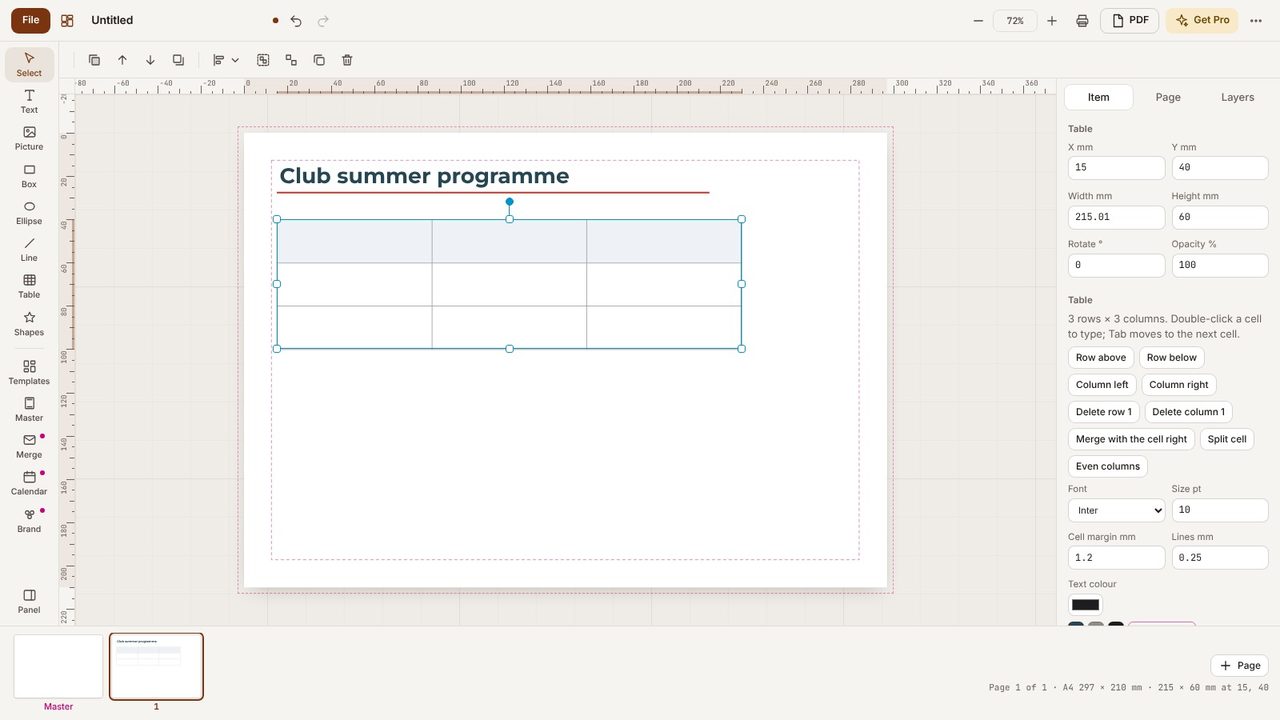
Drag on the page where you want it. It starts with three columns and three rows.
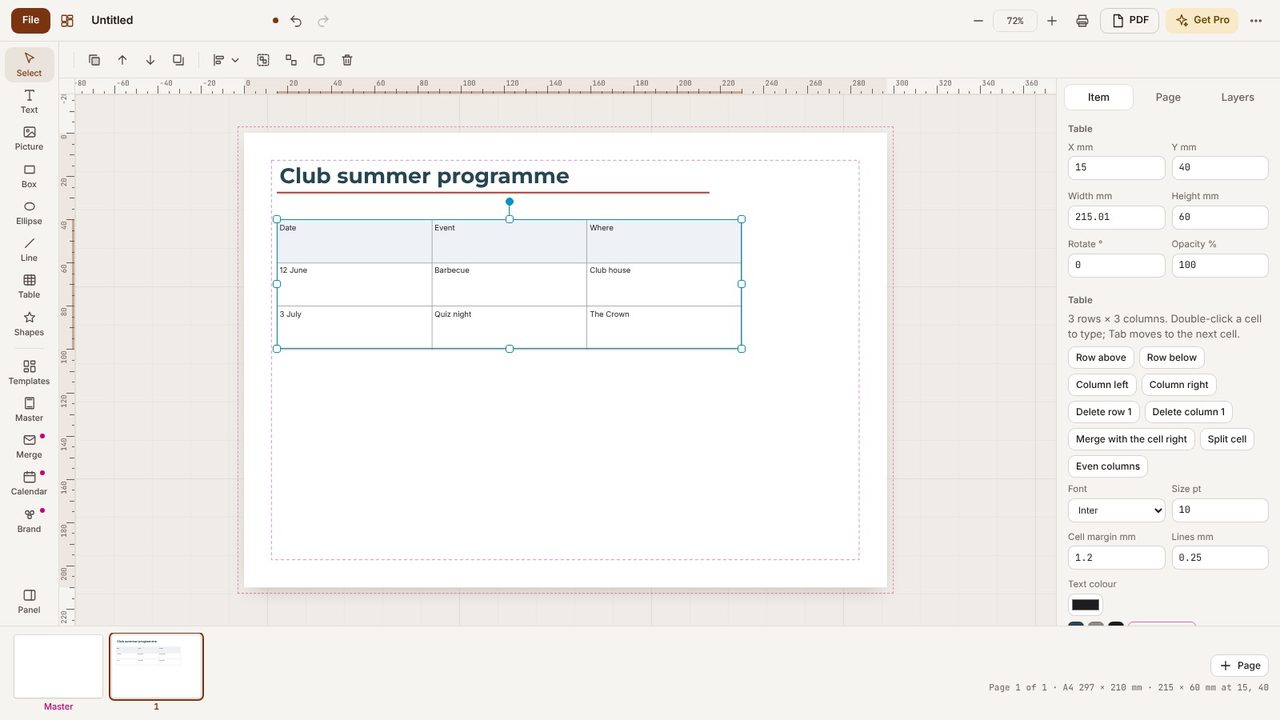
Double-click a cell to type. Press Tab to move to the next cell and Esc when you're done.
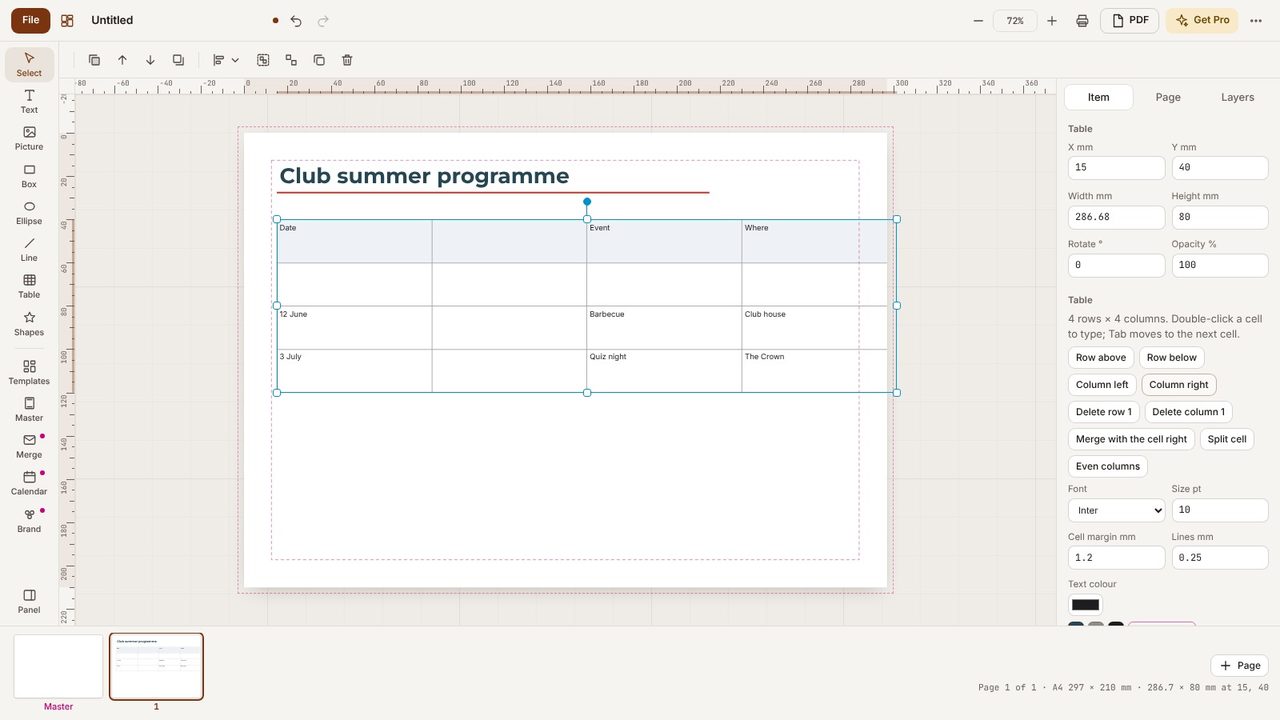
With the table selected, use Row below and Column right in the panel on the right. You can delete rows and columns there too.
Under Header row, give the top row a fill colour, and choose the font, size, text colour and line colour for the whole table.
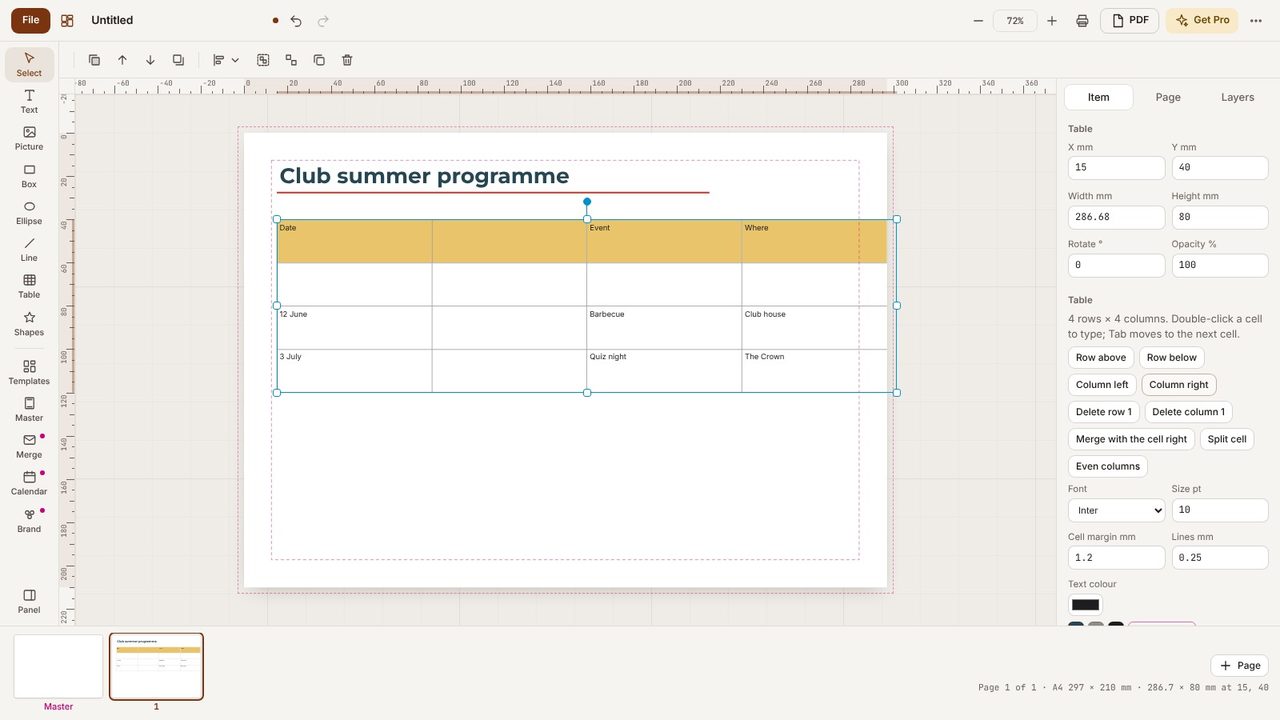
Yes - click in a cell and choose Merge with the cell right in the panel on the right; Split cell undoes it.
Yes - tables in a .pub file are imported as tables.
