How-to guide
A calendar shows what you planned. Metre2 Calendar also records what happened: the hours you actually spent on each event, whether it's done, and the week's planned and logged totals - free.
Click the event, then Edit.
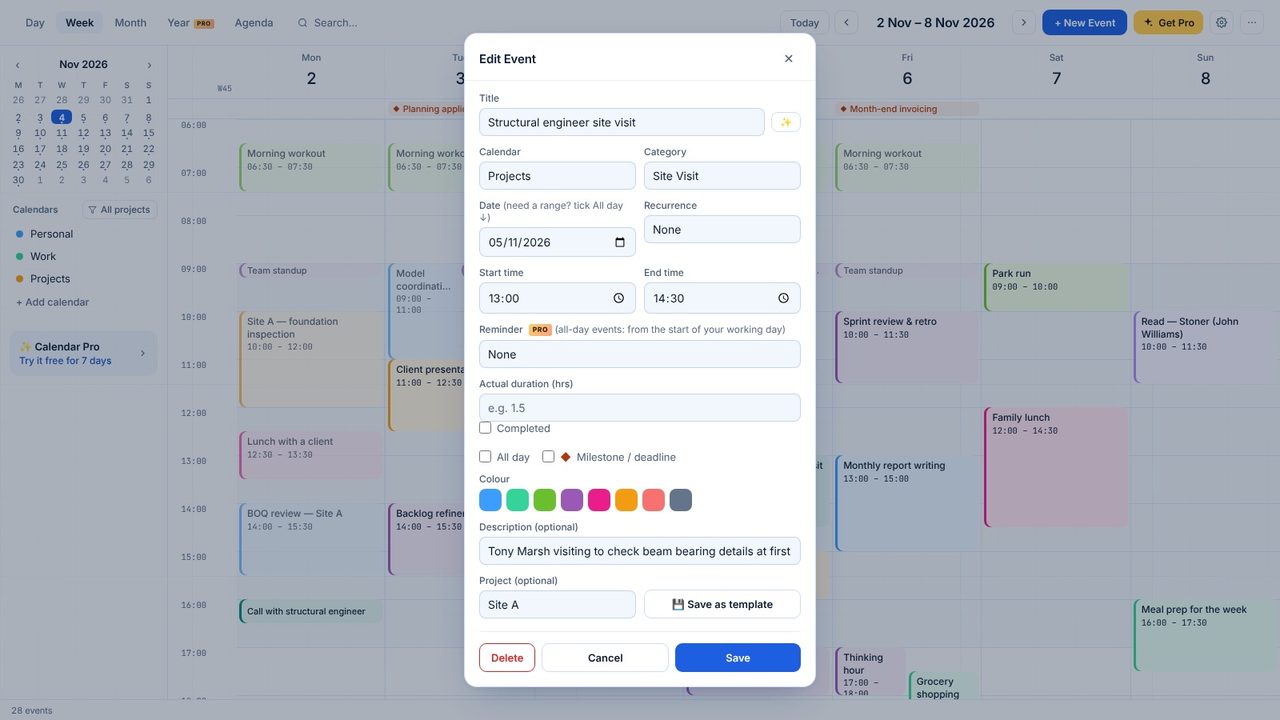
Type them in Actual duration (hrs) - 2.5 for two and a half hours.
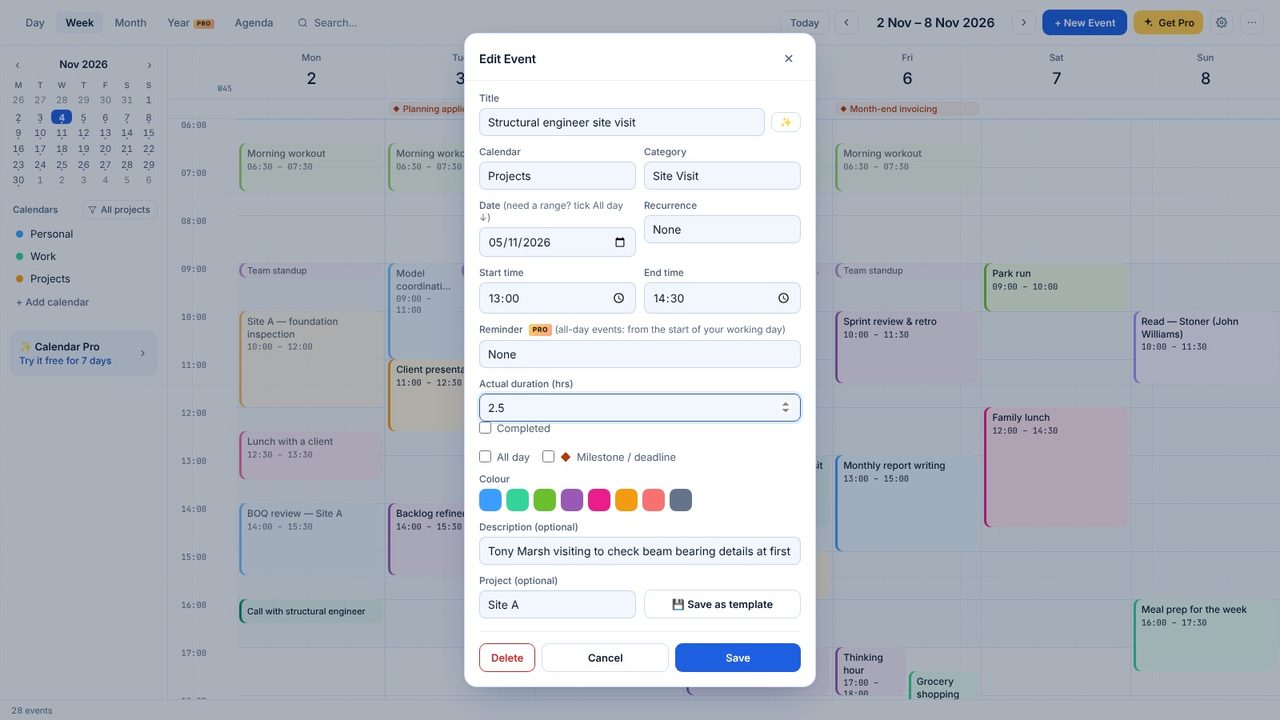
Tick Completed and save. The event shows a tick.
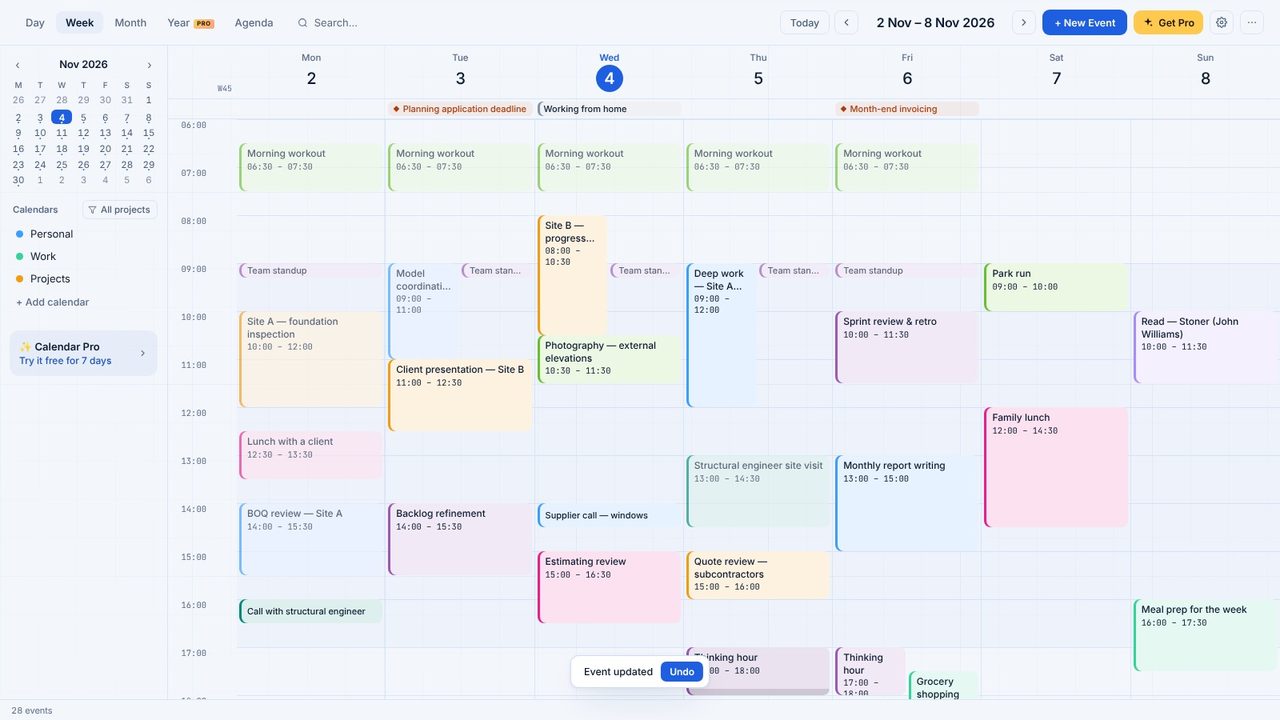
Click Tracking in the sidebar: planned hours, logged hours, completed events and a day-by-day breakdown.
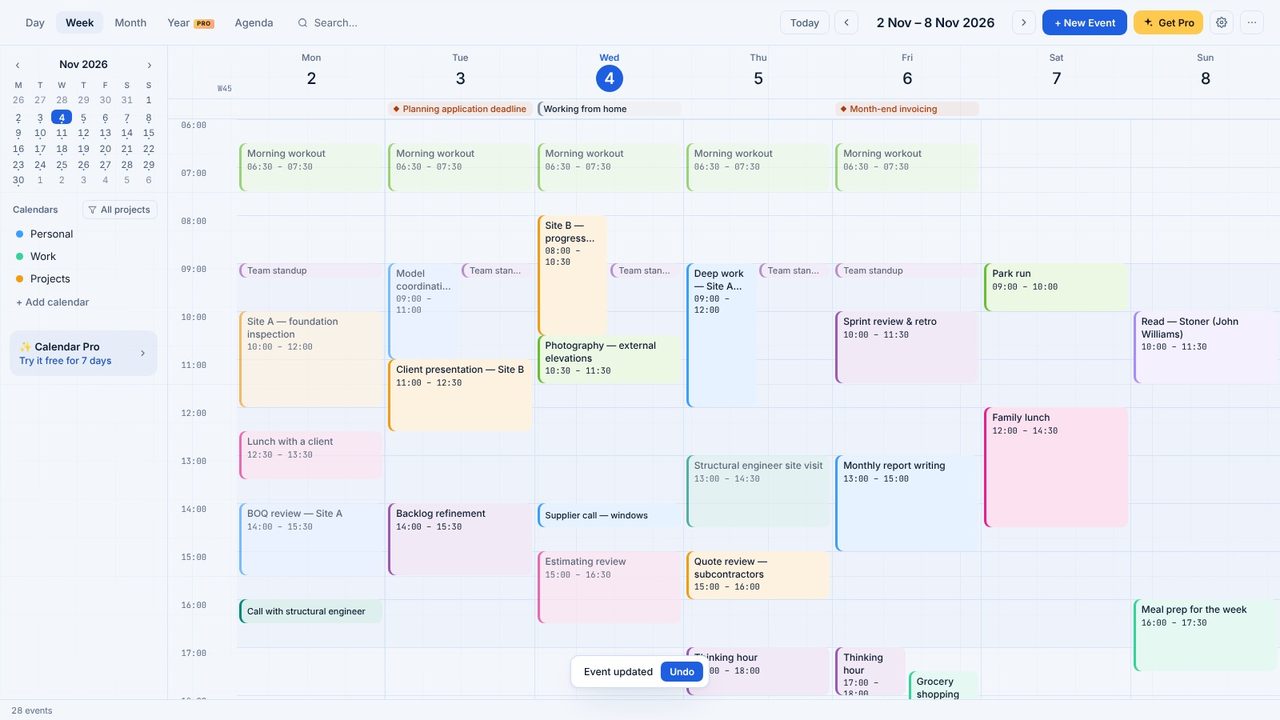
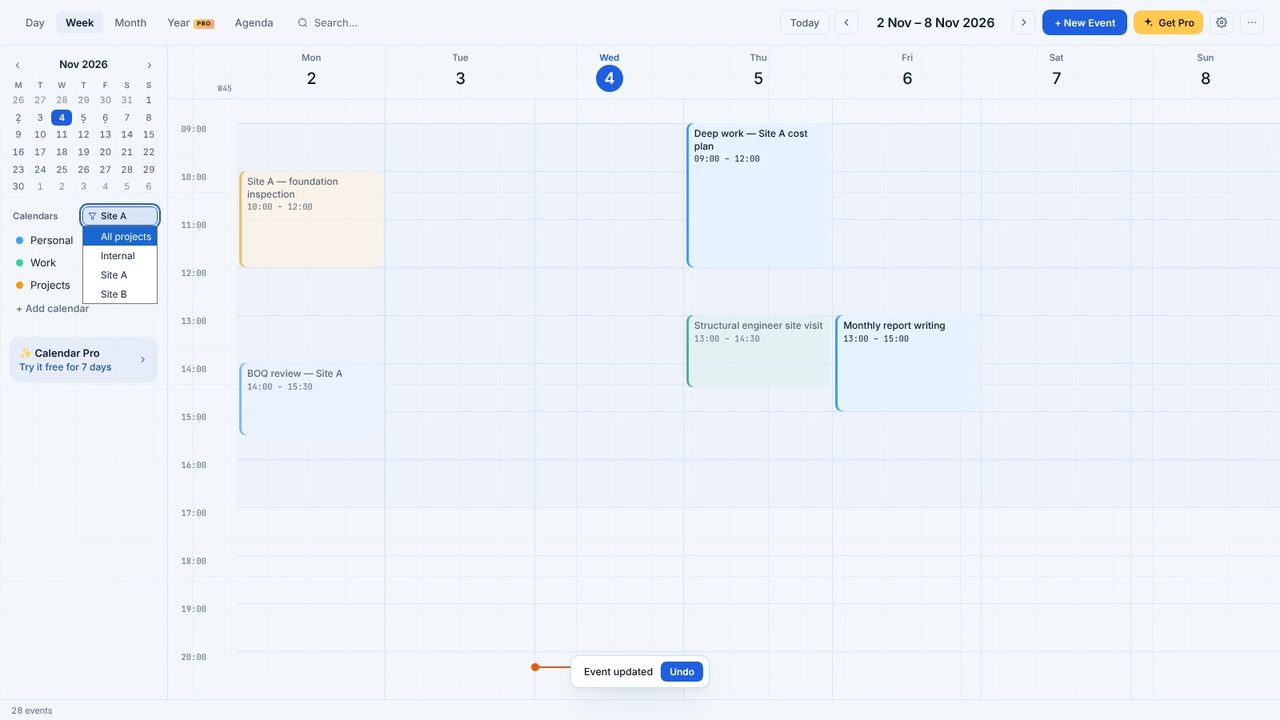
Click a project chip in the sidebar to see only its events.
Yes. Logging hours and the weekly totals are free. Project Report with CSV export is part of Calendar Pro.
