How-to guide
No IDS file from the client? BIM Explorer Pro has five UK starter checks built in - Uniclass on every element, spaces named and numbered, base quantities present, core common properties and a handover minimum. One click runs a check, and every failing element is one click away in the model.
Open the .ifc file, or Load sample.
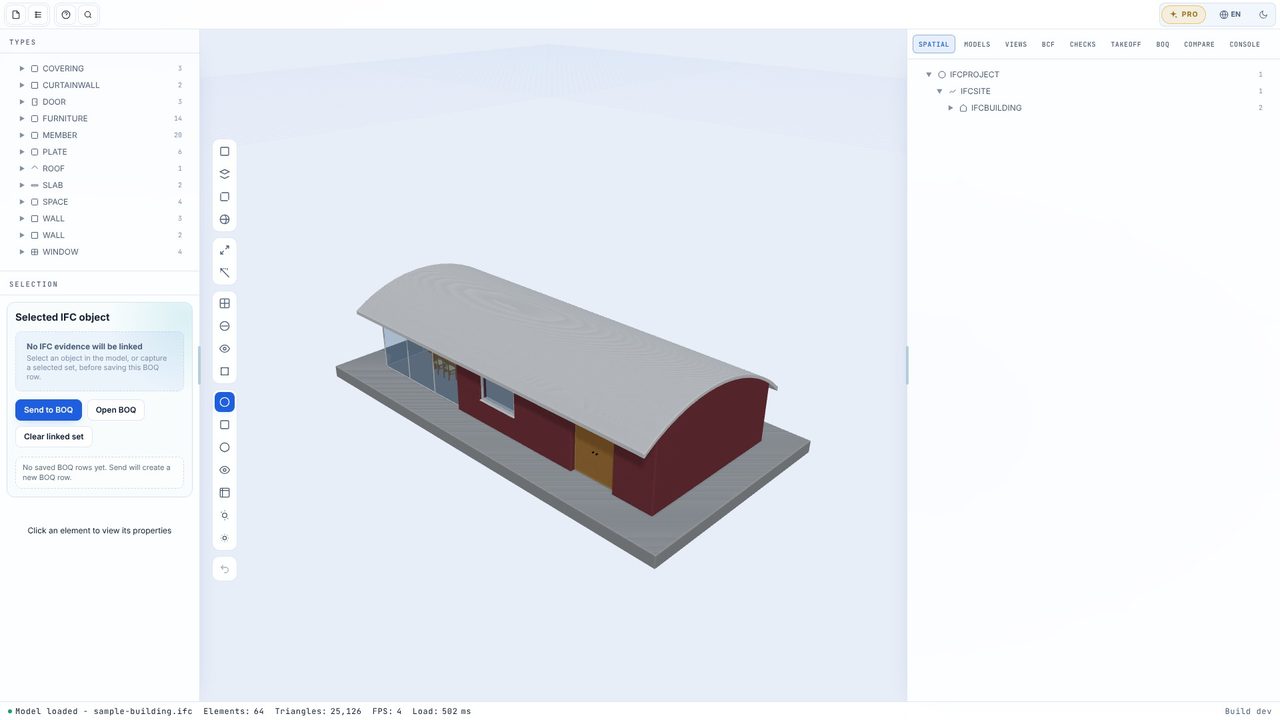
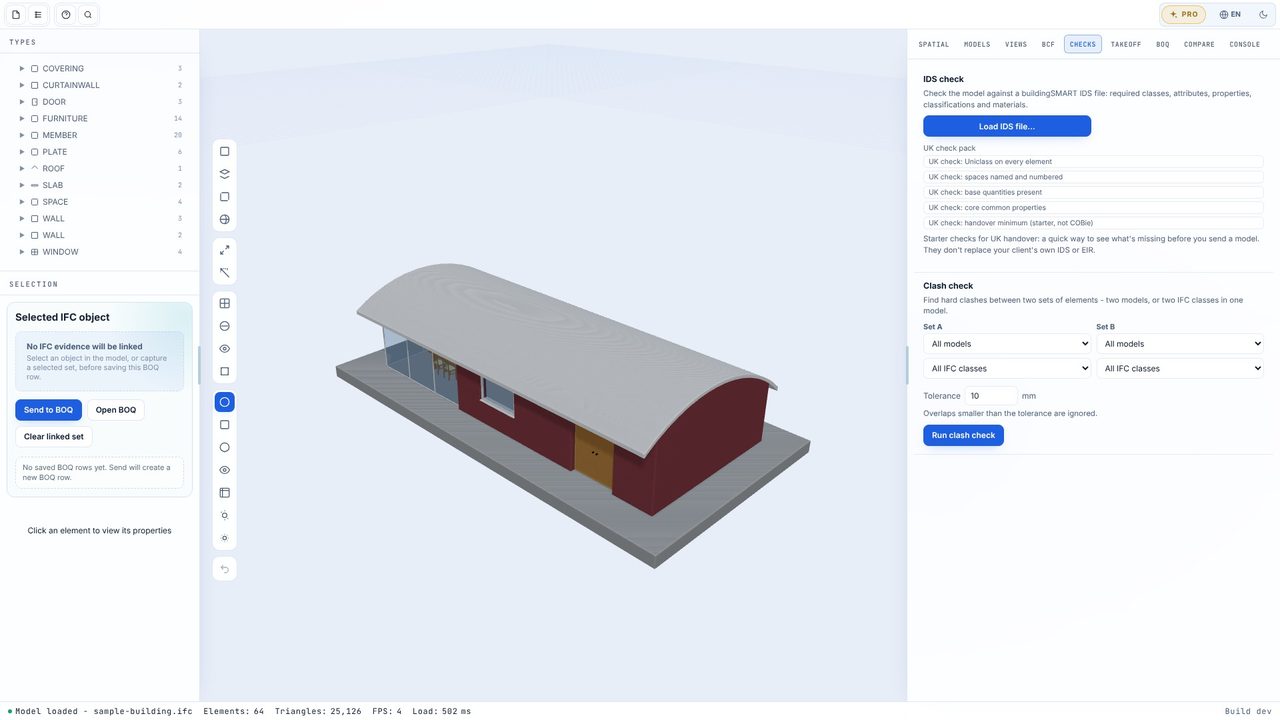
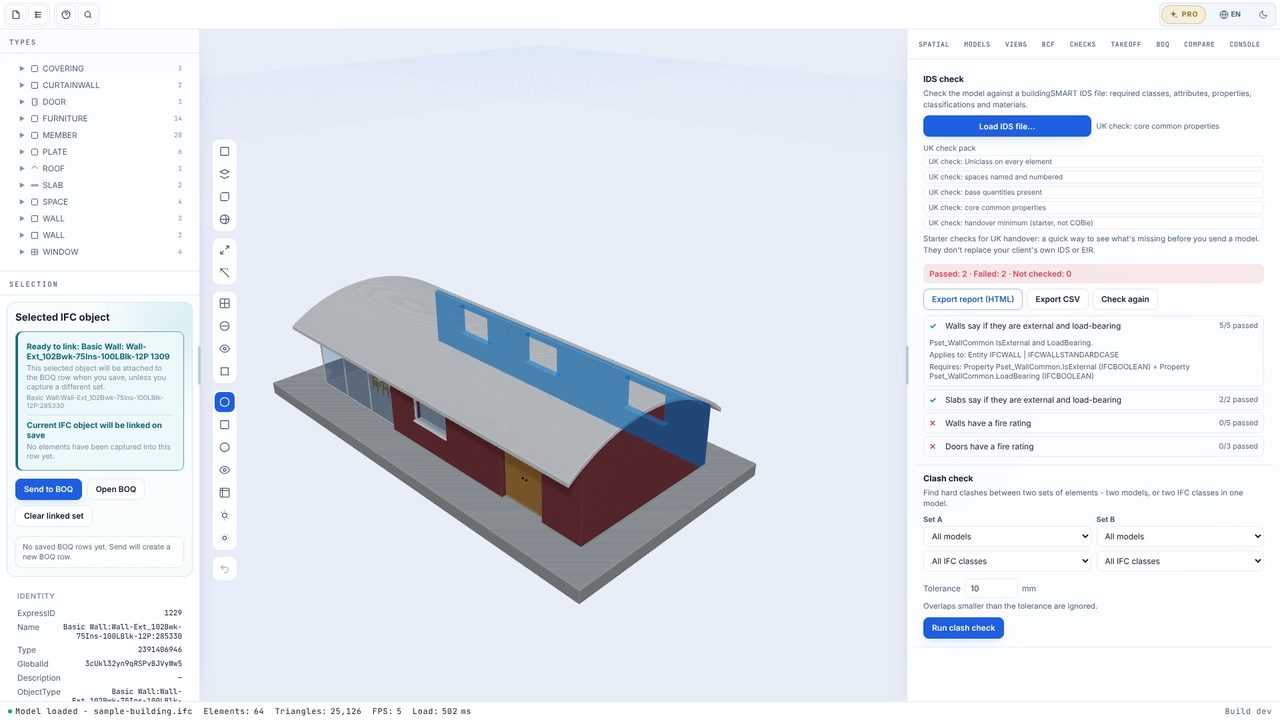
Open the Checks tab. Under Load IDS file… is the UK check pack.
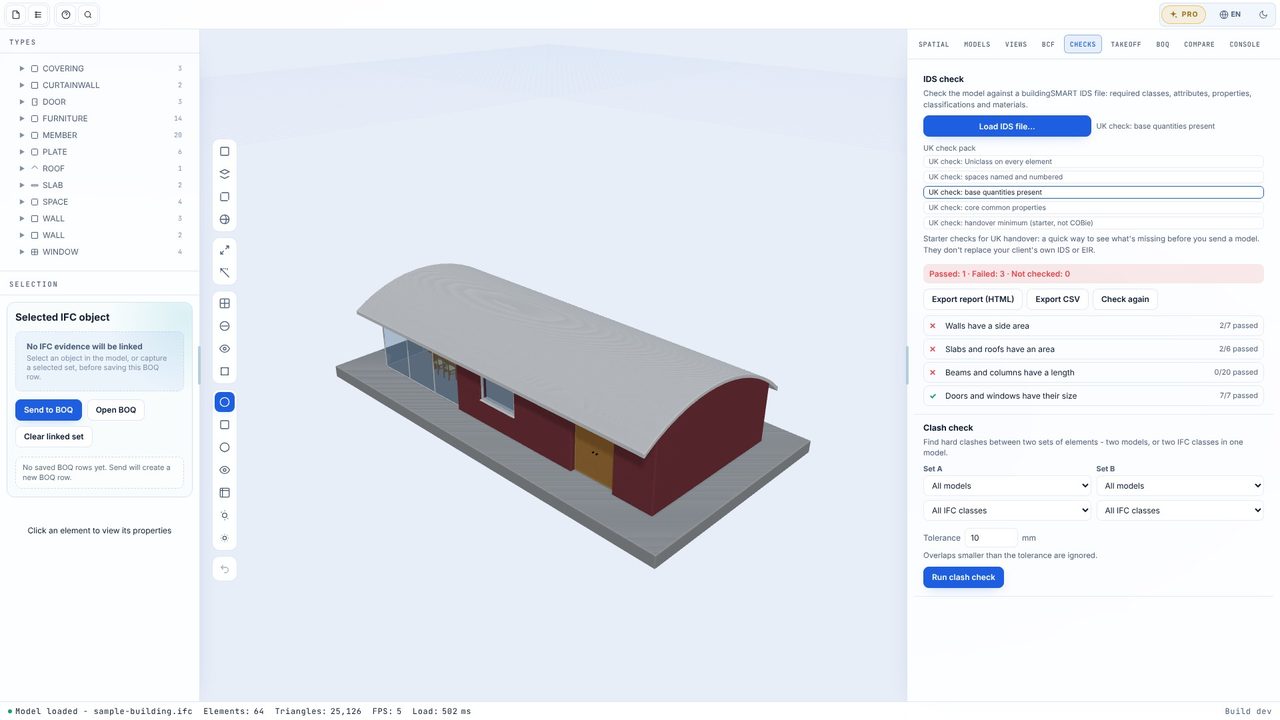
Click UK check: base quantities present. Each specification shows how many elements it applies to and how many passed - here the doors and windows pass, the walls, slabs and beams don't.
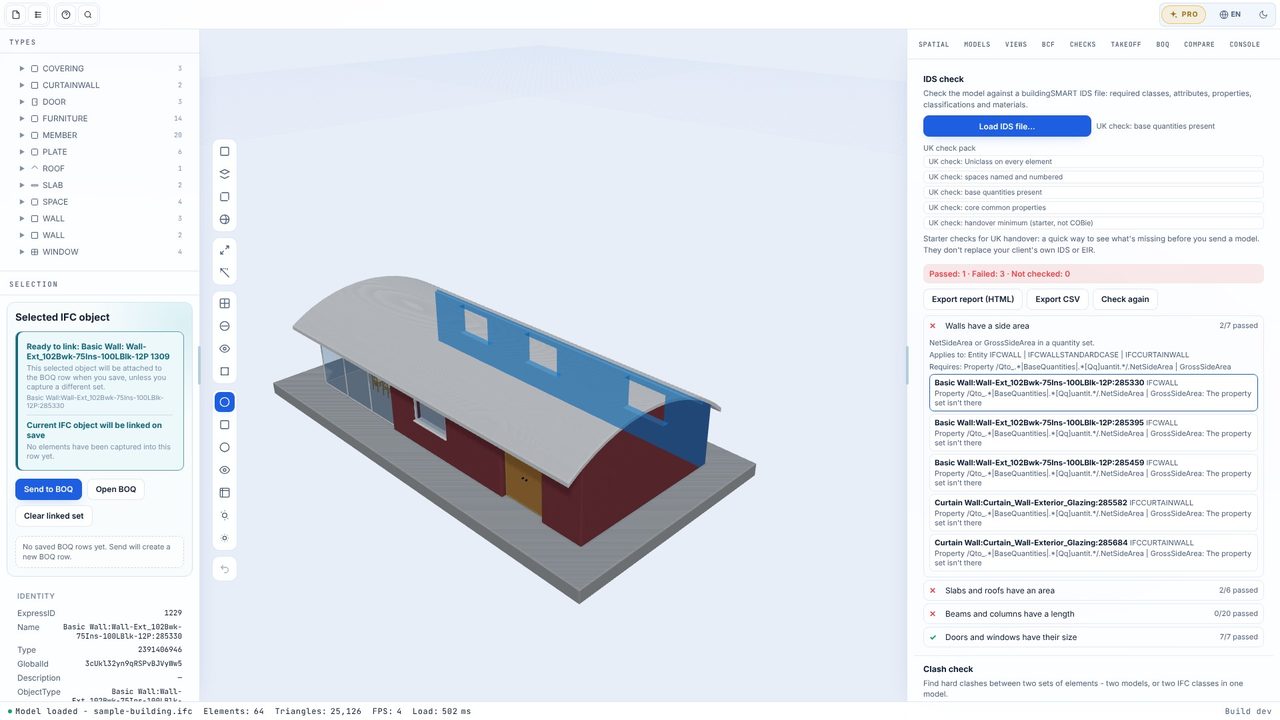
Open a failed specification to see each failing element and why. Click one and it's selected in the model.
Click UK check: core common properties to check IsExternal, LoadBearing and FireRating. Run as many as you need.
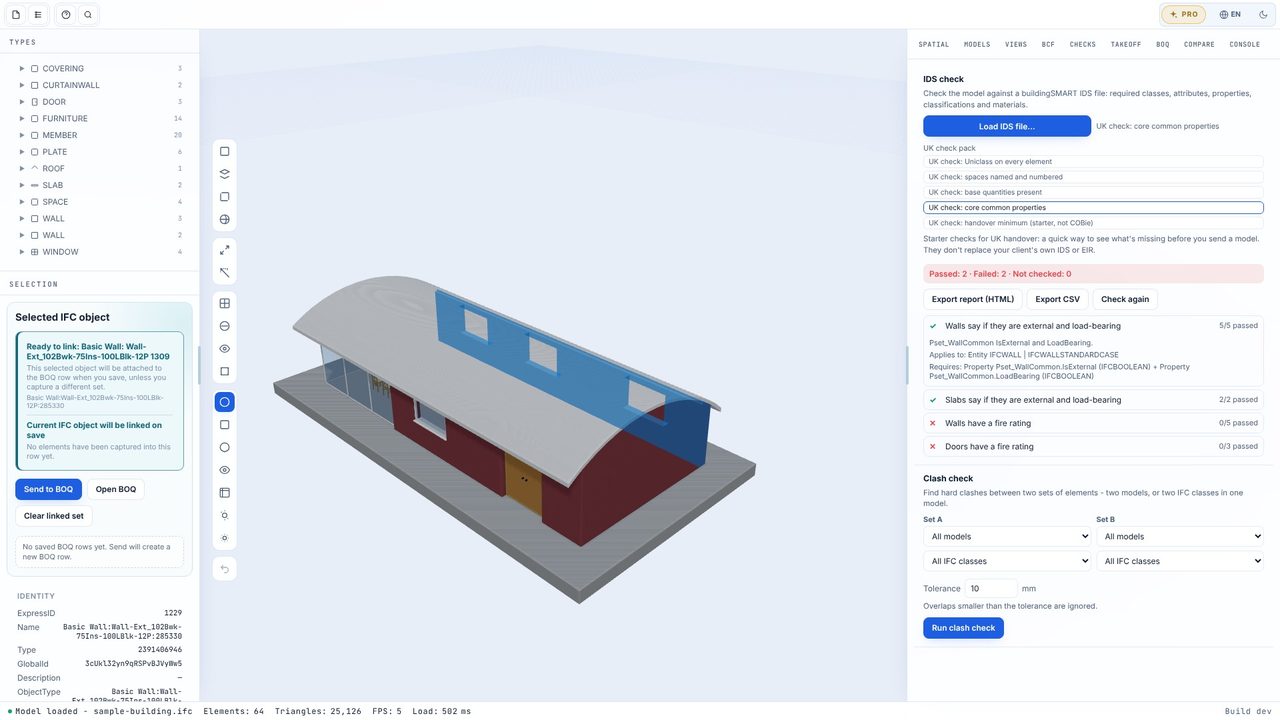
Export report (HTML) or Export CSV, and send it back with the model.
No. They're starter checks for UK projects, not an official standard. BIM Explorer Pro checks against your client's own IDS files too.
No. It checks a few handover basics - names on the project, site, building and storeys, and manufacturer details on door and window types. It isn't COBie validation.
A one-off £29.99 through the Microsoft Store - no subscription, no account. You can try every Pro feature free for 7 days first, once per PC.
