How-to guide
An issue is easier to answer when it opens at the right view. In BIM Explorer, free on Windows, a BCF issue keeps the camera, the selection, the section plane and a snapshot - and the section goes into the .bcfzip as a clipping plane, so it opens at the same cut in other BCF tools.
Open the .ifc file, or Load sample.
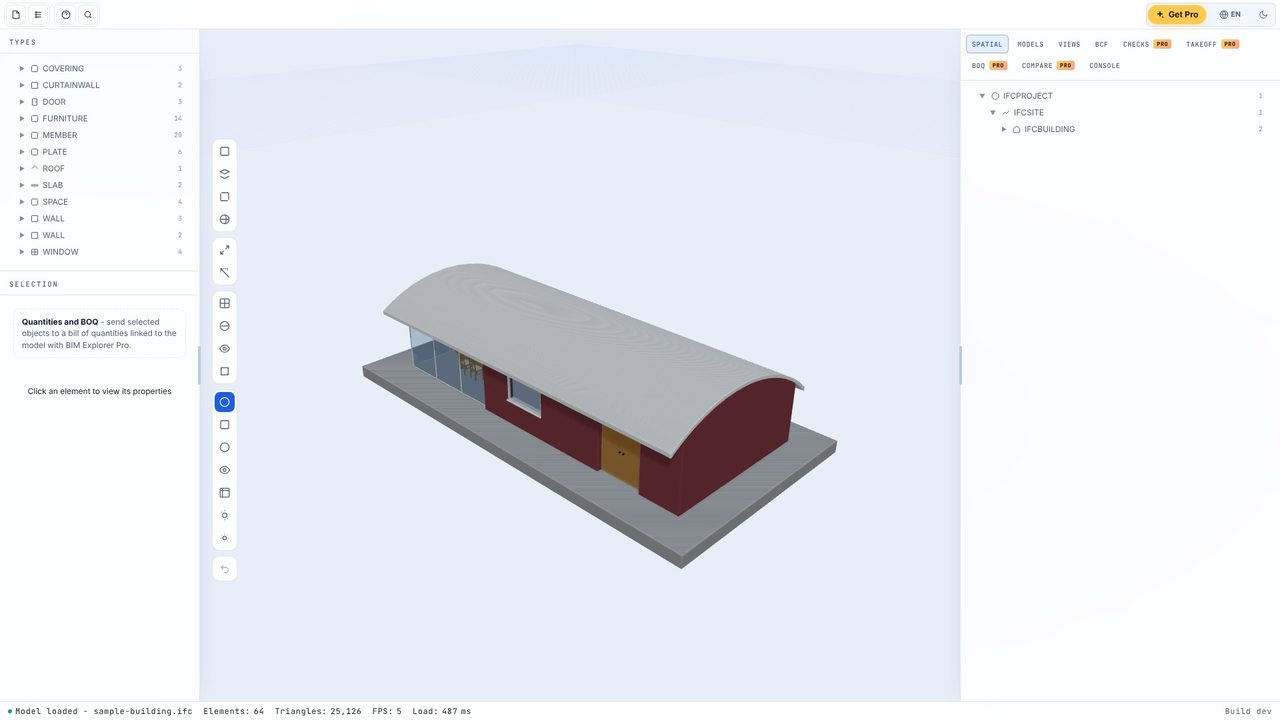
Click the Section button on the toolbar in the 3D view. The model is cut and the Section height slider appears.
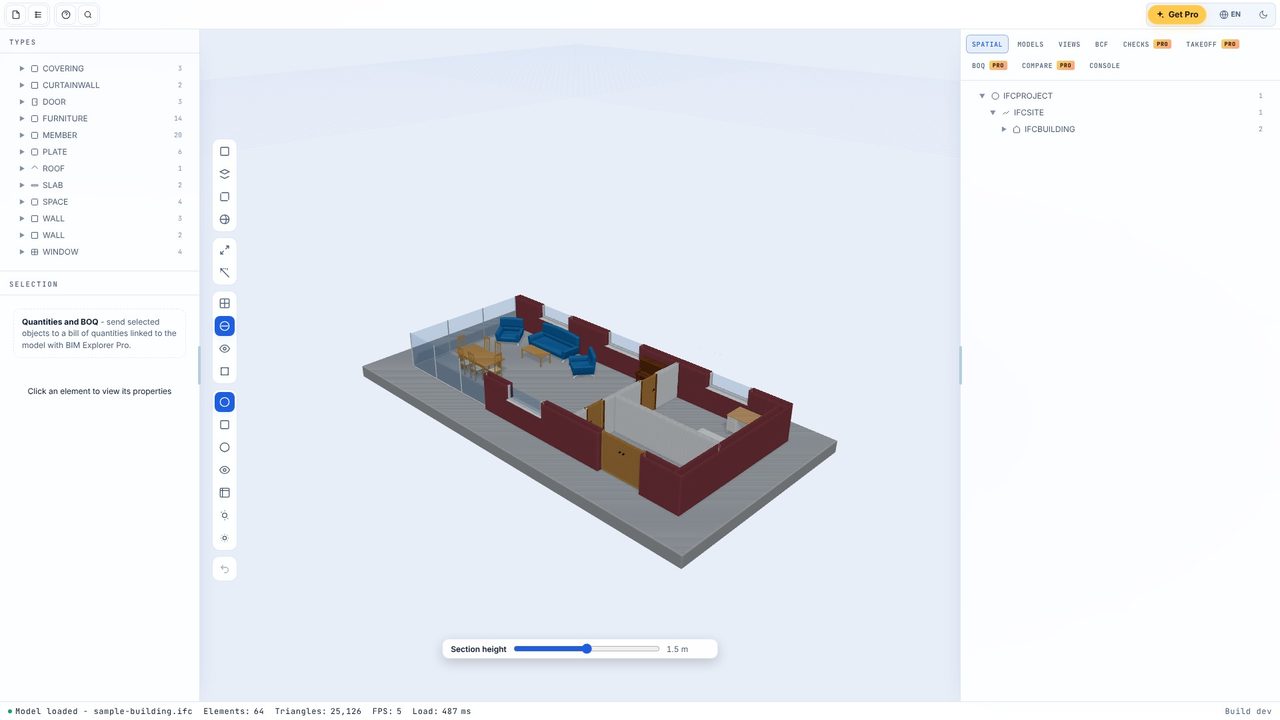
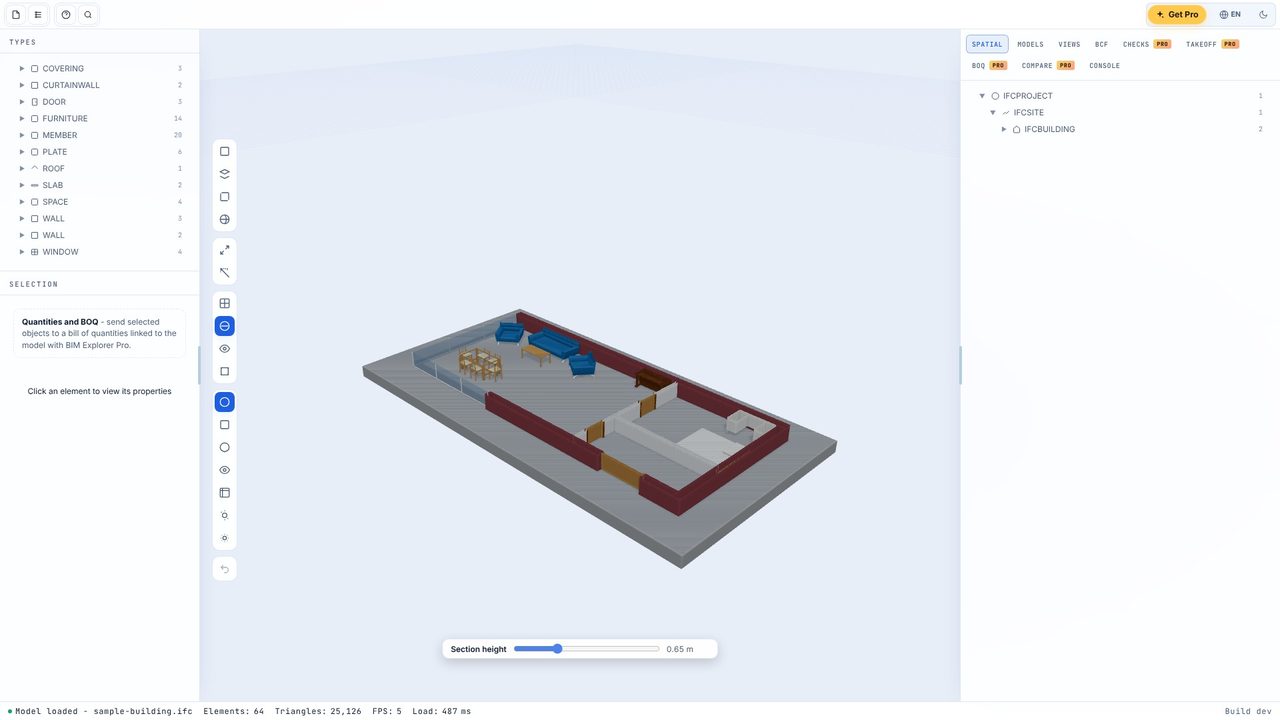
Drag the slider to the level you want - here down to window height, so the rooms and furniture show.
Open the BCF tab and choose New issue. Give it a title and a description, and set the type, priority and assignee if you want.
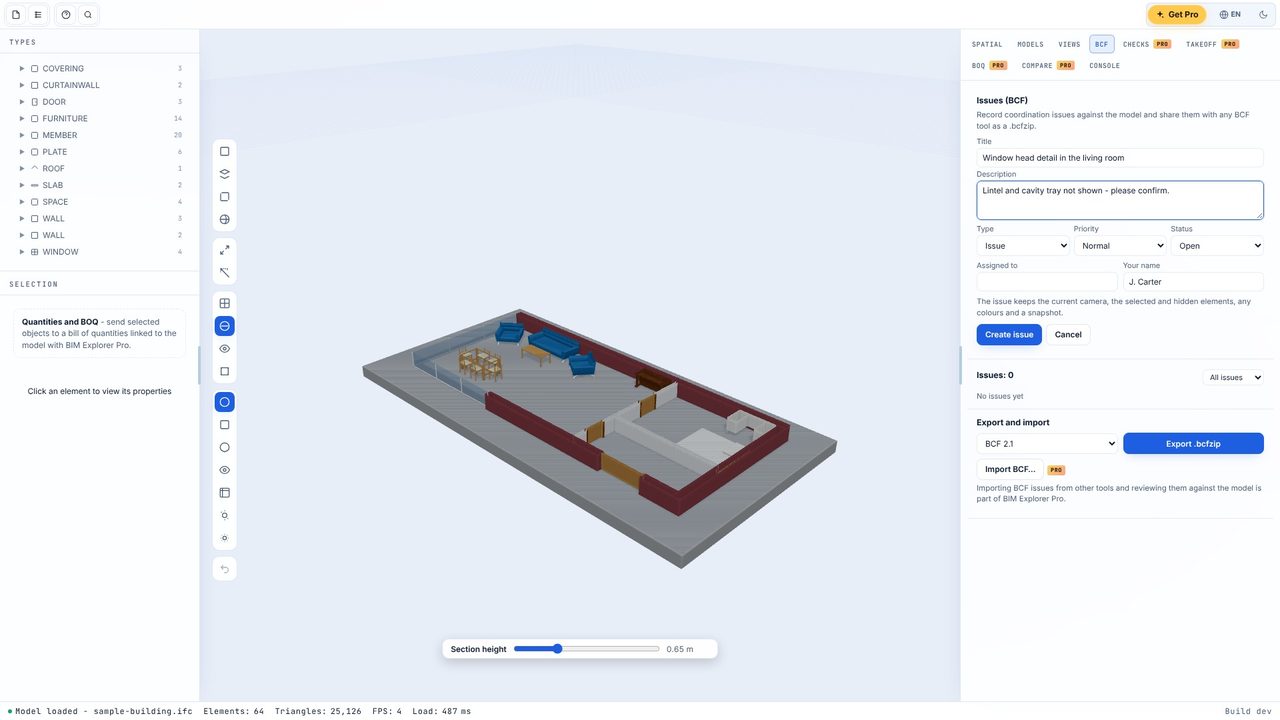
Click Create issue. The camera, the selected and hidden elements, the colours, the section and a snapshot are kept with it. Click the issue later to go straight back to that view.
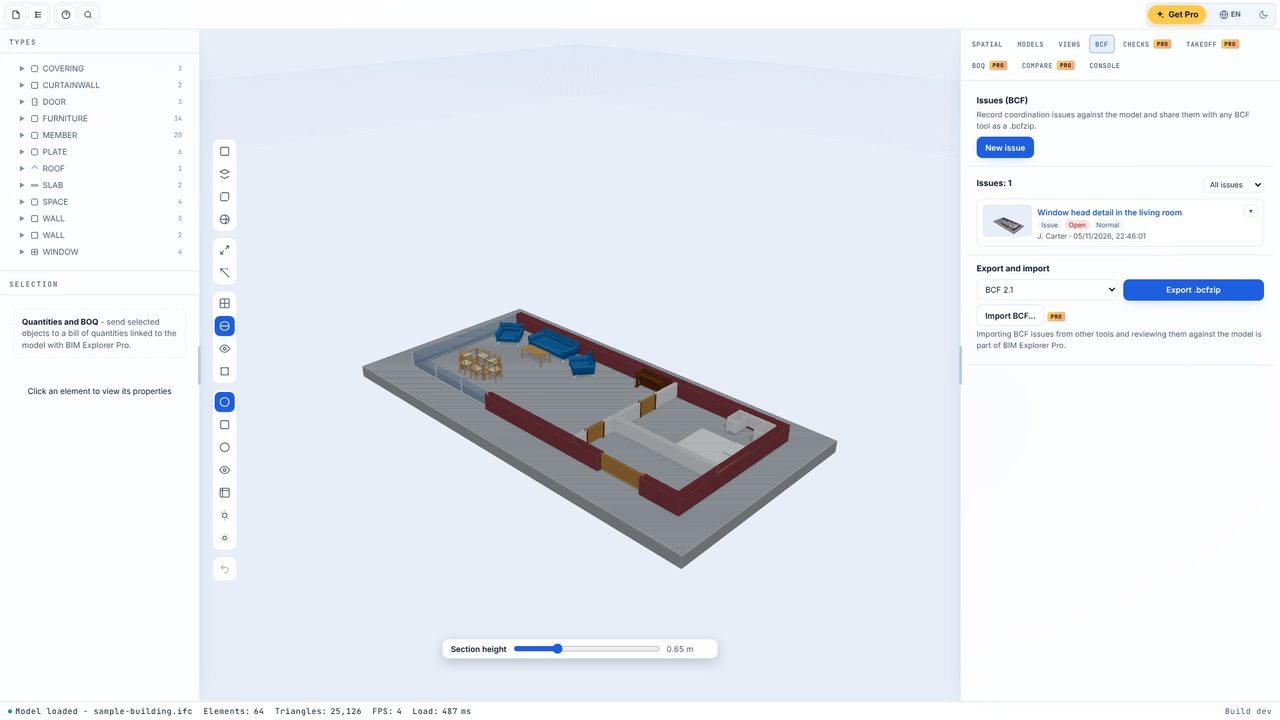
Choose BCF 2.1 or BCF 3.0 and click Export .bcfzip. Send it with the model: it opens at the same cut in other BCF tools.
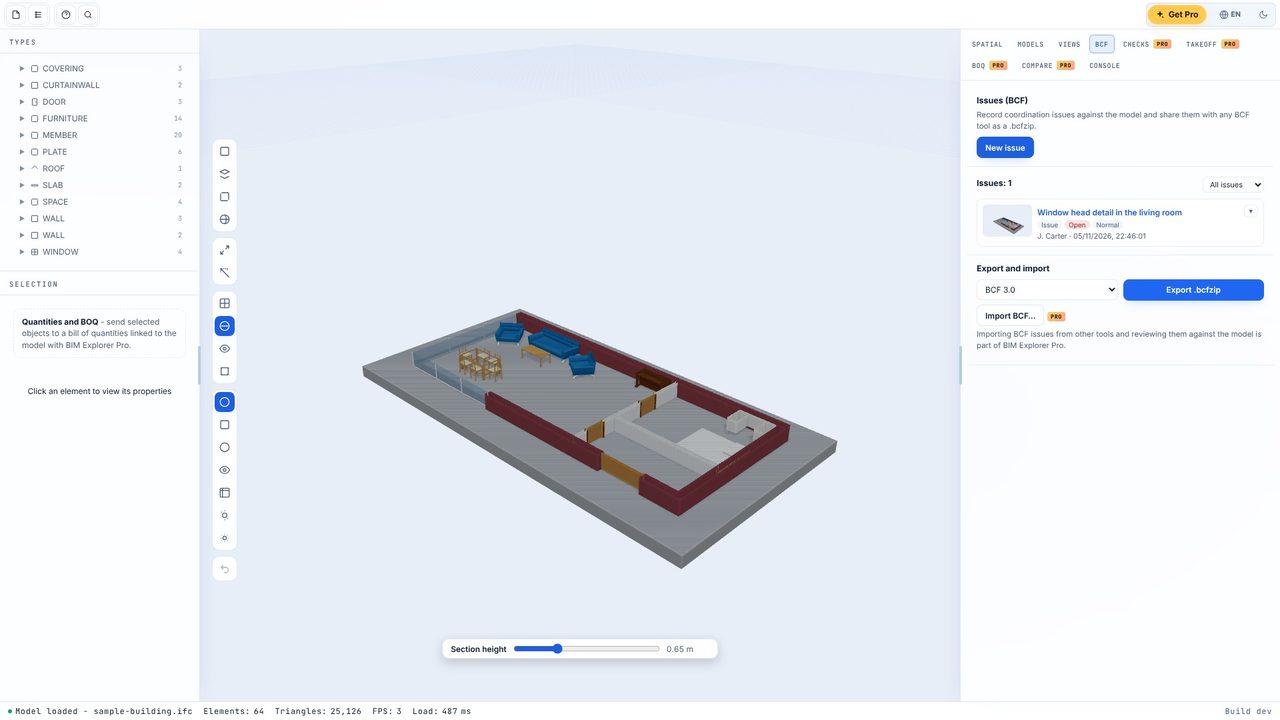
BCF 2.1 and BCF 3.0. Both validate against the buildingSMART schemas.
Yes. Creating, commenting on and exporting BCF issues is free. Importing BCF files is part of BIM Explorer Pro.
No. BIM Explorer works offline and models are kept on your PC.
